How to Use Flow Theory When Designing Your Digital Interfaces
We see flow states in creative pursuits, sports, hobbies and mindfulness activities like yoga. It can also be extended to the digital product experience. Let’s explore the four principles of flow and ways you can use them to design more enjoyable and engaging user experiences.
The laws of UX are best practices that generally explain how to design digital interfaces around human perception, biases and limitations. I noticed that the website that collects the Laws of UX recently added a new one. It’s called Flow, which is defined as:
“The mental state in which a person performing some activity is fully immersed in a feeling of energized focus, full involvement, and enjoyment in the process of the activity.”
Think about the kinds of activities you do for fun, like play video games, go for bike rides or cook. In many cases, these kinds of activities induce a flow state.
Now imagine doing these activities, but constantly being disrupted so that you barely make any progress. Or imagine what it would feel like if you were bored out of your mind while doing them. This is what a disrupted flow state feels like.
In design, we can use the principles of flow theory to keep users from feeling this way—distracted, disinterested or overwhelmed. In the post below, we’ll look at the four main principles of a flow state and how to use them to create a more engaging user experience.
How to Put Your Users into a Flow State with Design
Flow theory was initially introduced by Mihály Csíkszentmihályi. He asserted that a flow state occurs when:
“one’s skills are adequate to cope with the challenges at hand, in a goal-directed, rule-bound action system that provides clear clues as to how one is performing.”
One of the byproducts of getting users into a flow state is higher productivity. So, whatever kind of products you’re designing—from dating apps to mobile apps, and task management apps to budgeting tools—your users might greatly benefit from a well-designed flow. Especially if they’re spending longer periods of time in the product.
Make the Experience Intuitive
When creating a digital product, there are going to be many pathways (also known as user flows) that are part of the experience. For starters, the signup process and onboarding steps will be their own user flows. Once the user is onboarded, there will be all kinds of processes or paths they commonly follow.
Each of these pathways should have a clear start, end and set of steps in between. If the process isn’t intuitive in nature, your users may feel confusion, frustration and overwhelm.
To design these pathways to be intuitive, start by identifying what the common goals will be for each. Anticipate what their expectations will be for the process and then design it so that they can easily flow through it.
I’ll give you an example. I just signed up for Zoom’s Pro plan the other day. However, I didn’t bookmark the browser app. So, I’m just going to start from the website’s homepage.

My goal during this session is to create a meeting with my new coaching client. Looking at this, my guess is that I could click “Meet” and it would reveal meeting scheduling options. And if that doesn’t work, then I could click on the blue button with my initials (SS). Even if I can’t book a meeting from here, one of these will take me into the app.
Turns out, my initial instincts were wrong. Here’s what happened:

I clicked the “Meet” dropdown. Three options appeared:
- Join a meeting
- Host a meeting
- Download app
“Host a meeting” seemed like what I was looking for. What it ended up doing was auto-launching the Zoom software on my computer, which was not what I wanted.
What I was looking to do was create a future meeting with a client. I expected to be taken to a scheduling dashboard of some sort to do this. It turns out, this dashboard does live under my account button and can be accessed when I click on “Settings.”

This isn’t a major dealbreaker as it didn’t take me a ton of time to figure out how to accomplish my goal. Now that I’ve been through the process once, I’ll have no problem remembering it next time, especially because I have the Schedule Meeting page bookmarked.
However, I’ve been working with software professionally for a couple decades. What about users who aren’t as tech-savvy? What if they were in the same boat as me, having signed up previously and only now just getting around to booking their first appointment? They’d eventually find where to do it. However, the trial-and-error this early on in the experience can be frustrating, and could be a sign they’d struggle with flowing through other parts of the experience.
To improve the intuitive nature of your user flows, here are some things to think about:
- How different user segments may approach it
- Alternative paths that will eventually get everyone to the same place
- How clear the link or button labels are along the path
- How many choices you’re asking the user to make along the path
A flow state doesn’t need to feel entirely effortless (more on that below). At the same time, it shouldn’t be rife with ambiguity or confusing steps.
Find the Goldilocks Spot in Terms of Usability
According to flow theory, there needs to be a balance in how challenging the experience is to navigate. If it’s too easy, the user may get bored. If it’s too challenging, it can heighten frustration.
Now, there are some times when you want to avoid difficulty in a flow altogether.
For example, if the process is very brief and it’s for a repetitive task, it’s OK to make it too easy. Take something like creating a new time tracking entry in Toggle. No challenge is needed here. In fact, the simpler this is to fill out and start the timer, the better.

If you’re unfamiliar with this app, what you’re looking at here is the top of the Timer screen. Users add a name for their task in the top field. They can use the two icons to the right to attach the task to a project or add tags to it. These are optional though. The only two required steps they have to take are:
- Name the task.
- Click the Start button at the end to start tracking.
If the logging and tracking of time were more complicated than this, I don’t think users would use this app.
For lengthier or more complex tasks, you’ll need to design these experiences in a way that balances complete ease with a full-on struggle.
For example, let’s say you have an onboarding process for a new finance app you’re building. The company has created a helpful three-minute explainer video that shows users how to navigate the dashboard and want you to place it on the onboarding screen. There are a couple problems with that.
For starters, an explainer video isn’t going to be helpful until the users have seen the dashboard. Secondly, it’s a big ask to have users sit and watch a video during onboarding. At this stage, you want there to be momentum. That’s how you get users into the app and motivated to start working with it.
A better alternative is to place the onboarding video on the main dashboard screen so they can return to it whenever they have questions while using the app. As a result, you’ve decided to use a questionnaire in onboarding. The answers will enable the app to customize the product experience before users step foot inside it. It will also get users to actively engage with the product, so they are ready to hit the ground running.
If your data shows that there’s a lag between when users sign up and when they first start using the app (if at all), a lack of action in the beginning could be part of the problem. Also, not providing sufficient support along the way when you have more complex flows could be a contributor to inactivity.
As a general rule, the difficulty of the user flow should be commensurate with how complex the task is. This doesn’t mean they should be left to figure it out on their own. Provide sufficient support along the way in the form of things like tooltips, AI assistants and documentation links.
Also, once your product is live, pay attention to how much time users are engaging with the app. If it seems like they’re getting through tasks more quickly than anticipated, investigate using heatmaps and session recording tools to see if there are ways to slow things down—not to make them challenging, but to force the users to be more mindful in their activities. The same goes for users who repeatedly get stuck or seem to lose focus during tasks.
Remove Distractions
The third principle is one we’re already familiar with in UX design—the elimination of distractions.
One of the benefits of building a website or app is that we get to remove a lot of the noise that appears on third-party platforms around our branded content. However, that doesn’t mean that our own product experiences are inherently distraction-free.
Take, for instance, Calendly. This is a relatively easy solution for creating an online scheduler for one’s business. The only problem is that the editing screen has a lot of noise around it.

Now, an argument can be made for giving the editor a minimal footprint. However, there is a ton of information that Calendly users need to comb through in each event’s settings. What you see here is just the tip of the iceberg with the Duration, Location and Availability settings. There’s more further down as well as within the “More options” button at the bottom.
To get users into an editing flow, this pop-up should take up the full screen (or most of it). This would allow the user to configure each setting from a single screen instead of having to scroll up and down and bounce between the main screen and more options.
Here’s a digital product that I think does this kind of distraction-free setup and editing well: Teachable.
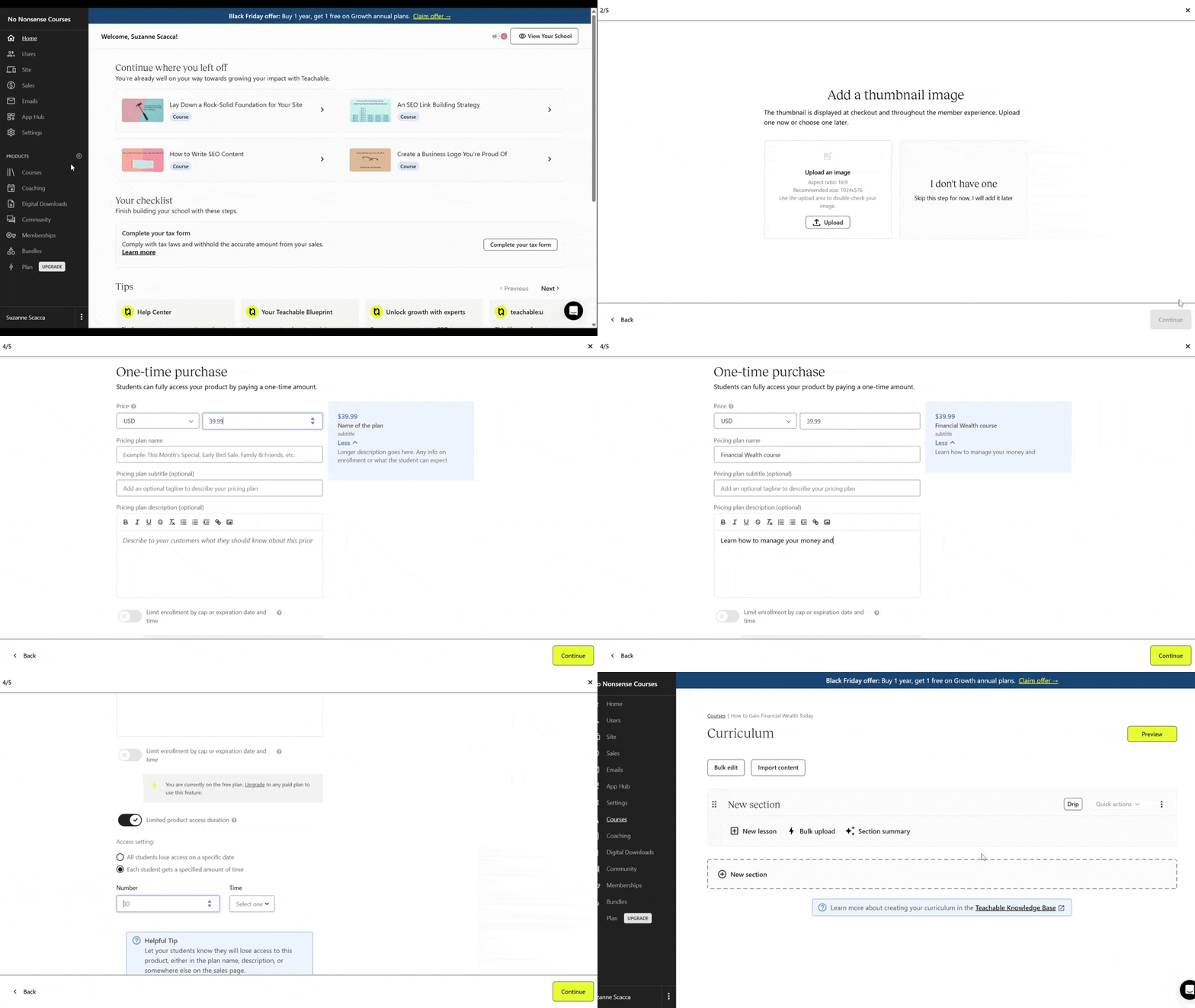
After the user selects what kind of content they want to create, the setup screen goes fullscreen. No longer can the user see the Teachable sidebar or any of the content that was on the dashboard. Their sole focus is on the questions that lie ahead. You can see what a difference this makes for users.
It’s not just these tangential user flows that require distraction-free spaces either. If you’re thinking about incorporating ads, call-to-action blocks, pop-ups, lists of links and more to your interface, you may want to reconsider it. While it’s important to retain users and to even try and upsell them, it shouldn’t come at the expense of their focus or productivity.
Provide the Right Kind of Feedback
This last principle deals with feedback. More specifically, providing users with instant and immediate feedback as they engage with your product. If they have to pause and wonder what’s going on, if their changes were saved or if they’re making any progress, that’s going to raise doubts in their mind about the integrity of your solution.
When we talk about feedback in design and development, it typically refers to feedback provided by the interface. Like when a user fills out a form and an error message appears. Or like when they hover over an element that’s clickable and there’s a notable change in its appearance.
These are important cues to incorporate into any digital experience. It’s like providing guardrails to help keep the user on track while they engage with the product. These cues also increase their confidence so that they can flow through the experience instead of second-guessing their choices or wondering about next steps.
Feedback can serve another purpose as well. This won’t be relevant for every digital experience, but it can be useful in the cases of things like mobile gaming, dating apps, productivity apps and others where users would benefit from more encouragement.
Let’s look at the example of Trello.
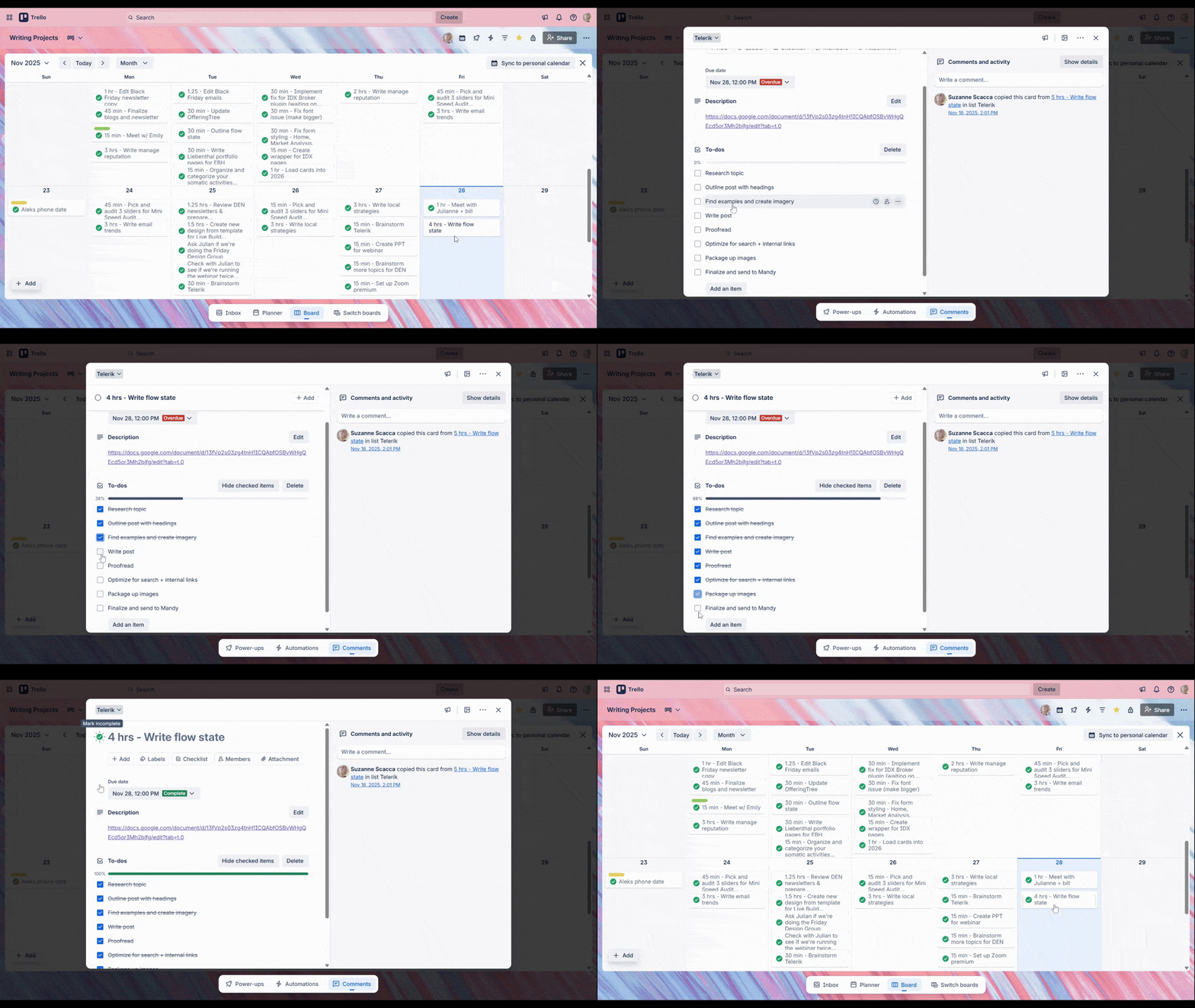
There are a few different things going on here.
For starters, notice the checklist at the bottom of the card. As I click off each task, the box turns blue and fills with a check. In addition, the task name gets scratched off. It mimics the kind of thing someone might do when checking off items on a handwritten list.
Secondly, watch the bar above the checklist as I click each item. It begins as a dark gray line, slowly filling up the bar. At the end, it turns bright green. Most of us I think would equate this green with “good.”
Finally, notice the circular button next to the task name at the top of the card. When I click on it to close out the card, the resulting animation feels very rewarding, as if the button shined for just a second.
This kind of feedback is different from buttons that look clickable or form fields that respond to input. This type of feedback is meant to make the user feel good and to encourage them on their path. Both are equally valuable when designing a flow state though. They reduce friction in the form of errors, improve user confidence and also reward them for engagement.
Wrapping Up
In yoga, we can achieve a flow state when we let go of the past, stop worrying about the future and focus on what we are doing in the present. (I’d argue the same is for any worthwhile pastime.) This really isn’t any different than the kind of flow experience we’re trying to create in digital products.
We remove the friction, create an intuitive path forward and empower our users to focus on what’s right before them. In creating such experiences, we allow our users to get the most from our products. We also provide value in ways that other digital experiences without a basis in flow theory can’t.

Suzanne Scacca
Freelance Writer & Consultant