Purchasing an Add-on
This article walks you through purchasing an add-on in Podio, including what information you'll need and what to expect once your purchase completes.
Before you start
Make sure your contract meets the requirements described in What Are Add-ons in Podio — an active contract in good standing, a valid payment method on file, and a Premium plan (Automation add-ons).
Important:
Only the contract owner can purchase add-ons.
Available add-ons
You can purchase two types of add-ons:
-
API add-ons: increase Limit A and Limit B for a specific API key.
-
Automation add-ons: increase the monthly action limit for a specific Automation Account (Premium plans only).
For current available capacities and prices, see the Podio pricing page.
What you'll need
Have this information ready before you start the purchase:
-
For an API add-on
- The email address of the Employee or Service User who owns the API key.
- The Client ID of the API key you want to increase the limits for. You can find this on the API Keys settings page.
-
For an Automation add-on
- The email address of the Employee or Service User whose Automation action limit you want to increase.
- Their Workflow Automation account ID. You can find this on the Workflow Automation Account Details page for that Account.
Purchasing an add-on
-
Go to Billing > Contract > My Plan.
-
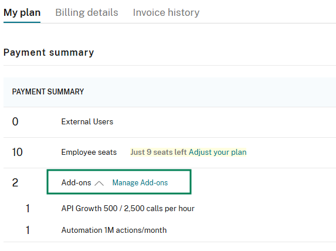
In the Payment Summary section, select Manage add-ons.
-
Select the option to purchase a new add-on.
-
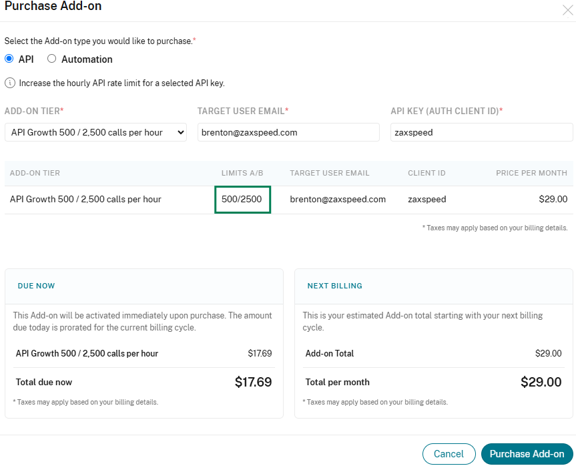
Choose the add-on type — API or Automation.
-
Enter the target details for the add-on.
- For an API add-on, enter the owner's email address and the API key's Client ID.
- For an Automation add-on, enter the target Account's email address and their Workflow Automation account ID.
-
Choose the capacity level you need.
-
Review the pro-rated price shown for the remainder of your current billing period, then confirm the purchase.
What happens after you purchase
-
The increased limit takes effect immediately — there's no waiting period.
-
The contract owner receives an email with the add-on invoice.
-
The employee or service Account the add-on was purchased for receives an email confirming the new limit.
-
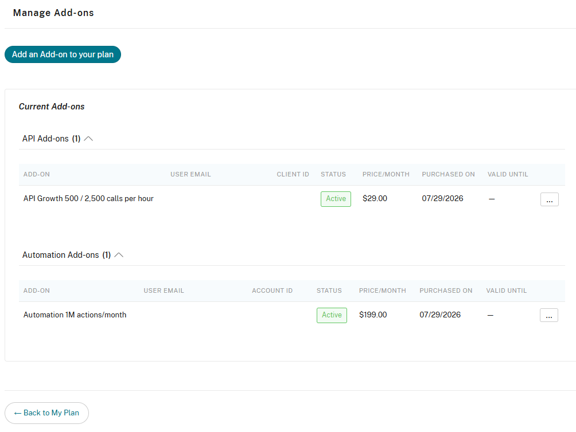
The add-on now appears as active in the Manage add-ons view and will be included in your next recurring invoice.
If the purchase doesn't go through
-
Payment declined: update your payment method and try again.
-
Add-on already active for this target: the API key or Automation Account already has an add-on from the same group. Upgrade the existing add-on instead of purchasing a new one. See Upgrading an add-on.
-
Plan requirement not met: for example, trying to purchase an Automation add-on without a Premium plan.
-
Payment error on the contract: resolve the outstanding payment issue before purchasing add-ons.