How billing changes when you purchase Add-ons
Add-ons are billed separately from your employee seats, but they appear on the same contract. This article explains when you're charged for an add-on, how the charge is calculated, and where to find it on your invoices.
The initial charge
When you purchase an add-on, you're charged immediately — not at your next regular billing date. The charge is pro-rated: you only pay for the remaining portion of your current billing period, from the day you purchase the add-on through the end of that period.
For example, if you're on a monthly billing cycle and purchase an add-on halfway through the month, you're charged roughly half of its monthly price to cover the remaining days.
Note:
If you purchase an add-on on the last day of your billing period, there may be nothing left to pro-rate, in which case the add-on is activated with no initial charge.
This initial charge is invoiced and charged to the payment method on file for your contract right away, separately from your regular contract invoices.
Ongoing billing
From your next regular billing cycle onward, the add-on's full price is included automatically as part of your contract's recurring invoice — alongside your employee seats, but shown as its own line item. You don't need to take any action for this to happen; it continues every billing cycle until you cancel the add-on.
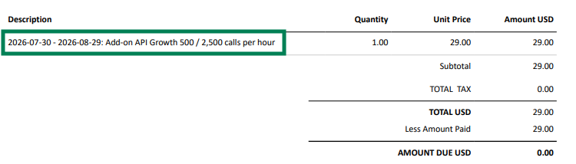
Each add-on invoice line shows the billing period it covers and the name of the add-on, for example: 2026-04-01 – 2026-04-30: Add-on API 2,000/10,000 calls per hour.
Annual contracts
If your contract is billed yearly, add-on prices receive the same yearly discount as the rest of your subscription. You'll see the discounted rate reflected in both the initial pro-rated charge and all later recurring charges.
When you cancel an add-on
Once you cancel an add-on, it stops appearing on your recurring invoices starting with the first billing cycle after cancellation takes effect. See Cancelling an add-on for details on how long an add-on remains active after you cancel it.
Where to review your add-on charges
-
Go to Billing > Contract > My Plan.
-
Check the Payment Summary section for the add-ons that will be included in your next invoice.
-
Open your invoice history to see past add-on charges, each listed as its own line item.