Upgrading an Add-on
If your API key or Automation Account needs more capacity than your current add-on provides, you can upgrade it to a higher tier instead of purchasing a new add-on. This article explains how upgrading works and what to expect.
What an upgrade does
An upgrade replaces your existing add-on with a higher-capacity one for the same API key or Automation Account. Your existing add-on is not canceled and re-purchased — it's simply raised to the new capacity level, and you're only charged the price difference, pro-rated for the remainder of your current billing period.
Note:
You can upgrade an add-on at any time to increase its capacity. However, reducing an add-on to a lower capacity is not supported. If you need less capacity, you'll need to cancel your current add-on and allow it to expire. Once it has expired, you can purchase a new add-on at the lower capacity level that best fits your needs.
Before you start
-
The add-on you want to upgrade must currently be active. Canceled, blocked, or inactive add-ons can't be upgraded.
-
You can only upgrade to a higher capacity within the same add-on type (API or Automation).
Important:
Only the contract owner can upgrade add-ons.
Upgrading an add-on
-
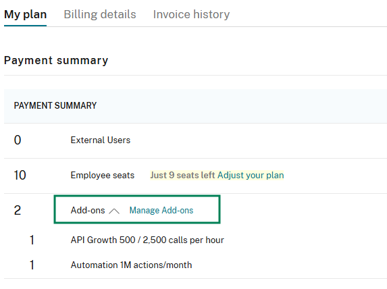
Go to Billing > Contract > My Plan.
-
In the Payment Summary section, select Manage add-ons.
-
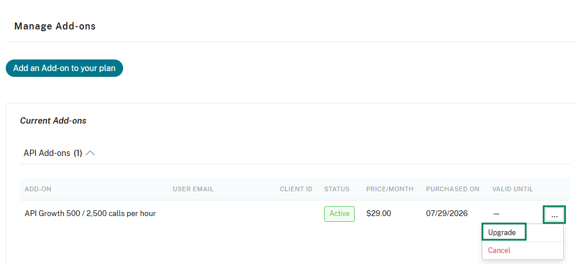
Find the add-on you want to upgrade and select Upgrade.
-
Choose the higher capacity level you need. Only higher tiers are shown as available options.
-
Review the pro-rated price difference shown for the remainder of your current billing period, then confirm the upgrade.
What happens after you upgrade
-
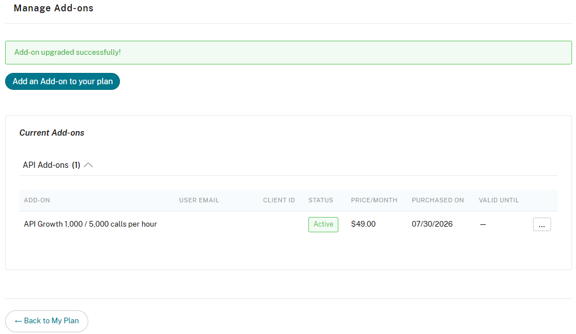
The new, higher limit takes effect immediately.
-
If a charge applies, the contract owner receives an email with the upgrade invoice.
-
The employee or Service User the add-on belongs to receives an email confirming the new limit.
-
Your next recurring invoice reflects the new add-on tier and price going forward.
Note:
If you upgrade on the last day of your billing period, there may be no price difference left to charge — in that case, the upgrade is applied with no additional charge.
If the upgrade doesn't go through
Payment declined- update your payment method and try again. The add-on stays at its current tier until the upgrade succeeds.