Getting Started with the OpenEdge MCP Server on Linux

The OpenEdge MCP Server gives developers a powerful way to bring Model Context Protocol (MCP) capabilities to their OpenEdge applications—whether running on Windows or Linux. In this blog, we’ll walk through how to set up and use the OpenEdge MCP Server on Windows, verify your configuration, generate an OpenAPI specification and connect the server to GitHub Copilot in VS Code for seamless AI-assisted development workflows.
Prerequisites
- Ubuntu Desktop 24.04.3 LTS
- Python 3.11 or higher
- Docker Community Edition (tested using Docker 29.1.2)
- Distribution package for the OpenEdge MCP Server for Linux (available from the ESD): OPENEDGE_MCP_SERVER_1.0.0_LIN64.zip
- Progress Data Object Service running on the network
- VS Code and GitHub Copilot access to use the OpenEdge MCP Server from VS Code
Installation
1. Extract the MCP Server Packages
Start by extracting the Linux-specific MCP Server distribution package:
1. unzip -d ~/demo ~/Downloads/OPENEDGE_MCP_SERVER_1.0.0_LIN64.zip
This creates the working directory (~/demo) that contains everything needed to run the MCP Server locally.
Using the OpenEdge MCP Server
Navigate to the directory where you installed the server:
cd ~/demo
2. Load Docker Images
The MCP Server ships with container images that need to be loaded locally:
1. ./load_images.sh
3. Verify Your Environment
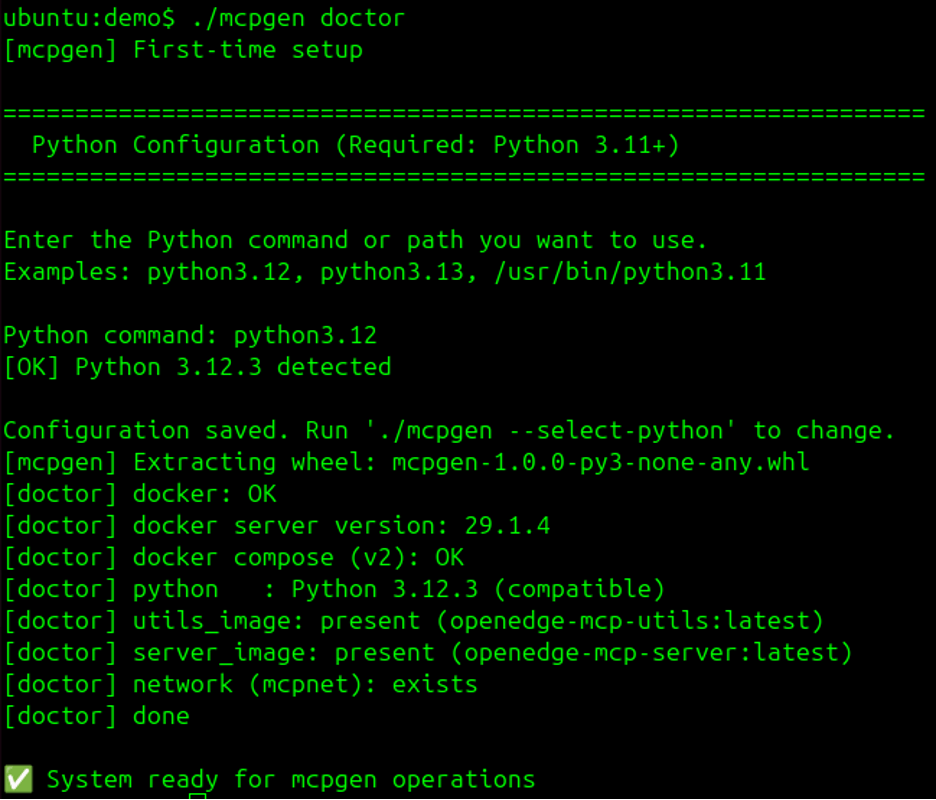
Use the mcpgen doctor command to confirm your configuration is ready. The tool will prompt you for your Python command and perform environment checks:
1. ./mcpgen doctor
4. Generate an OpenAPI Spec
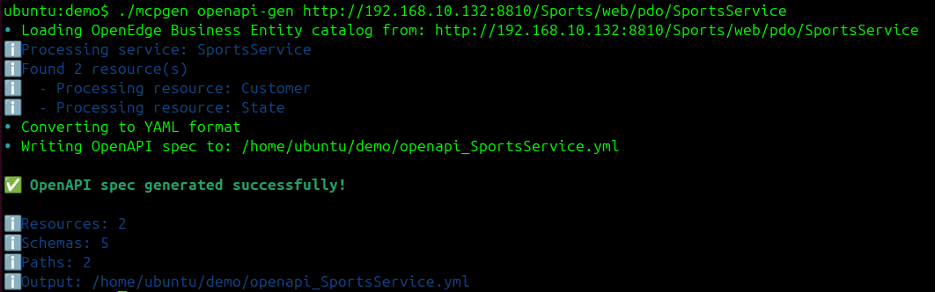
To generate an OpenAPI specification from an OpenEdge Data Object Service, use:
1. ./mcpgen openapi-gen <url-to-openedge-service>
For example: “http://192.168.10.132:8810/Sports/web/pdo/SportsService”
This is one of the sources for service information that the OpenEdge MCP Server can use.
5. Start the MCP Server
Once you have an OpenAPI spec (for example, openapi_SportsService.yml), spin up a new MCP Server instance:
1. ./mcpgen up --spec <openapi-spec>
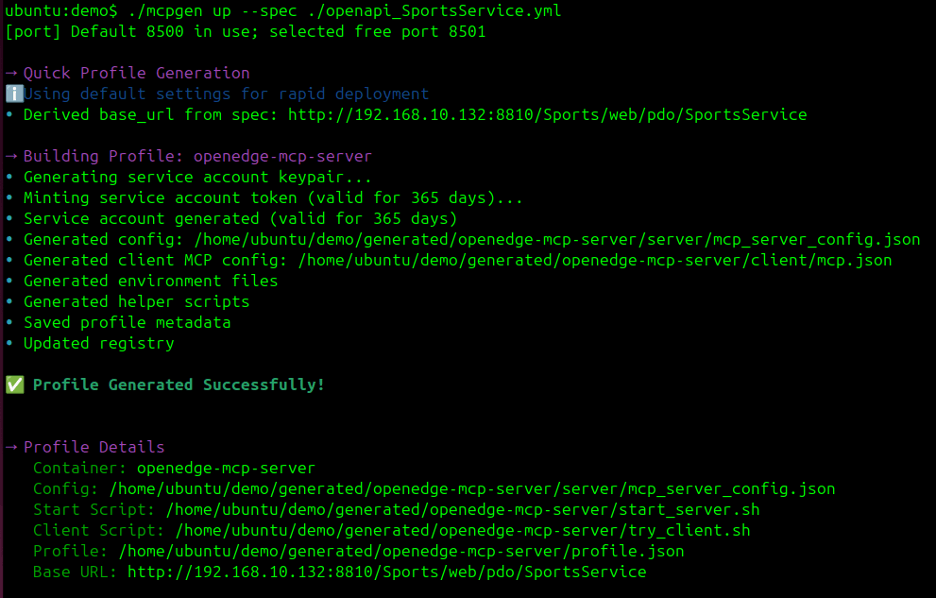
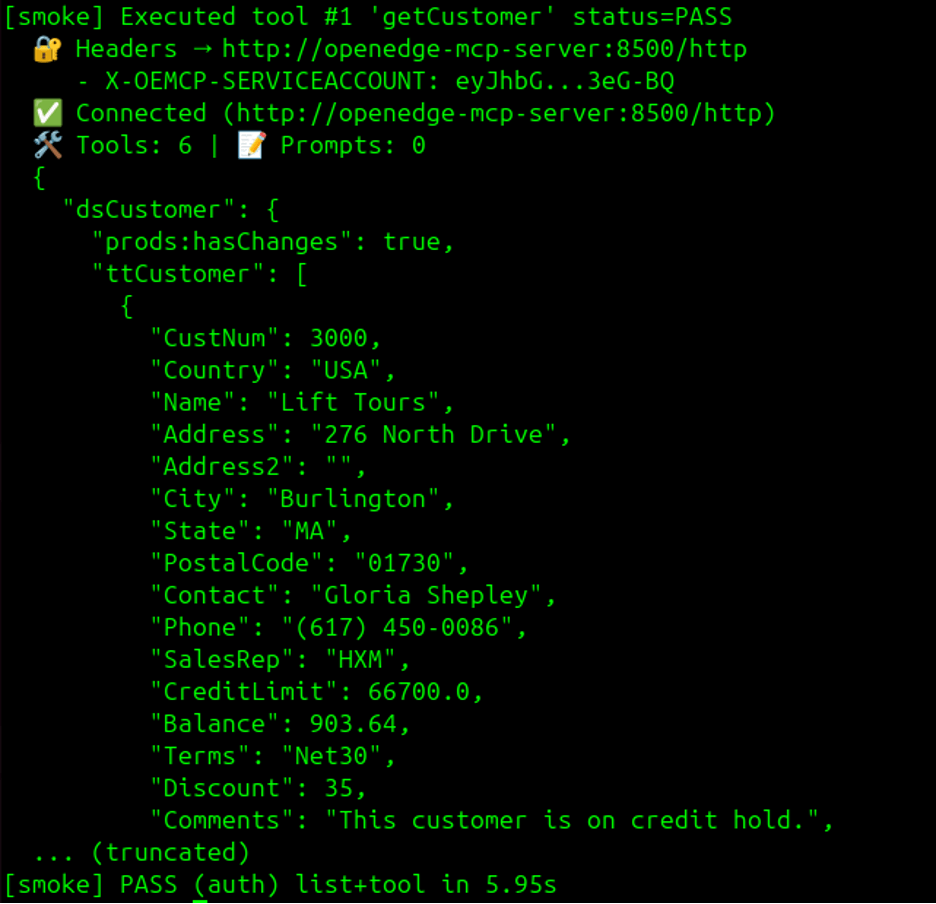
Smoke tests will run automatically as part of the startup process.
Using the OpenEdge MCP Server with GitHub Copilot in VS Code
One of the most powerful parts of the MCP Server is the ability to securely expose OpenEdge services to AI models like Claude through GitHub Copilot in VS Code.
1. Open the Generated Server Directory
1. code ~/demo/generated/openedge-mcp-server/
2. Add the MCP Server in VS Code
- Open View -> Command Palette...
- Run: MCP: Add Server...
- Select HTTP (HTTPS) as the connection method
- Enter a temporary URL, such as:
- Choose Workspace as the configuration target
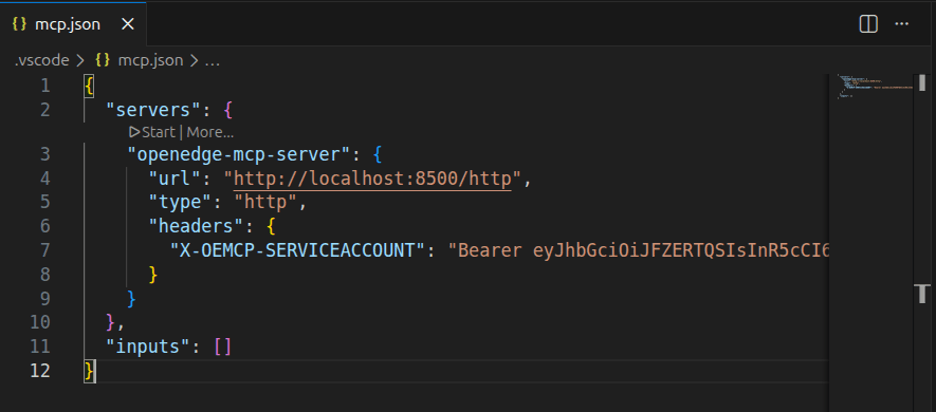
- Replace the content of the newly created.vscode/mcp.json with the version from client/mcp.json
- Click Start next to the server entry in the MCP panel:
3. Test It Through Copilot
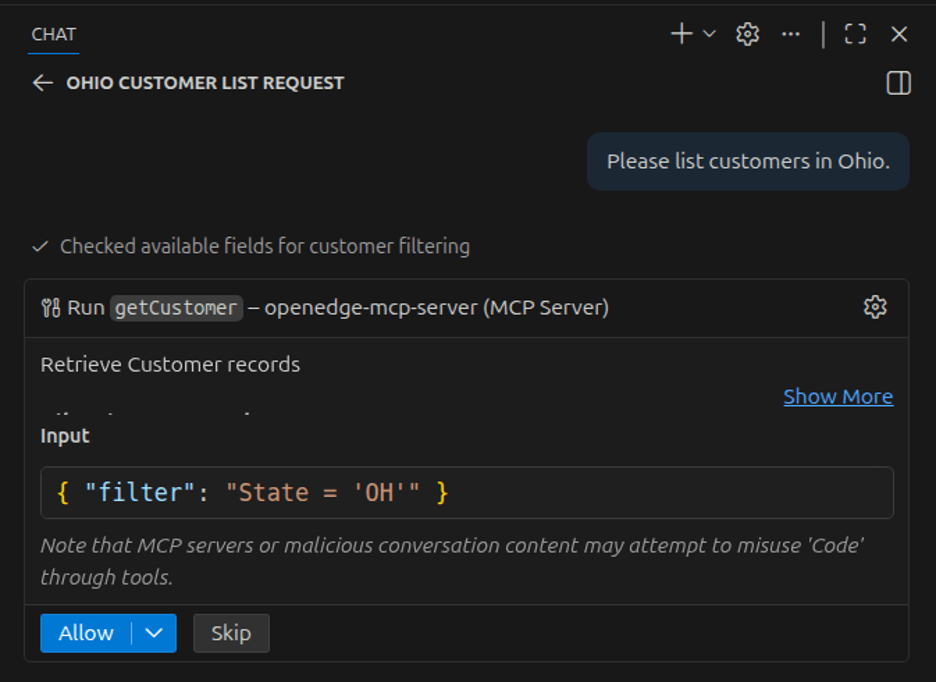
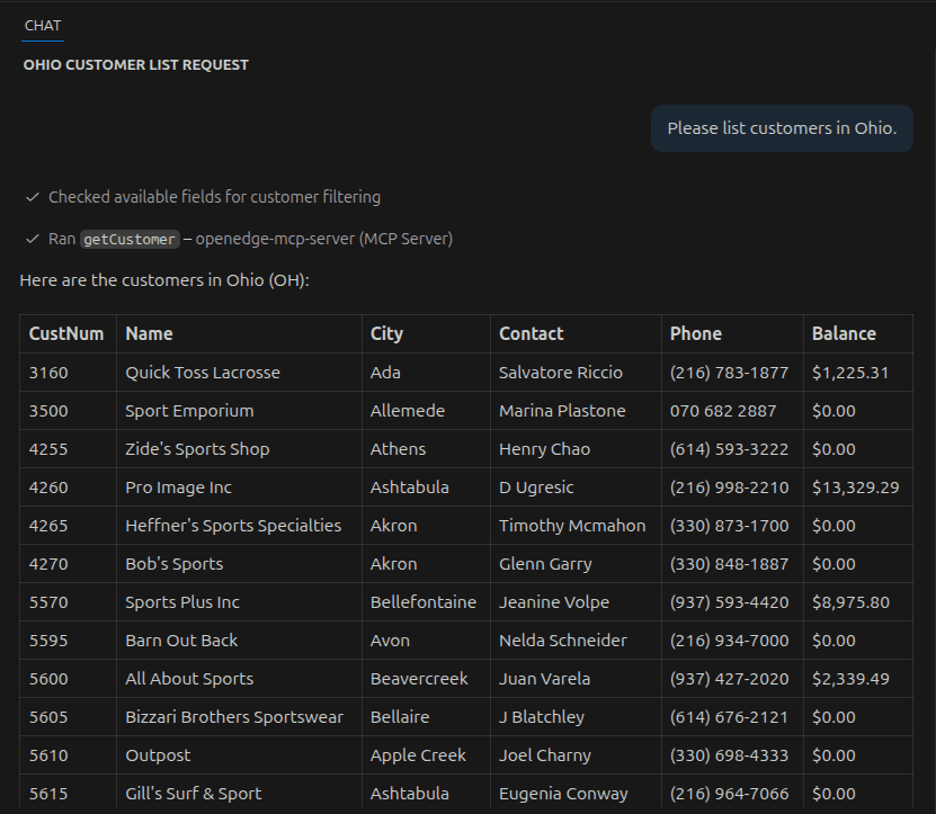
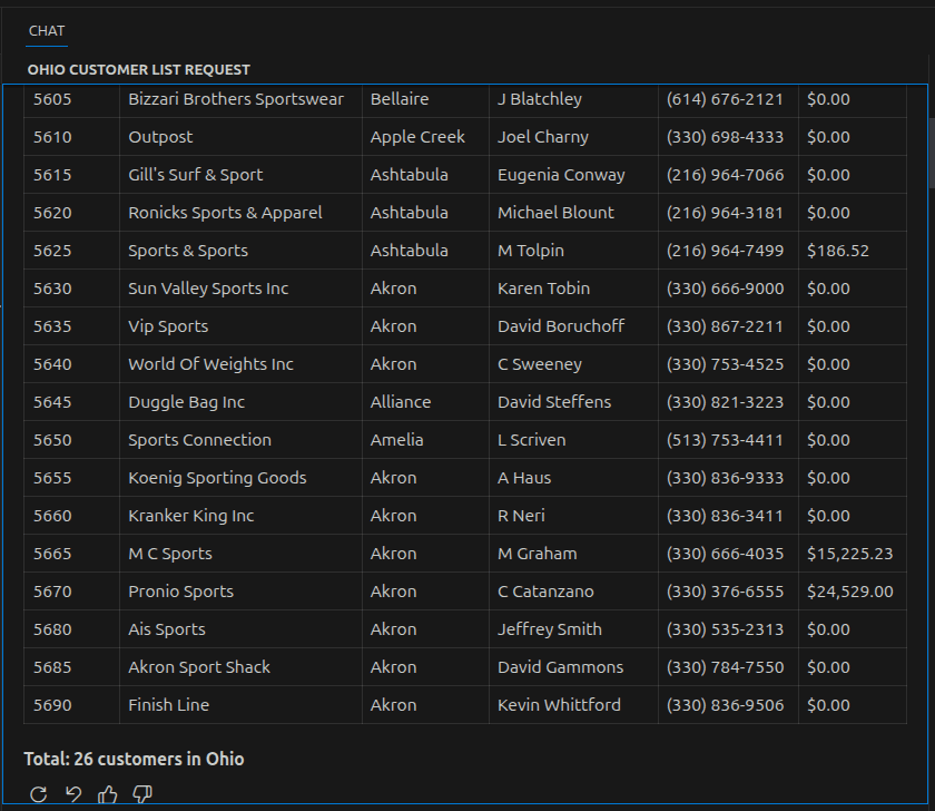
- Open the Chat view in VS Code and enter a prompt such as: 1. Please list customers in Ohio.
- Copilot will ask permission to run the request through the MCP Server. Once allowed, it will return the customer list directly drom the Progress Data Object Service.
Related Resources
For troubleshooting, here is OpenEdge MCP Server-specific documentation:
- Introduction to the OpenEdge MCP Server
- Install OpenEdge MCP Server
- Step 4: Provide OpenAPI Specification
Learn more about AI capabilities within the OpenEdge platform.
Enjoyed this article?
Add Progress as a preferred source to see more of our content in Google search.
Add Progress as a preferred source on Google
Jessica (Malakian) Newton
Product Marketing Specialist, Senior