Extend the Archive widget to use Dynamic Items

The content you're reading is getting on in years.
This post is on the older side and its content may be out of date.
Be sure to visit our blogs homepage for our latest news, updates and information.
In this article is shown the way how to extend the Archive widget in order to show the Dynamic Items. The currently supported Items and setting up of the Build-in widget is described in that documentation article.
using System;using System.Collections.Generic;using System.ComponentModel;using System.Linq;using Telerik.Sitefinity.Data;using Telerik.Sitefinity.DynamicModules.Model;using Telerik.Sitefinity.Modules;using Telerik.Sitefinity.Modules.GenericContent.Archive;using Telerik.Sitefinity.Web.UI.PublicControls;using Telerik.Sitefinity.Web.UrlEvaluation;namespace SitefinityWebApp.Controls{ public class CustomArchiveWidget : ArchiveControl { public override void ConstructArchiveItems() { if (this.ContentType != null) { var contentType = this.ResolveContentType(); var items = this.GetArchieveItems(contentType, this.Provider, this.DateBuildOptions, this.DateEvaluatorPropertyName); DataBindArchiveRepeater(items); } } public virtual List<ArchiveItem> GetArchieveItems(Type contentType, string providerName, DateBuildOptions dateBuildOptions, string propertyName) { if (propertyName.IsNullOrEmpty()) throw new ArgumentException("propertName cannot be empty."); var manager = ManagerBase.GetMappedManager(contentType, providerName); var queryMinOrderExpr = string.Concat(propertyName, " ASC"); var queryMaxOrderExpr = string.Concat(propertyName, " DESC"); var queryMin = manager.GetItems(contentType, DefinitionsHelper.PublishedFilterExpression, queryMinOrderExpr, 0, 1); var queryMax = manager.GetItems(contentType, DefinitionsHelper.PublishedFilterExpression, queryMaxOrderExpr, 0, 1); var archieves = new List<ArchiveItem>(); DynamicContent firstContent = queryMin.Cast<DynamicContent>().FirstOrDefault(); DynamicContent lastContent = queryMax.Cast<DynamicContent>().FirstOrDefault(); if (firstContent != null && lastContent != null) { DateTime? startDate = null; DateTime? endDate = null; var prop = TypeDescriptor.GetProperties(contentType).Find(propertyName, true); if (prop != null) { if (!(prop.PropertyType == typeof(DateTime) || prop.PropertyType == typeof(DateTime?))) throw new ArgumentException(string.Format("{0} property is not of type DateTime.", propertyName)); startDate = (DateTime)prop.GetValue(firstContent); endDate = (DateTime)prop.GetValue(lastContent); } if (startDate.HasValue && endDate.HasValue) { SplitterResolver splitter = new SplitterResolver(); var trackedIntervals = splitter.GetIntervals(startDate.Value, endDate.Value, dateBuildOptions); foreach (var interval in trackedIntervals) { var dateExpression = this.GetArchiveFilterExpression(interval.StartDate, interval.EndDate, propertyName); int? itemsCount = 0; manager.GetItems(contentType, dateExpression, null, 0, 0, ref itemsCount); if (itemsCount > 0) { archieves.Add(new ArchiveItem(interval.StartDate, (int)itemsCount)); } } archieves.Sort(DateDescendingComparison); } } return archieves; } public static Comparison<ArchiveItem> DateDescendingComparison = delegate(ArchiveItem x, ArchiveItem y) { return y.Date.CompareTo(x.Date); }; private string GetArchiveFilterExpression(DateTime startDate, DateTime endDate, string propertyName) { return string.Format("{0} >= ({1}) AND {2} < ({3}) AND {4}", propertyName, startDate.ToString("yyyy-MM-dd HH:mm:ss"), propertyName, endDate.ToString("yyyy-MM-dd HH:mm:ss"), DefinitionsHelper.PublishedFilterExpression); } }}
In order to set-up the widget to show the Dynamic items you need to:
1. Create a Class file and Paste the code above
(In the example: CustomArchiveWidget.cs file under “Controls” folder)
2. Build the solution
3. Register the widget using Sitefinity Thunder following that article
(Manual registration in toolboxes is described here)
4. Get the ContentType of your dynamic Item. To do so
- Go to Administration > Module Builder > <your module>
- Open “Code reference for <your module>”
- Select your ContentType and select one of the Code Snippet (For example: Create “<your content tyle>”
- Copy the content type
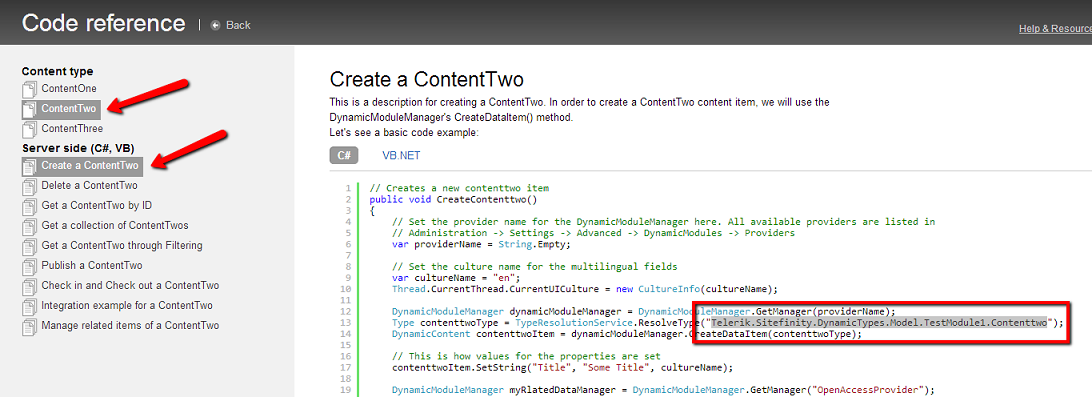
5. Create e new Page or Edit an existing one
6. Drag the Archive widget on that page
7. Add the widget for your content type on the page (In our case ContentTwo)
8. Click the Edit button in the upper-right corner of the Custom Archive widget.
9. In ContentType input field enter the content type get in step 1
(In our case “Telerik.Sitefinity.DynamicTypes.Model.TestModule1.Contenttwo”)
10. Set-up the other fields as per your need (documentation article)
11. Click Save
12. Publish the Page
I hope the above article was halpful.