Configuring CompareValidation for FieldControls in Sitefinity modules

by
The Progress Team
Posted on
March 25, 2013
The content you're reading is getting on in years.
This post is on the older side and its content may be out of date.
Be sure to visit our blogs homepage for our latest news, updates and information.
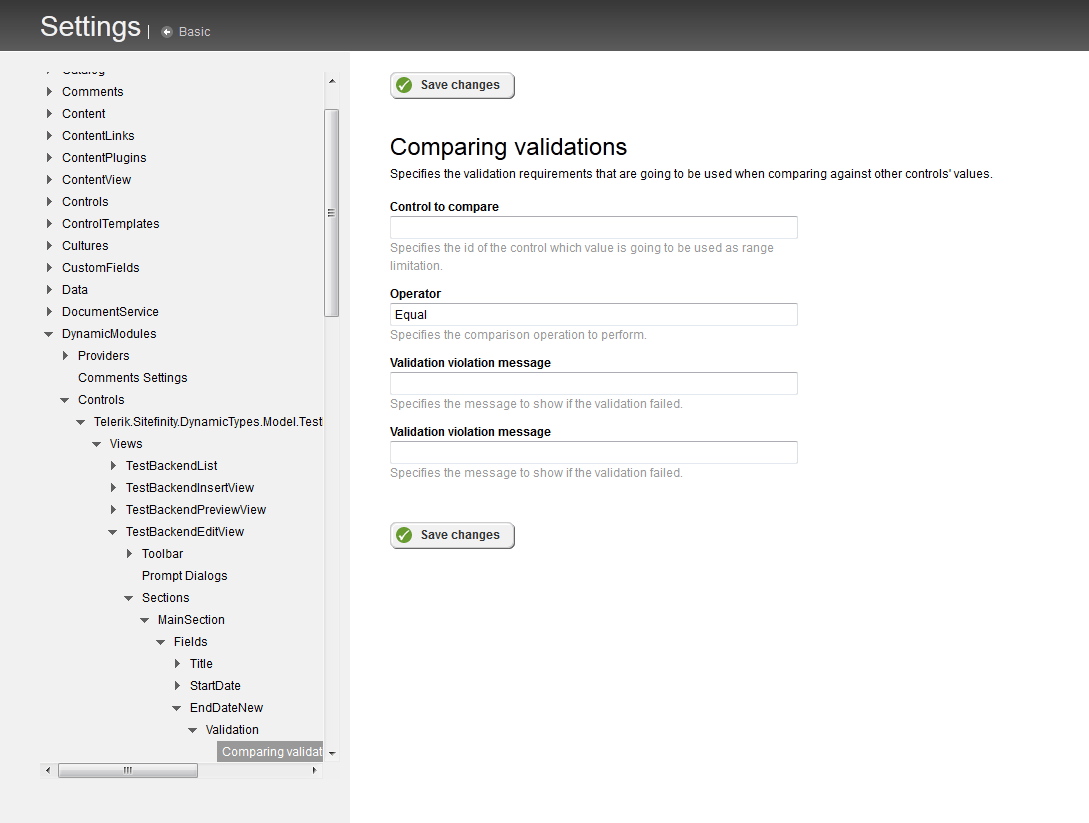
In Sitefinity you have the ability to compare the value of two field controls. Validation requirements that are going to be used when comparing against other controls' values are: Control to compare, Operator and Validation violation message. Below you could find an example for validating two custom field controls of type data and time created in one dynamic module.
First of all, you need to create one custom module using Module Builder and two custom fields of type data and time. The first one will be used for start date and the second one for end date. After the fields are created you could compare their values by simply adding one validation in the Sitefinity backend. Then follow the steps below:
First of all, you need to create one custom module using Module Builder and two custom fields of type data and time. The first one will be used for start date and the second one for end date. After the fields are created you could compare their values by simply adding one validation in the Sitefinity backend. Then follow the steps below:
- Go to Administration -> Settings -> Advanced -> Dynamic Modules -> Controls -> YourControl -> Views -> YourModuleBackendEditView -> Sections -> MainSection -> Fields
Then select the field you want to be validate (For instance: EndDate) - Expand it and go to Validation -> Comparing validations -> Create new
In the first field Control to compare, enter the ID of the first control (the id of the StartDate custom control). To get the ID of the first (StartDate) custom control go to Administration -> Settings -> Advanced -> Dynamic Modules -> Controls -> YourControl -> Views -> YourModuleBackendEditView -> Sections -> MainSection -> Fields -> StartDate (first custom field) and copy the id of the control.)
For Operator enter for example: GreaterThanEqual (Please note that you could use different operation. For instance: Equal and est.)
For Validation violation message type the message you want to be visible when the date is incorrect (the start date is greater than the end date). - Save the changes and restart your application
Enjoyed this article?
Add Progress as a preferred source to see more of our content in Google search.
Add Progress as a preferred source on Google
The Progress Team
View all posts from The Progress Team on the Progress blog. Connect with us about all things application development and deployment, data integration and digital business.
More from the author