
Widgets
Overview
The following table provides information about the widgets used in the currently selected site:
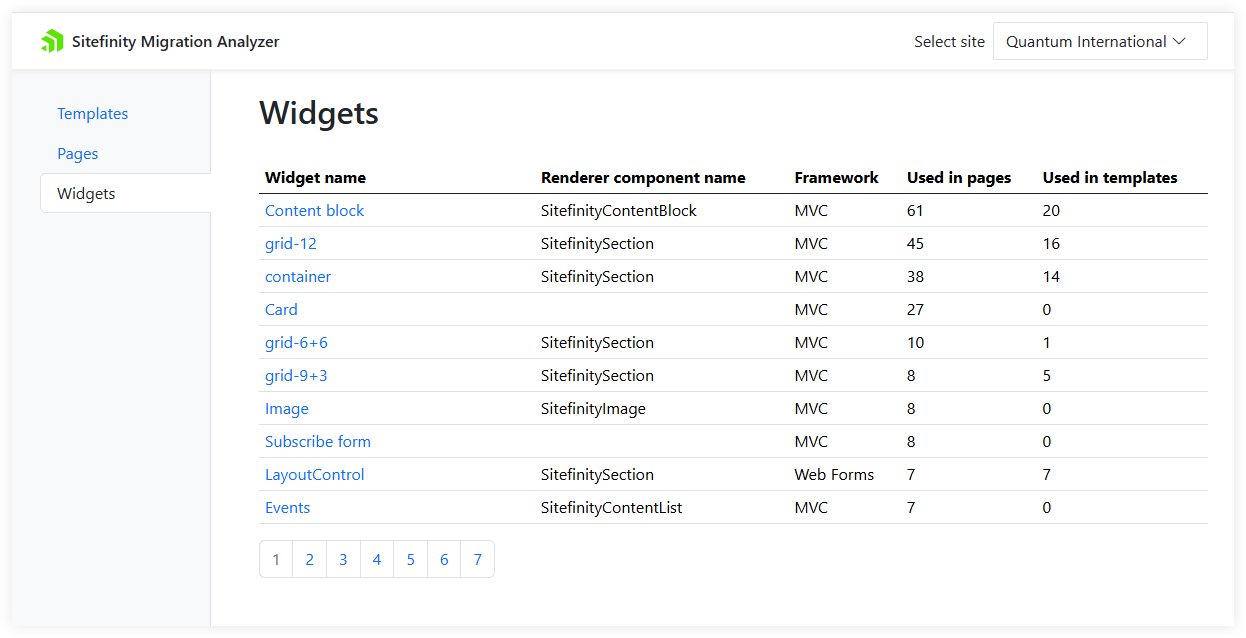
The Widgets tab contains a table with the following information about your page templates:
|
Column name |
Description |
|
Widget name |
The name of the widget, as seen in Sitefinity CMS backend. |
|
Renderer component name |
The developer name of the widgets based on Sitefinity decoupled renderers (ASP.NET Core and Next.js) that you can use to migrate this widget. |
|
Framework |
The frontend framework used in the widget: |
|
Used in pages |
The total number of pages in all Sitefinity CMS sites where this widget is used. |
|
Used in templates |
The total number of page templates in all Sitefinity CMS sites where this widget is used. |
NOTE: Sort and filter
- You can sort all columns.
- You can filter the table by widget name. To create a filter, enter any text in the Search by title field and press Search.
The table will show only widgets whose names contain the text you entered.
To clear the filter, clickinside the Search by title field.
Export data
To export all the information from the Widgets tab, click  (Export in .csv). The Migration Analyzer generates a comma-separated values file (a .csv file), which you can open in programs such as Excel.
The name of the file is automatically generated and contains the following information:
- The word analyzer, indicating that this file has been generated by the Migration Analyzer
- The frontend resources contained in the file.
Because you are exporting widgets, the file name has the word widgets - The name of the site whose data you are exporting, or the word all, if you are exporting data from all sites
- The culture name, corresponding to the translation you have selected.
For example, en for English translation.
Widget information
You click on a widget name to see the detailed information about it.
The following screenshot displays information about a widget:
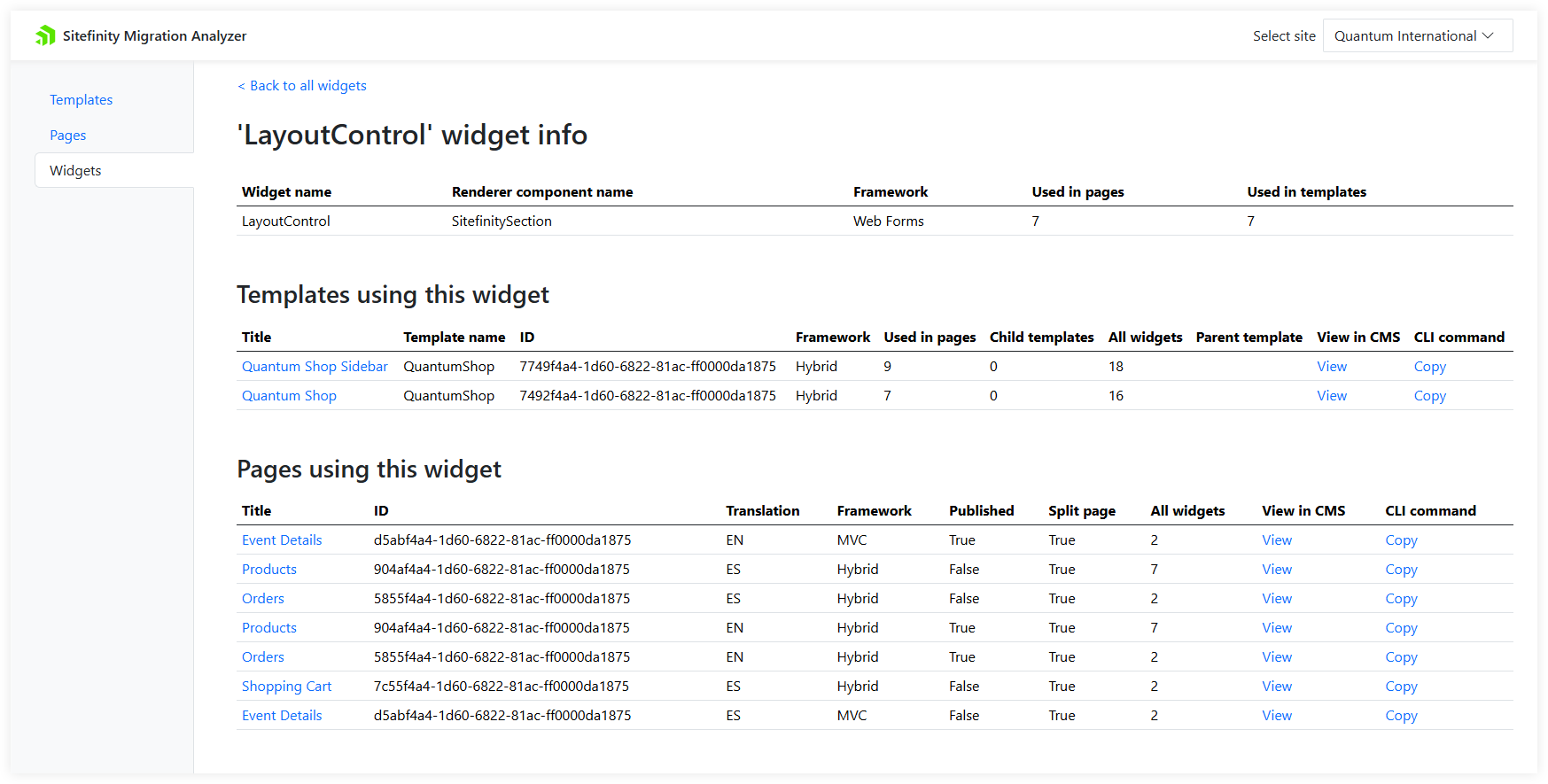
In the ‘Widget name' widget info table, you see the following information about the widget:
|
Column name |
Description |
|
Widget name |
The name of the widget, as seen in Sitefinity CMS backend. |
|
Renderer component name |
The developer name of the widgets from Sitefinity decoupled renderers (ASP.NET Core and Next.js) you can use to migrate this widget. |
|
Framework |
The frontend framework used in the widget: |
|
Used in pages |
The total number of pages in all Sitefinity CMS sites where this widget is used. |
|
Used in templates |
The total number of page templates in all Sitefinity CMS sites where this widget is used. |
Templates using this widget
In this table, you see all page templates using the current widget.
|
Column name |
Description |
|
Title |
The name of the page template, as shown in Sitefinity CMS backend. |
|
Template name |
The name of the page template, as used in the code. |
|
ID |
The page template GUID, as used in the database. |
|
Framework |
The frontend framework used in the template: |
|
Used in pages |
The number of pages directly based on this template.
|
|
Child templates |
The number of page templates that are direct children of this one. |
|
All widgets |
The total number of widgets, based on any framework, which are used in this page template. |
|
Parent template |
The template name of the parent page template. |
|
View in CMS |
To open the page template in Sitefinity CMS backend, click the View link.
|
|
CLI Command |
When you click the Copy link, Sitefinity Migration Analyzer builds a command for Sitefinity CLI to migrate this page template to the decoupled frontend framework. The command is automatically placed in your OS clipboard.
For more information about using the migrate command, see Sitefinity CLI. |
NOTE: You can sort the following columns: Title, Template name, ID, Framework, and Used in pages.
Templates based on ASP.NET Core and Next.js frameworks may not sort correctly by Framework when they are part of a deeply nested template hierarchy.
Pages using this widget
In the following table, you see all pages in all Sitefinity CMS sites that use the current widget:
|
Column name |
Description |
|
Title |
The title of the page, as seen in Sitefinity CMS backend. To open detailed information about this page, click its name. |
|
ID |
The GUID of the page, as stored in the database. |
|
Translation |
Shows the language of the page. |
|
Framework |
The frontend framework used in the template: |
|
Published |
For more information, see Content lifecycle. |
|
Split page |
A page is Split when its translations are independent and can have different widgets. |
|
All widgets |
The total number of widgets, based on any framework, which are used on this page. |
|
View in CMS |
To open the page in Sitefinity CMS backend, click the View link.
|
|
CLI Command |
When you click the Copy link, Sitefinity Migration Analyzer builds a command for Sitefinity CLI to migrate this page to the decoupled frontend framework. The command is automatically placed in your OS clipboard.
For more information about using the migrate command, see Sitefinity CLI. |
NOTE: You can sort the following columns: Title, ID, Translation, and Framework.
NOTE: You may have a use case in which you placed a widget on a page template, set the Editable on pages flag, and assign this page template as a parent to a page. Optionally, you may have set another page template as a parent. In these cases, Sitefinity Migration Analyzer displays incorrect number of widgets on a page or that the specific widget is on the page, although you cannot see it.
You can ignore the incorrect information. If you delete that widget from the template, the Migration Analyzer will display the correct information.
