
Content lifecycle
Overview
When working with the content modules in Sitefinity CMS, you can either directly publish items that you create, or save them as drafts. These operations create some different versions of the same content behind the scenes. The versions adhere to a strictly defined content lifecycle. This article demonstrates how content lifecycle works, how to use the API to perform these operations, and how to do the same through the user interface.
What is Content Lifecycle?
Content lifecycle governs whether an item is visible on the frontend or whether it is being edited in the backend. There are four lifecycle states of an item:
mastertemplivedeleted
When persisting items in the database, Sitefinity CMS creates one row for each state. You can think of lifecycle states as separate versions of an item. An important characteristic of the lifecycle is that an item can be in more than one state at a time - can have several versions. The meaning of each state (item version) is defined in the following table:
|
Master | The default state of an item. Items are always created in Master state first - they always have a master version. Master versions are not visible in the frontend. |
|
Live |
An item, which is visible in the frontend. Once an item is published, Sitefinity CMS creates a live version by copying the item from the master version (the master version continues to exist). |
|
Temp | An item that is being edited by a CMS user. When you open an item for editing, a temp version of the item is created by copying the Master version.
|
|
Deleted | When the Recycle binmodule is active, if you delete an item of a type that supports recycling, Sitefinity CMS keeps the items persisted, but marks it as deleted.
Therefore, the item does not appear in the frontend, or in the backend, but is available for restoration in the Recycle bin.
|
Information flow

The diagram shows a simplified view of how the information flows between the different lifecycle states of an item. The circles represent the states, and the arrows represent operations on the item. Each operation, triggered by the user interface or the API, moves an item between the states. These states are different versions of an item.
The following process illustrates the state of the database and the user interface after each operation. It uses the News module as an example.
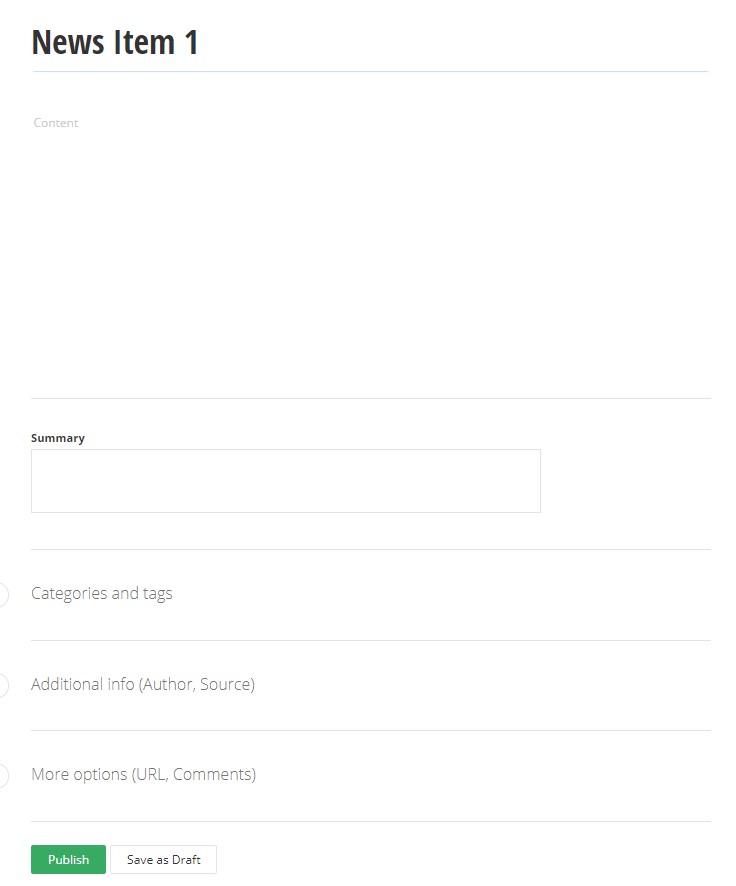
- Create a News item When you click the Create button, the screen for creating an item appears, but there is nothing persisted yet. The table in the database is empty. /documentation/sitefinity-cms/sf-images/default-source/developers-guide/createnewsitemui.png?sfvrsn=6e849345_0
 /documentation/sitefinity-cms/sf-images/default-source/developers-guide/createnewsitemdb.png?sfvrsn=8635f849_4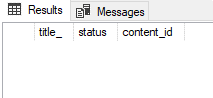
- Save the item as draft When you click the Save as Draft button, the item is persisted in the database. Its state in the UI is Draft. There are two records in the database: the Master with a status of 0, and the Temp with status 1.
 Because you are not publishing the item, you only need to call the
 SaveChanges()method of the manager to persist the draft in the database. - Publish the item Next, publish the item you just created. This marks it as Published in the UI and creates another entry in the database table, to represent the Live version of the item. The value 2 in the status column corresponds to the Live state. The Master and the Temp values continue to exist in the database.
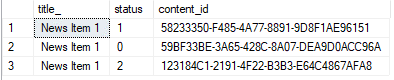 To make the item visible in the frontend and create a Live version, you explicitly publish the item through the API.
 - Edit the item If you want to make more changes to the same News item, edit it. Other users see the item as locked. The entry in the database, representing the Temp version of the item with status 1, holds the changed information from your edit. When you want to edit an item that was created using the API, you need to explicitly get its Master version. To create a Temp version from it, you call the
CheckOut()method of the Lifecycle decorator, and once you made the changes, you callCheckIn()to copy the Temp version to the Master again. - Publish the item again Publishing the item again goes back to the state from Step 3, but now the item’s content has been updated. The UI shows the item as Published again. To publishing the item again, call the publish method of the
Lifecycledecorator and saving the changes.
In the steps above, you explicitly save the item as draft to illustrate the lifecycle. You can also directly publish the item through the UI, and Sitefinity CMS performs the two operations together in the same order. There will be no difference in the state transitions between those two cases.
Understanding the concept of content lifecycle is important when working with items through the API.
RECOMMENDATION: The content lifecycle API is a low level API and does not support all possible scenarios. We recommend using the Web services API instead.
Following is a code sample that demonstrates the above operations:
This section contains
