
Next.js pages and templates
Overview
To use Sitefinity Next.js renderer with the New page editor, you should create a page, using the new Next.js page template. You create templates and pages using the standard Sitefinity CMS UI, but you edit them in the New page editor.
PREREQUISITES: You must have enabled the New interface in your Sitefinity CMS.
Create Next.js page templates
You can create Next.js templates in two ways:
- Using the Sitefinity CMS backend UI and the Templates grid.
- Programmatically, using layout files.
You create and manage Next.js templates in the Templates grid, just like the MVC page templates in Sitefinity CMS backend.
The framework of a template is determined by the template that it is based on when creating it. To make a template a Next.js template, you must base it either on another programmatically created Next.js template or on the Default Next.js template.
Create templates: To create a Next.js template, follow procedure Create a template.
The Next.js templates are grouped at the bottom of the Select a base template page, when creating a template.
Manage templates: To manage Next.js templates, use the Templates grid.
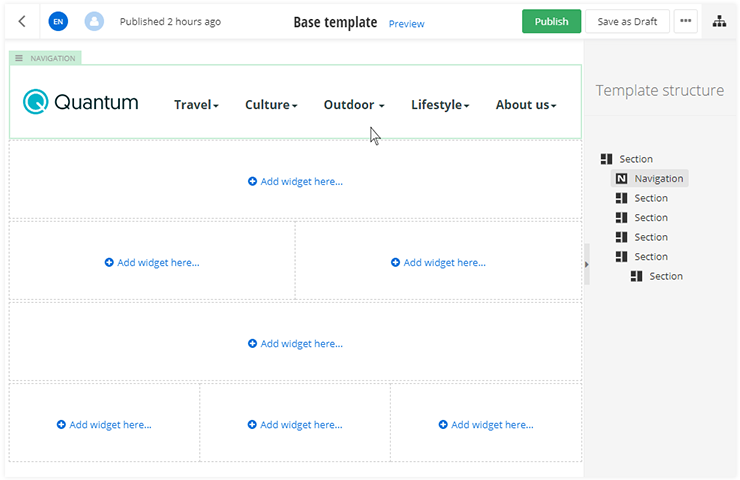
Edit templates: When you open an Next.js template for editing, it opens in the New page editor.
Create Next.js pages
Perform the following:
- In the Next.js renderer backend, navigate to Pages and click Create a page.
- Enter the title of the page and click Continue.
- On Select a template step, select the Default template in the NextJS section.
The new template is applied and the page opens for editing, using the New page editor. With the New page editor, you get a set of new layout and content widgets.
For more information about creating pages, see Create pages.
Supported widgets
The New page editor support the following widgets:
- Section widget
This is a layout widget that you can use to create the layout elements of your page. It also has an out-of-the-box styling features, such as margins, paddings, and backgrounds. - Navigation widget
This is the widget that you use to create your website navigation. - Content block widget
This is the widget that you use to create content. You can use it to display text, tables, images, or videos. - Image widget
This is the widget that you use to display images. - Call to action widget
This is the wiget that you use to display a one or two call to action buttons on your page. You can have a button from the primary action and a button for a secondary action. - Custom widgets
For more information, see Custom widgets.
This section contains
