Send Template Emails from a Podio Item
To simplify the email process to use GlobiFlow, we need to add a few new fields to our Customer app and use templates to create and send email right from the Podio item.
Podio Preparation
First off, changes need to happen in Podio:
-
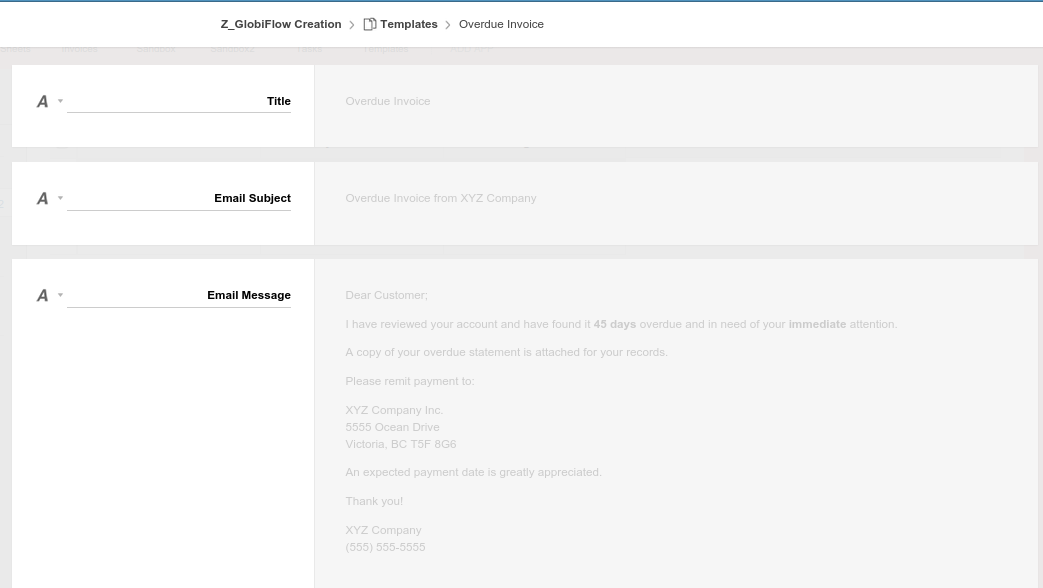
Create a new App in your workspace and call it Templates, with:
-
a Text field (single line) for the Title of the Template
-
a Text field (multi line) for the Email Body
-
Optionally also add a Text field (single line) for a Subject Line for more control on your email.
-
-
Add required fields to the Customers App.
-
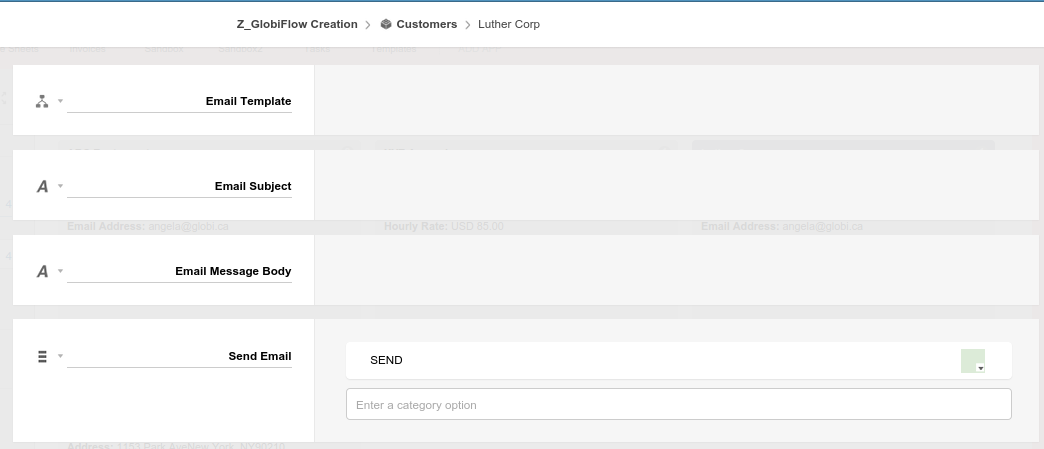
Add a Relationship field for the Email Template and set it to the Template APP you just created.
-
Add a Text field (single line) for the Subject Line.
-
Add a Text field (multi line) for the Email Body.
-
Also, add a Category field with one button called SEND as this will be required to trigger the Send Email flow.
-
The Flows
Now that the Podio Workspace is set up, we can set up the flows required to create the template and send the email.
-
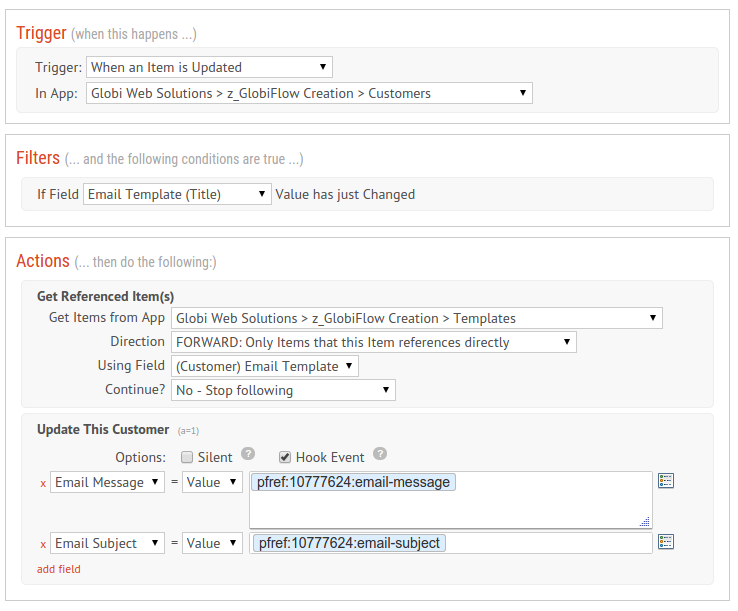
Create a new flow in the Customer App to Update Email Template
-
Trigger when an item is updated
-
Filter when the Email Template value has changed
-
Collector to Get Referenced Items from the Templates App.
-
Update this Customer item with the Email Subject and Email Body from the referenced item, using tokens
-
-
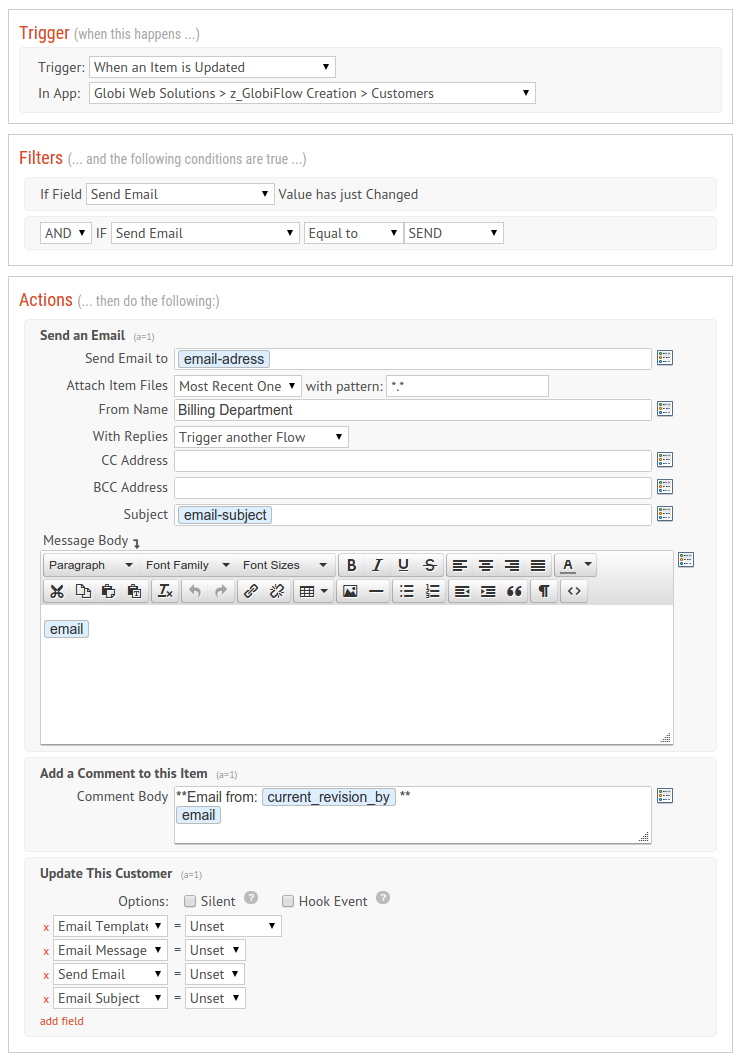
Create a new flow in the Customer App to Update Email Body
-
Trigger when an item is updated
-
Filter when the Category field has changed and the Category field is equal to Send
-
Send an email to the Email Address token making sure that replies trigger another Flow.
-
Add a Comment to this item and insert the email body token.
-
Update this Customer item and remove the Email Template, Email Body, Email Subject and uncheck the Send box.
-
-
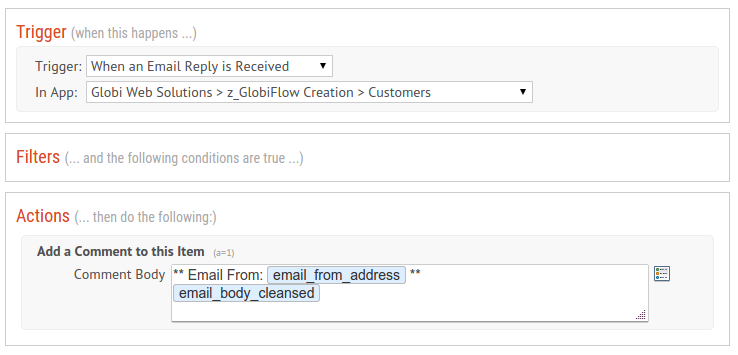
Create a new flow in the Customer App to Update Email Body
-
Trigger when an email reply is received
-
Add a Comment to this item and insert the email body token.
-
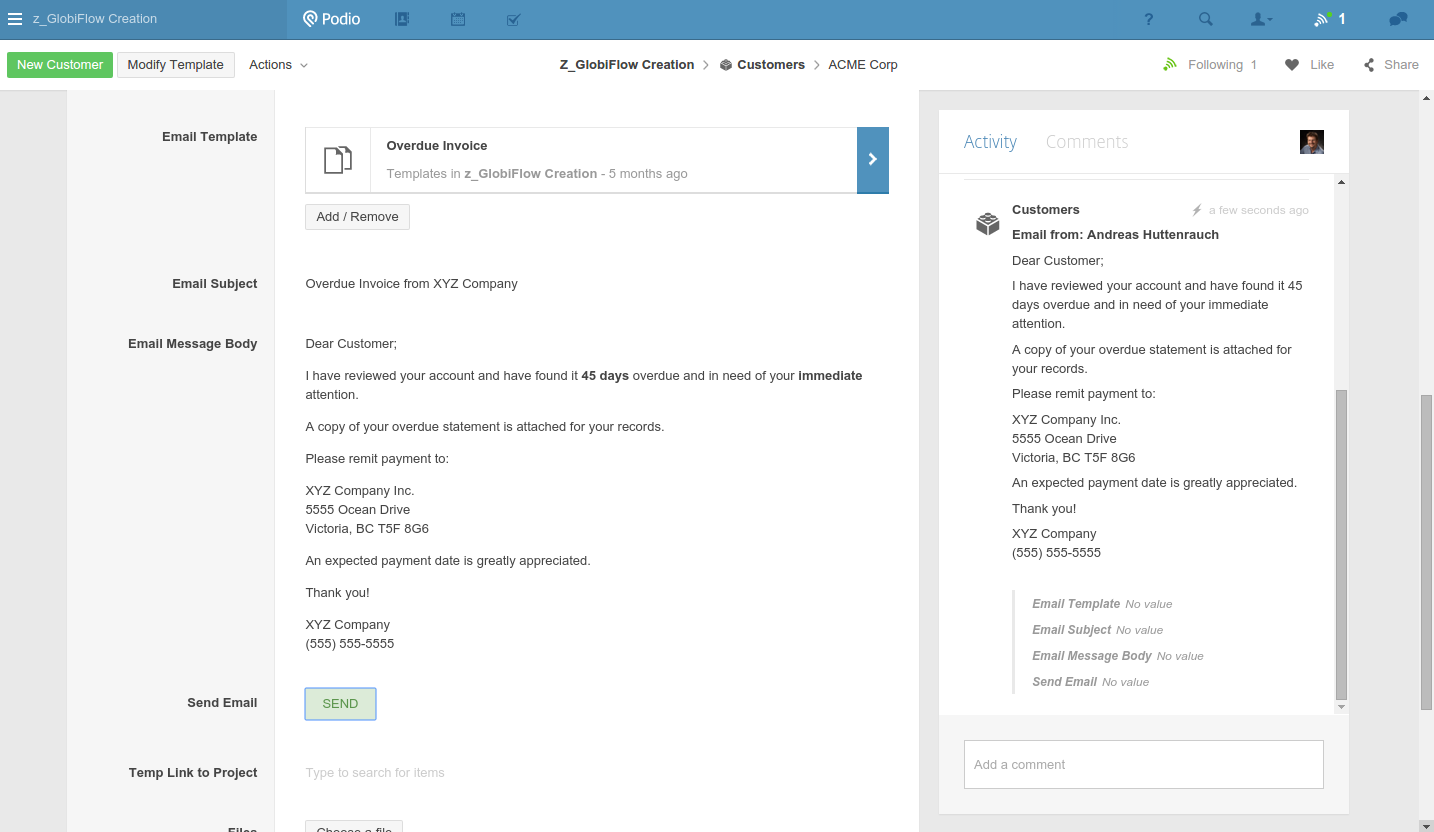
The Result
-
We are now ready to send email right from the Podio Item.
-
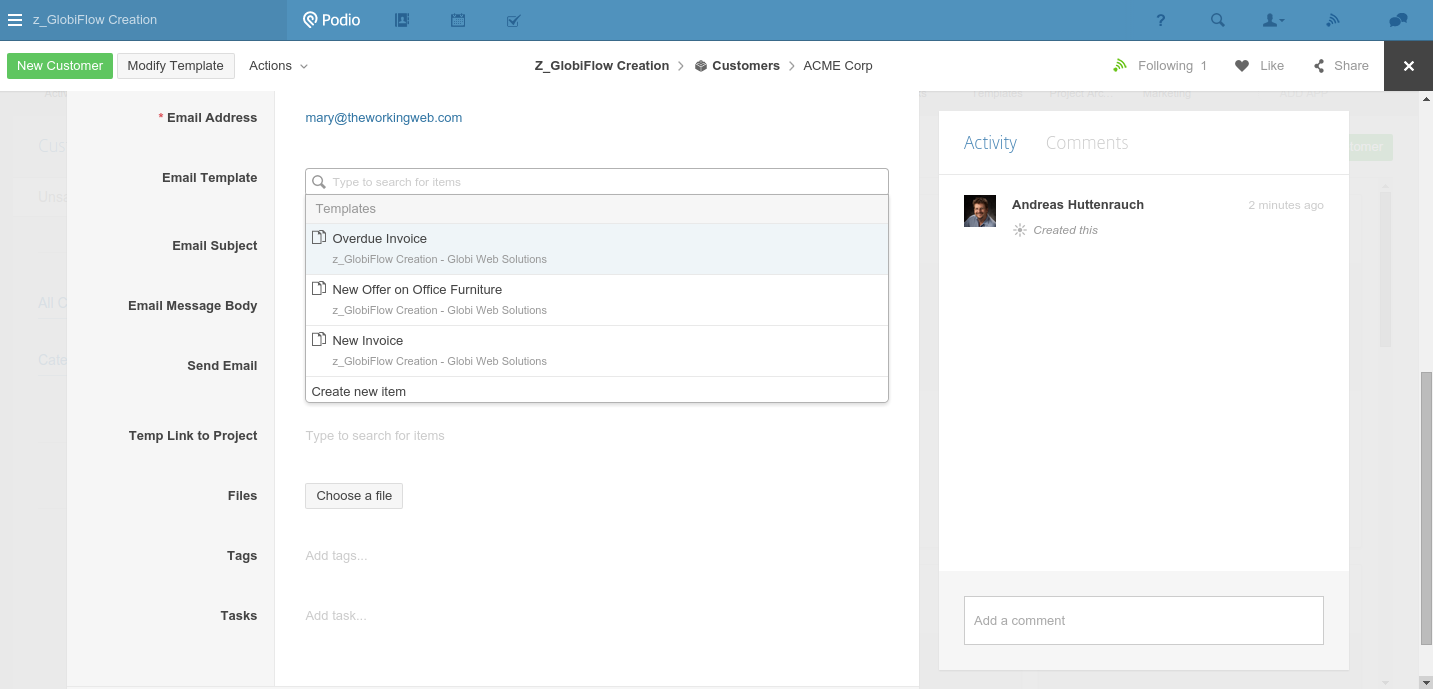
Open the Customer item to whom to send the email.
-
Add the Email Template you want to send to the client
-
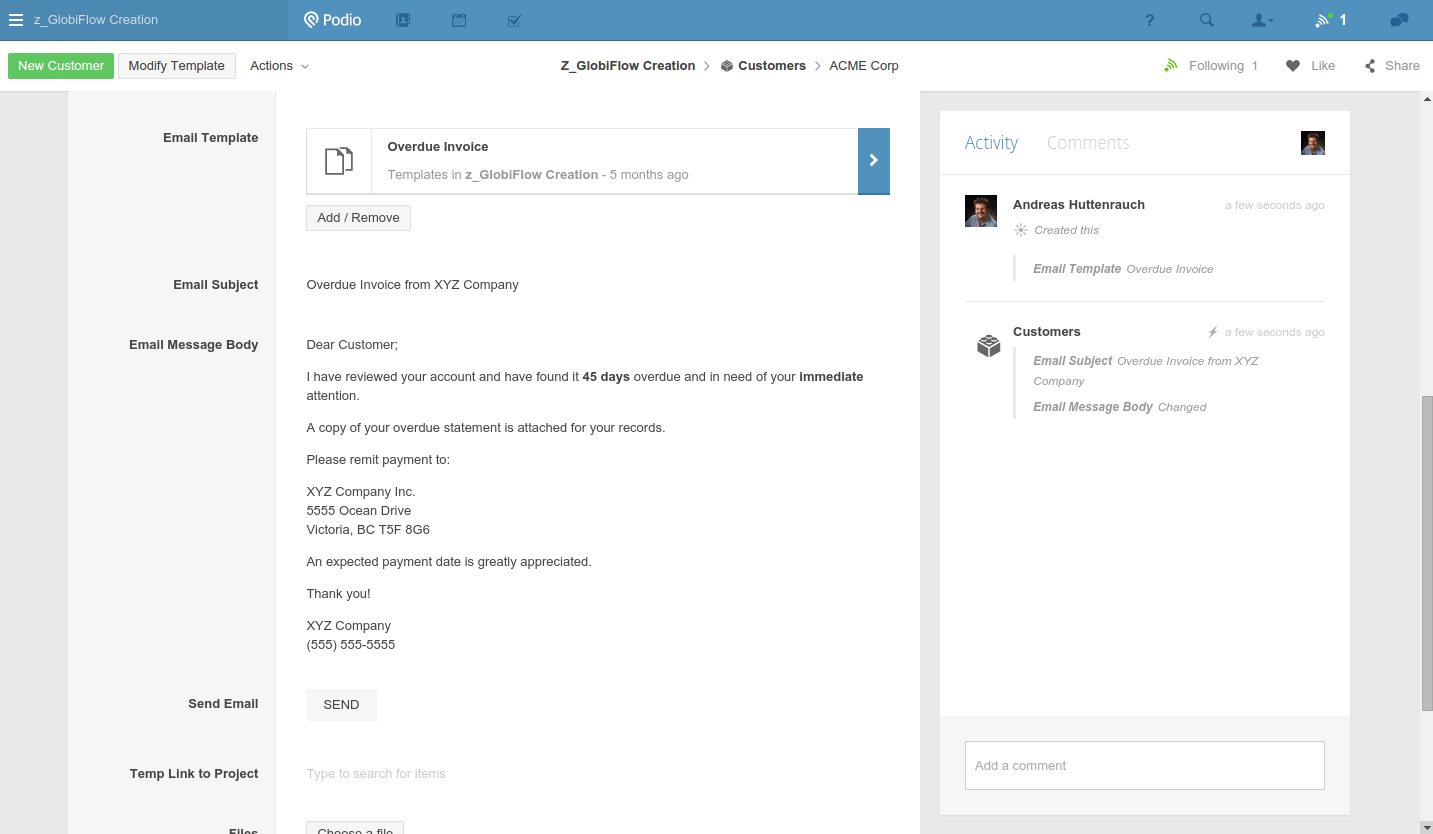
Refresh the screen as the fields for Email Subject and Body have been populated
-
Make any needed adjustments to the template before sending
-
Select the SEND category
-
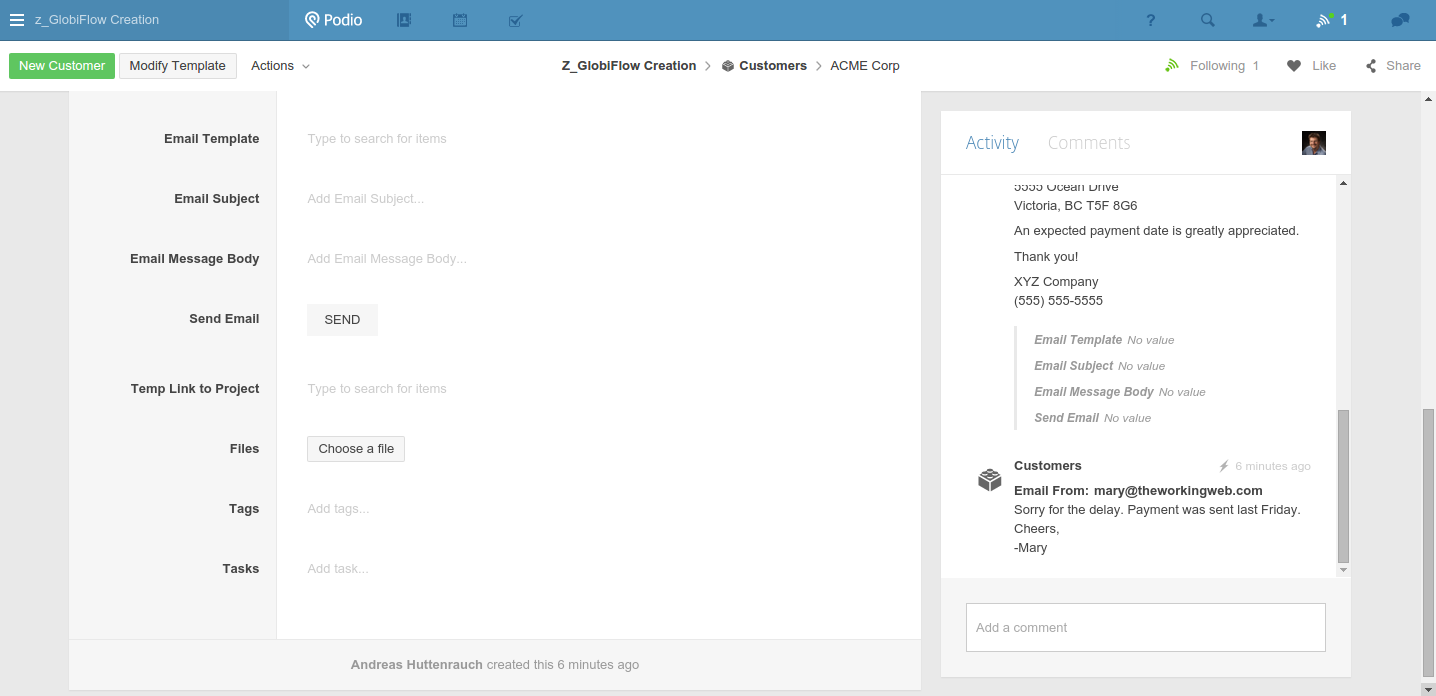
This email has now been sent and has been added to the comments.
-
-
When the customer replies to the email, a new comment will appear on the item with this email. You will receive a notification since you're already following the item by default.