Creating new image charts in Podio with Workflow Automation
Podio has given users the option to make custom report widgets and now with Workflow Automation we can create visual charts for data. A great example would be the dashboard in the Workflow Automation for Podio Users workspace.
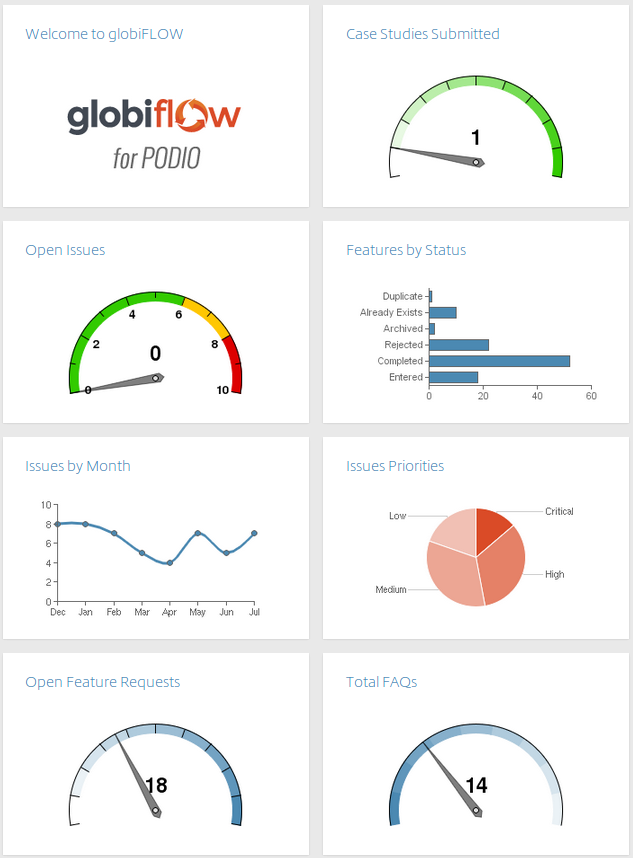
Solution Explained
It's actually quite easily done.
-
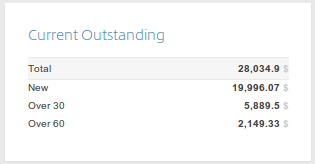
Make sure the data you wish to be on the graph is a Podio Report widget within the App. I chose to create a custom report which calculates the amount outstanding only for selected status fields.

-
This will return the following report widget in your Podio App.
-
-
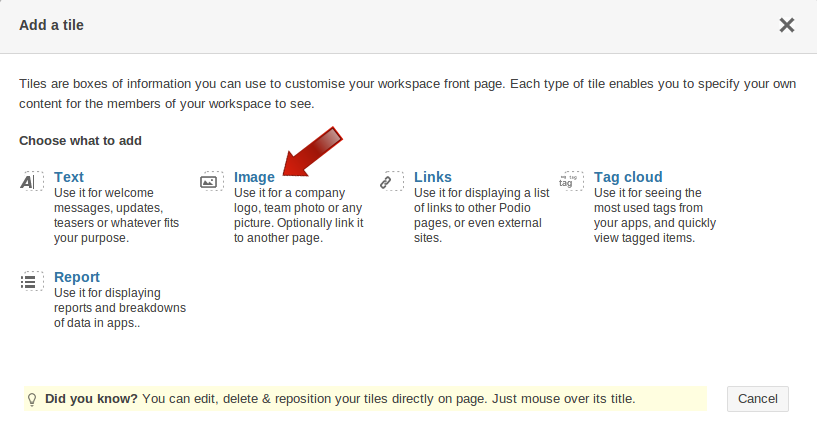
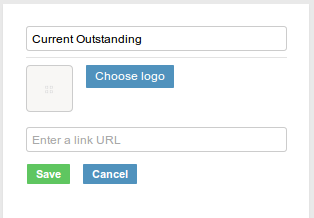
Next, an image tile must be added to the page you wish to have the graph.

-
Once it is placed, repeat the process to create an image tile in the Workspace Homepage - the dashboard.
-
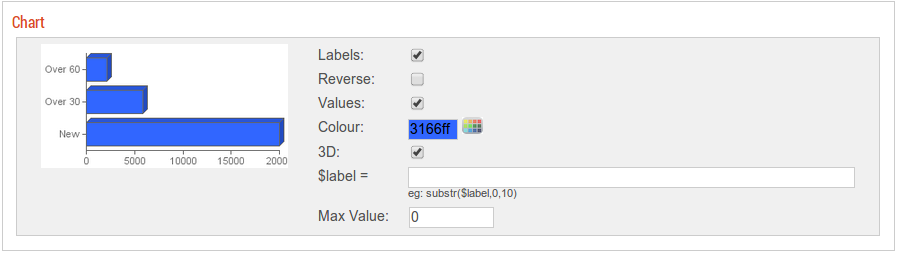
Open Workflow Automation and Refresh to update the changes. Select the App and create a New Chart:
For multiple fields of data - choose any of the following:
-
Line
-
Area
-
Vertical Bar
-
Horizontal Bar
-
Pie
-
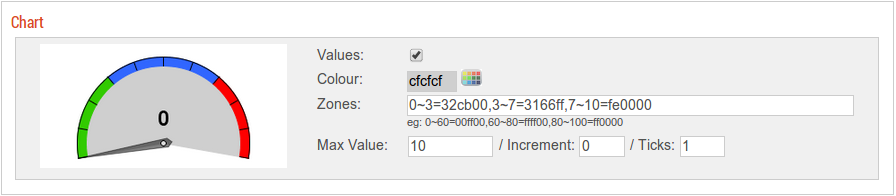
Gauge (on Total)
-
-
Once you have chosen the chart and configured the colors, labels and values, you can choose the destination. This is the Image Tile you created at the beginning.
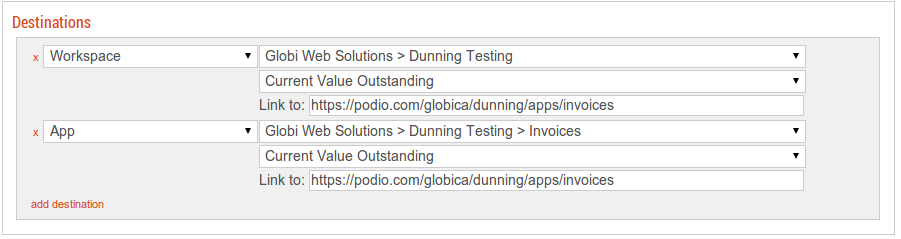
Note:If the image tile is not in the list to select, check the Podio dashboard and make sure you refresh your setting in Workflow Automation.
-
Have a report with only ONE number or use the Total of a report? Set the gauge
Advanced Stuff
If you have very long labels, you can set a label function (options). For example:
substr($label,0,10)
will result in only the first 10 characters of the label.
For gauge charts, you can set the zone colors in the format:
from~to=hexcolor
For example, if you have a gauge from 0 to 100, and want 0-60 to be green, 60-80 to be yellow, and 80-100 to be red, use:
0~60=00ff00,60~80=ffff00,80~100=ff0000