Enable the new calculation engine
The new calculation engine uses a modern JavaScript runtime for calculation fields. Enable it for each workspace where you want to use it. Existing workspaces continue to use the legacy calculation engine until you enable the new engine.
Use the Calculation fields migration guide to identify and update calculations that are incompatible with the new engine.
Why use the new calculation engine?
The new calculation engine provides faster calculation and workflow execution, support for modern JavaScript syntax and features, clearer error messages and stack traces, and a more secure runtime environment.
The legacy calculation engine is available only as a temporary fallback. Update your calculations and enable the new engine as early as possible, because future calculation-engine improvements are available only on the new engine.
Before you start
Keep the following in mind before you enable the new calculation engine:
- Workspace admins can enable the engine for one workspace at a time.
- Organization admins can enable the engine for multiple workspaces from Organization Settings.
- Workspace and app admins can enable the new engine for a specific app only while the workspace uses the legacy engine.
- Enabling the new engine for a workspace applies it to all apps in that workspace. You cannot disable it for individual apps.
- The legacy engine remains available as a temporary fallback.
- Existing calculations can display errors if they are not compatible with the new engine.
Enable the engine for one workspace
Workspace admins can enable the new calculation engine from workspace settings.
-
Open the workspace where you want to enable the new calculation engine.
-
Go to Workspace Settings.
-
Scroll to Calculation settings at the bottom of the page.
-
Select New calculation engine.
-
Select Save.
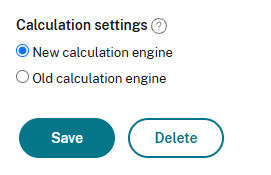
All apps in the workspace now use the new calculation engine. Review the workspace for calculation errors. You can fix incompatible calculations directly or temporarily return the workspace to the legacy engine and test affected apps individually.
Enable the engine for multiple workspaces
Organization admins can enable the new calculation engine from the workspace list.
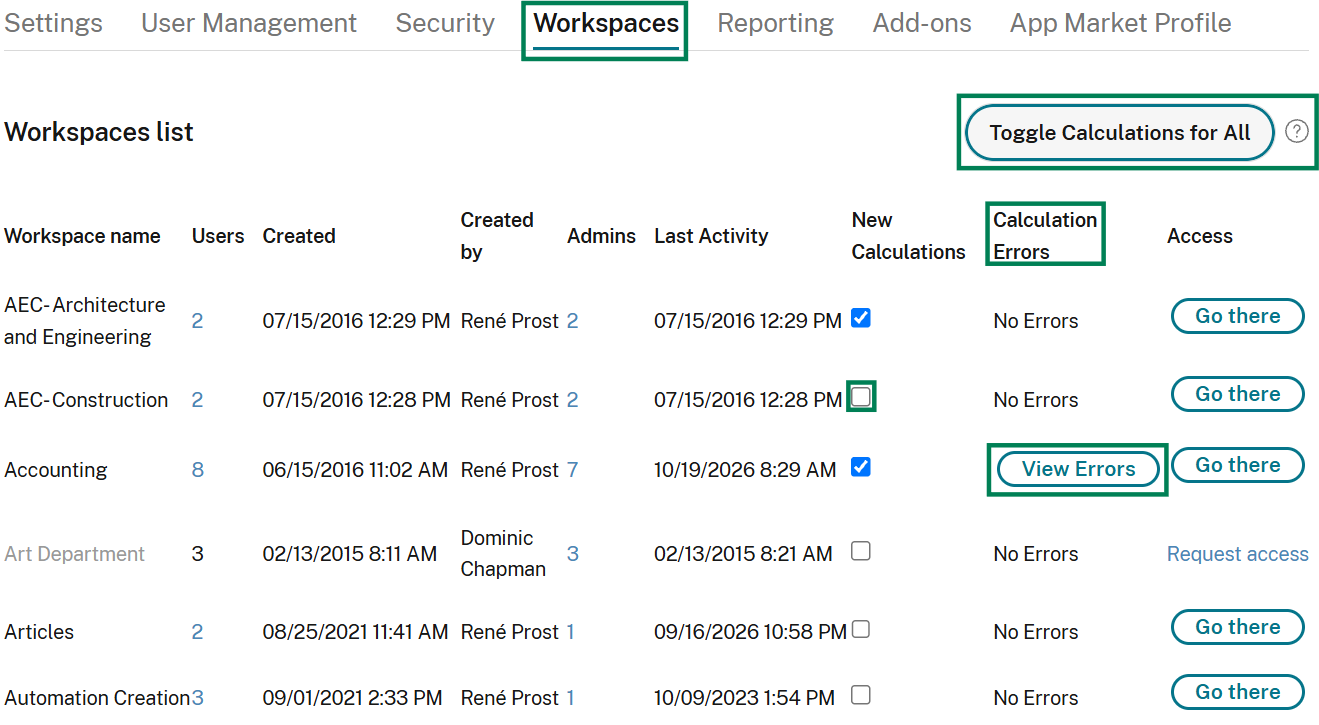
- Go to Organization Settings > Workspaces.
- Review the workspaces in your organization.
- Select the New Calculations checkbox for each workspace where you want to enable the new engine.
To enable the new calculation engine for all workspaces, select Toggle Calculations for All.
The Calculation Errors column shows whether enabled workspaces have calculation errors. You can enable the engine for private workspaces that you are not a member of, but you can view errors only for workspaces that you can access.
Enable the engine for one app
To test or troubleshoot one app at a time, keep the workspace on the legacy engine and enable the new engine for individual apps. Workspace and app admins can use this approach before enabling the new engine for the full workspace.
-
Open the workspace that contains the app.
-
Open the app that you want to configure.
-
Go to App Settings > Advanced.
-
Select New calculation engine.
-
Select Save changes.
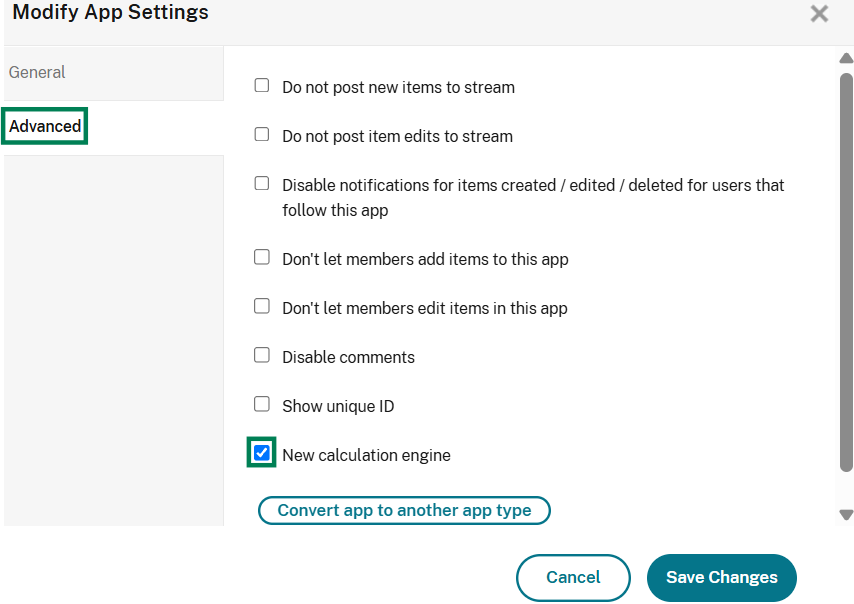
The selected app now uses the new calculation engine. Other apps continue to use the legacy engine unless you enable the new engine for them individually.
Note:
App-level enablement is available only while the workspace uses the legacy engine. If you enable the new engine for the workspace, all its apps use the new engine. Use app-level enablement for temporary testing or troubleshooting, not as a long-term replacement for workspace-level enablement.
Troubleshoot calculation errors
After enabling the new engine, review calculation errors and update incompatible calculation fields.
-
Open the affected workspace.
-
Select the wrench icon, then Manage Apps.
-
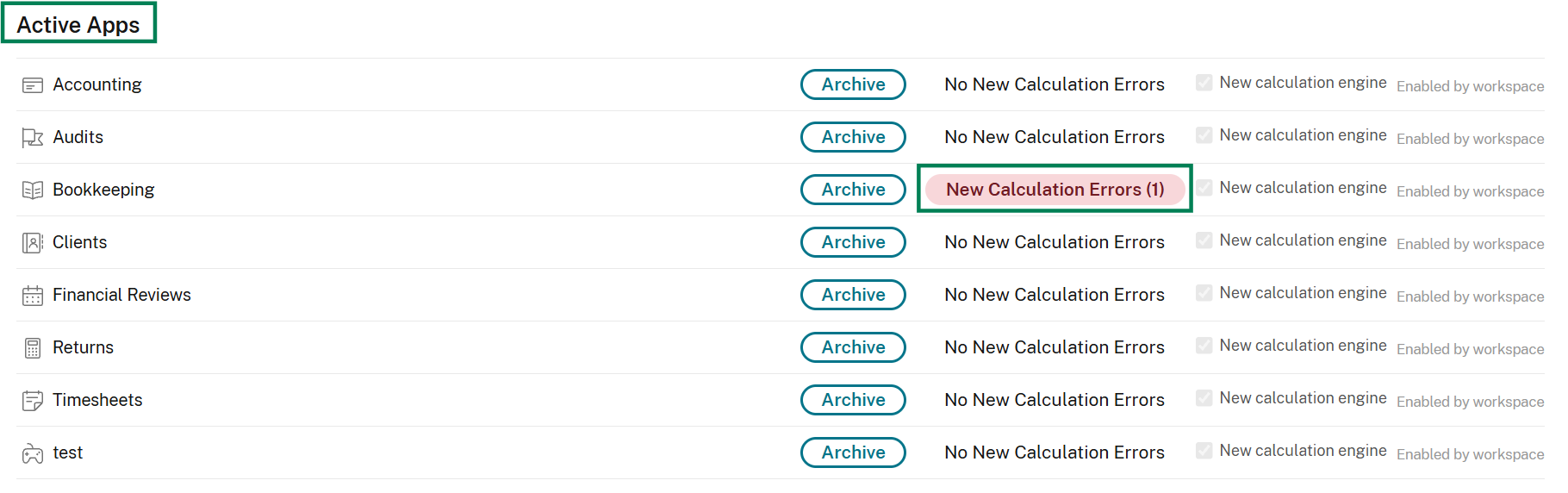
Review the apps in the Active Apps list. Apps with calculation errors show an error count.
-
Select an app's error count to filter and review its calculation errors in the New Calculation System Errors table.
-
Update the incompatible calculation fields. See the Calculation fields migration guide for compatibility guidance. If you need to test apps individually, return the workspace to the legacy engine first, then enable the new engine for each affected app.
-
Select Clear Errors after you fix the calculations.
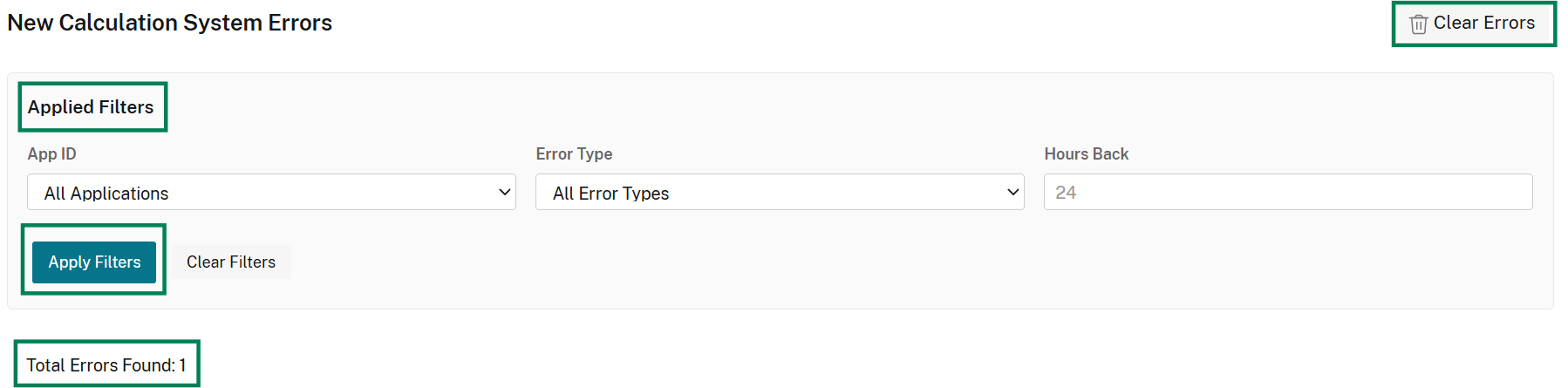
An error count can include repeated failures from the same calculation field across many items. For example, hundreds of errors might come from just one or two incompatible fields. Identify the underlying fields rather than treating each error as a separate calculation to fix.
Clearing errors removes the existing error records and gives you a clean baseline. If the updated calculations fail when they run again, new errors appear in the list.
Troubleshoot errors as an organization admin
Organization admins can monitor calculation errors from Organization Settings > Workspaces.
- Review the workspaces where the new calculation engine is enabled.
- Check the Calculation Errors column.
- Select View Errors for a workspace that has errors.
- On the workspace's Manage Apps page, review and fix the incompatible calculations.
- Select Clear Errors after fixing the calculations, then monitor for new errors.
You can troubleshoot only workspaces that you can access. Contact the workspace admins when a private workspace has errors that you cannot view.
Return to the legacy engine
If workspace-level enablement causes calculation errors, you can temporarily return the workspace to the legacy engine and troubleshoot affected apps individually.
- Open the affected workspace.
- Go to Workspace Settings > Calculation settings.
- Select Old calculation engine, then Save.
- Open an affected app and go to App Settings > Advanced.
- Select New calculation engine, then Save changes.
- Go to Manage Apps and review the app's errors in the New Calculation System Errors table.
- Update the incompatible calculation fields, then select Clear Errors.
- Monitor for new errors as calculations run.
- Repeat the app-level steps for other affected apps.
- After resolving the errors, return to Workspace Settings and enable the new engine for the full workspace.
You cannot return an individual app to the legacy engine while the workspace uses the new engine. Use the workspace fallback only while you update incompatible calculations.
Recommended rollout
For most workspaces, test the new calculation engine in stages to reduce the risk of workflow disruption:
- Enable the new engine for one representative workspace.
- Review calculation errors in Manage Apps.
- Update incompatible calculations and clear the error records.
- Monitor for new errors as calculations run.
- Repeat the process for the remaining workspaces.
For complex calculations or a more gradual rollout, keep the workspace on the legacy engine and test one app at a time. Enable the new engine for an app, resolve its calculation errors, and repeat for other key apps. Enable the new engine at the workspace level when those apps are compatible.
Use Organization Settings > Workspaces to monitor adoption and calculation errors across your organization.
Frequently asked questions
Use these answers to plan your rollout and troubleshoot calculation-engine settings.
Will all workspaces automatically use the new calculation engine?
No. Existing workspaces continue to use the legacy calculation engine until a workspace or organization admin enables the new engine.
Can I enable the new calculation engine for only one workspace?
Yes. A workspace admin can enable the new engine in Workspace Settings for that workspace.
Can organization admins enable the engine for multiple workspaces?
Yes. Organization admins can enable the engine for individual workspaces or all workspaces from Organization Settings > Workspaces.
Can organization admins enable the engine for private workspaces?
Yes. Organization admins can enable the engine for private workspaces that they are not members of. They cannot view calculation-error details for workspaces that they cannot access.
What should I do if calculations show errors after I enable the new engine?
Go to Manage Apps in the affected workspace. Select an app's error count to filter the list and review its errors. Use the Calculation fields migration guide to resolve compatibility issues, then select Clear Errors and monitor for new errors. To troubleshoot apps individually, return the workspace to the legacy engine, then enable the new engine for each affected app.
What does a calculation error count mean?
An error count shows how many calculation errors occurred in an app or workspace. A single incompatible calculation field can create repeated errors across multiple items, so the count does not necessarily equal the number of fields that you need to update.
Why should I clear errors after updating calculations?
Clearing errors removes historical error records and creates a clean baseline. New errors appear again if the updated calculations continue to fail.
Can I return to the legacy calculation engine?
Yes. You can temporarily return a workspace to the legacy engine from Workspace Settings > Calculation settings while you update incompatible calculation fields.
Can I enable the new calculation engine for only one app?
Yes. While the workspace uses the legacy engine, workspace and app admins can enable the new engine for a specific app in App Settings > Advanced.
Can I disable the new engine for one app after enabling it for the workspace?
No. Workspace-level enablement applies to all apps in that workspace. To troubleshoot apps individually, return the workspace to the legacy engine, then enable the new engine for each affected app.
What happens when an app uses a different engine than its workspace?
An app can use the new engine while its workspace uses the legacy engine. However, when the workspace uses the new engine, all its apps use the new engine regardless of their app-level settings.
When should I use app-level enablement?
Use app-level enablement to test or troubleshoot individual apps while the workspace uses the legacy engine, before enabling the new engine for the full workspace.
How long is the legacy calculation engine available?
The legacy engine is available for a limited time. Podio has not announced an end date for legacy-engine support and will provide at least two months' notice before retiring it. Do not rely on the legacy engine as a long-term solution.