Create and edit app items
Items are records stored in a Podio app. Each item contains information in the app's fields, which you can use to track projects, contacts, inventory, requests, and other work.
Ways to create items
You can add items to an app in several ways:
- Manually: Open the app and select its Add button.
- Webforms: Collect submissions directly in an app.
- Importing data: Import records from an Excel or CSV file.
- Workflow Automation: Create items automatically based on configured triggers and actions.
- Integrations and extensions: Create items through connected services and applications.
- Podio API: Create items programmatically.
- Cloning: Copy an existing item and its field values.
Create an item
To enter a record manually, open the app and complete the item's fields.
-
Go to the workspace that contains the app.
-
Open the app where you want to create the item.
-
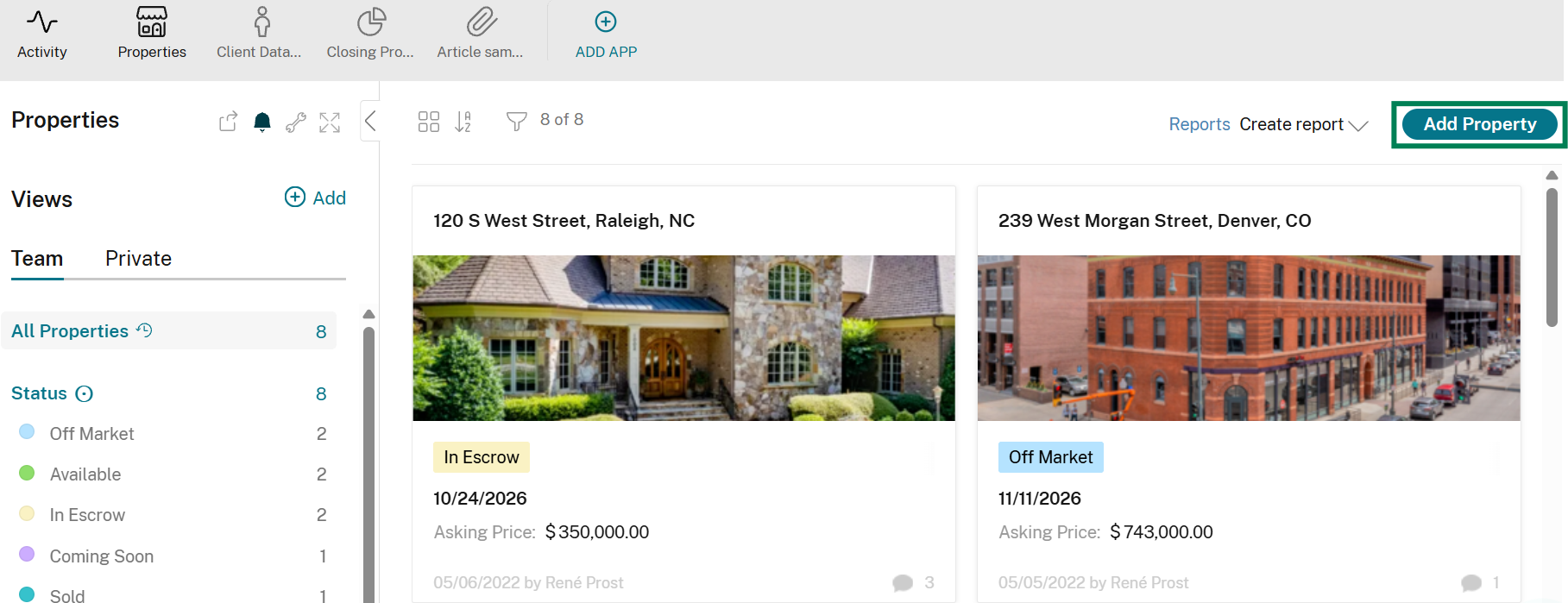
Select the Add button. Its label reflects the app's item name, such as Add Property in the following example.
-
Enter the information in the available fields.
-
Review your entries.
-
Select Save.
Note:
Complete all required fields before saving. If you leave a required field blank, Podio prompts you to enter the missing information.
Edit an item
To update an existing record, edit the item and save your changes.
- Open the item you want to edit.
- Select Edit.
- Update the fields as needed.
- Select Save.
Note:
Your ability to create and edit items depends on the app's permissions and your member type. If you cannot see an option to add or edit items, contact your workspace admin to confirm that you have the required access.