
Library selector
The library selector enables you to display a list of all existing libraries in your website. You can use the selector in the frontend or backend of your site. For example, you can use the selector on a page or in a widget designer. For more information about libraries, see Overview: Libraries.
The following image is an example of a library selector:
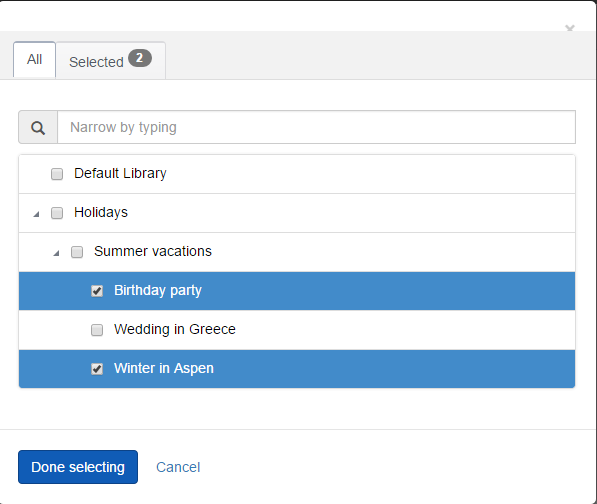
To add a Library selector, in your DesignerView.YourView.cshtml file, place one of the following tags anywhere in the HTML code:
Single item selection:
Razor
<sf-list-selector
    sf-library-selector
    sf-multiselect="false"
    sf-sortable="true"
    sf-provider="properties.ProviderName.PropertyValue"
    sf-selected-item-id="properties.SelectedItemId.PropertyValue"
    sf-selected-item="properties.SelectedItem.PropertyValue">
</sf-list-selector>
Multiple items selection:
Razor
<sf-list-selector
    sf-library-selector
    sf-multiselect="true"
    sf-sortable="true"
    sf-provider="properties.ProviderName.PropertyValue"
    sf-selected-ids="properties.SelectedItemIds.PropertyValue"
    sf-selected-items="properties.SelectedItems.PropertyValue">
</sf-list-selector>NOTE: To add the library selector in your widget, you must also implement the values of the attributes are scope properties in your controller.
| Attribute | Description |
|---|---|
sf-selected-item-id | Single select only. Stores the ID of the selected item. |
sf-selected-item | Single select only. Stores the serialized information of the selected item. |
sf-selected-ids | Multi select only. Stores the IDs of the selected items. |
sf-selected-items | Multi select only. Stores the serialized information of the selected items. |
sf-provider | Configures the provider to use when retrieving the items to display. |
sf-media-type | (Optional) Sets the required media type to images, videos, or documents. This is an optional attribute and by default its value is set to images. |
Want to learn more?
Enhance your Sitefinity skills by enrolling in free training sessions. Become Sitefinity certified through Progress Education Community to strengthen your professional credentials.

Get started with Integration Hub | Sitefinity Cloud
This free lesson teaches administrators, marketers, and other business professionals how to use Sitefinity Integration Hub to create automated workflows between Sitefinity and other business systems.
Web Security for Sitefinity Administrators
This free lesson teaches administrators the basics about protecting your Sitefinity instance and your sites from external threats. Configure HTTPS, SSL, allow lists for trusted sites, and cookie security, among others.
Foundations of Sitefinity ASP.NET Core Development
The free on-demand video course teaches developers how to use Sitefinity ASP.NET Core and take advantage of its decoupled architecture and modern development model.