Modifying app templates
Every app in Podio can be customized to fit your team’s workflow. You can modify existing apps, use apps from the Podio App Market as templates, or create your own from scratch.
This guide walks you through how to modify an app template from both the app level and the item level.
What You Can Modify
- Add, remove, or edit fields
- Change field types (e.g. text, date, category)
- Reorder fields
- Update field labels and descriptions
Permissions Required
-
Only Workspace Admins and the original App Creator can modify the app template.
-
If you do not see the Modify Template option at the app level or if the option is greyed out at the item level, please contact a Workspace Admin for assistance.
Modify the App Template (App Level)
-
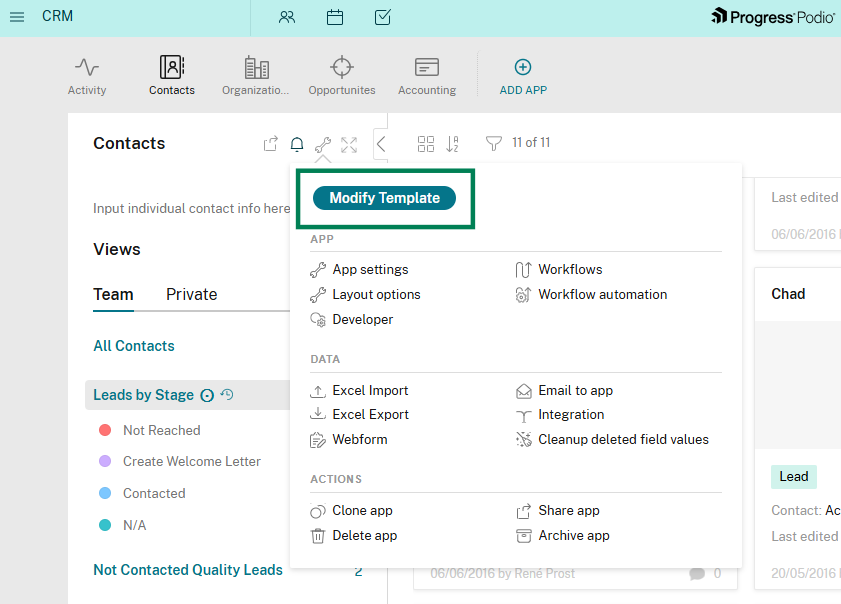
Navigate to the app you want to modify
-
Click the Wrench icon
-
Select Modify Template from the dropdown
-
Make your desired changes to fields and layout
-
Click Save Template to apply your updates
Modify the App Template (Item Level)
-
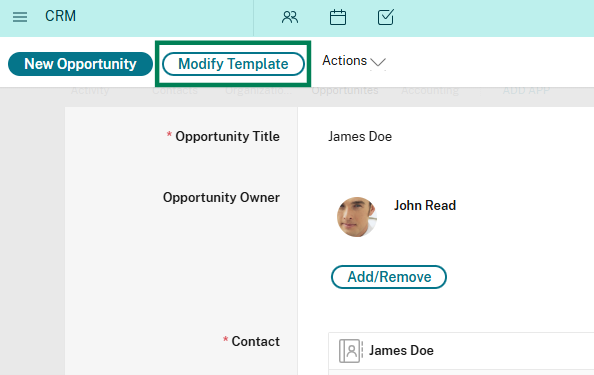
Open any item within the app
-
In the top left corner, click Modify Template
-
The template editor will open
-
Make your changes to fields
-
Click Save Template to apply updates across the app
Notes:
- Changes to the app template will affect all items in the app
- Removing a field will also remove its data from existing items
- Adding new fields will not impact existing data but will be available for all items going forward
Tips and Best Practices
- Test changes in a duplicate app before modifying a live workflow
- Keep field names clear and consistent
- Use descriptions for Guidance
- Regularly review your app structure