
Sample: Script widget
Overview
Use the Script widget sample to create a custom widget that you can use to dynamically insert scripts inside the page.
You can choose from the following options:
- Inline
In this mode the Script widget renders the content of the text area in the widget designer on the place where the widget is dropped in the WYSIWYG editor - BodyTop
In this mode the Script widget inserts the content of the text area in the widget designer at the beginning of the<body>tag. - BodyBottom
In this mode the Script widget inserts the content of the text area in the widget designer at the end of the<body>tag.
PREREQUISITES: You must set up a Sitefinity renderer application and connect it to your Sitefinity CMS application. For more information, see Install Sitefinity in ASP.NET Core mode.
NOTE: The instructions in this sample use Visual Studio 2022 and a Sitefinity renderer project named
Renderer.
Folder structure
Under your Renderer project, you must create the following folders:
TagHelpersEntities/ScriptViewComponentsViews/Shared/Components/Script
Implement the BodyTop and BodyBottom modes
In these two modes the Script widget registers the content of the text area with the IScriptRepository class and, then this script is read from the ScriptTagHelperTag class and the content is placed at the beginning or the end of the <body> tag.
1. Create the IScriptRepository class
- In the context menu of folder
TagHelpers, click Add » Class… - In Name, enter
IScriptRepository.csand click Add. - In the class, paste the following code and save your changes:
using System.Collections.Generic;
using Renderer.ViewComponents;

namespace Renderer.TagHelpers
{

    public interface IScriptRepository
    {
        public IDictionary<ScriptLocation, IList<string>> Scripts { get; }

        void RegisterScript(string content, ScriptLocation location);
    }

    public class ScriptRepository : IScriptRepository
    {
        private object lockObj = new object();

        public IDictionary<ScriptLocation, IList<string>> Scripts { get; } = new Dictionary<ScriptLocation, IList<string>>();

        void IScriptRepository.RegisterScript(string content, ScriptLocation location)
        {
            lock (this.lockObj)
            {
                if (!this.Scripts.ContainsKey(location))
                    this.Scripts[location] = new List<string>();

                this.Scripts[location].Add(content);
            }
        }
    }
}
2. Create the ScriptTagHelper class
- In the context menu of folder
TagHelpers, click Add » Class… - In Name, enter
ScriptTagHelper.csand click Add. - In the class, paste the following code and save your changes:
using System.Collections.Generic;
using System.Threading.Tasks;
using Microsoft.AspNetCore.Mvc.Rendering;
using Microsoft.AspNetCore.Razor.TagHelpers;
namespace Renderer.TagHelpers
{

    /// <summary>
    /// The helpers for row tags.
    /// </summary>
    [HtmlTargetElement("body")]
    public class ScriptTagHelper : TagHelper
    {
        private IScriptRepository scriptRepository;

        public ScriptTagHelper(IScriptRepository scriptRepository)
        {
            this.scriptRepository = scriptRepository;
        }

        public override void Process(TagHelperContext context, TagHelperOutput output)
        {
            if (this.scriptRepository.Scripts.TryGetValue(ScriptLocation.BodyTop, out IList<string> scripts))
            {
                foreach (var script in scripts)
                {
                    output.PreContent.AppendHtml(script);
                }
            }

            if (this.scriptRepository.Scripts.TryGetValue(ScriptLocation.BodyBottom, out scripts))
            {
                foreach (var script in scripts)
                {
                    output.Content.AppendHtml(script);
                }
            }
        }
    }
}
Create a custom layout file
You must register the tag helper in the _Layout.cshtml file. You must then use this custom base layout for every page where the Script is placed
Create the layout file
Perform the following:
-
In the context menu of folder
Views/Shared, click Add » Class… -
Select Code File.
-
In Name, enter
_Layout.cshtmland click Add. -
In the file, paste the following code and save your changes:
Razor@model Progress.Sitefinity.AspNetCore.Models.PageModel @using Progress.Sitefinity.AspNetCore.Mvc.Rendering @addTagHelper *, Microsoft.AspNetCore.Mvc.TagHelpers @addTagHelper *, Progress.Sitefinity.AspNetCore @addTagHelper *, Renderer @inject Progress.Sitefinity.AspNetCore.Web.IRequestContext requestContext; <!DOCTYPE html> <html id="html" lang="@requestContext.Culture"> <head> <meta charset="utf-8" /> <meta name="viewport" content="width=device-width, initial-scale=1.0" /> <link rel="icon" type="image/x-icon" href="favicon.ico"> @Html.RenderSeoMeta(this.Model) <environment include="Development"> <link rel="stylesheet" href="@Progress.Sitefinity.AspNetCore.Constants.PrefixRendererUrl("Styles/bootstrap.css")" /> </environment> <environment exclude="Development"> <link rel="stylesheet" href="@Progress.Sitefinity.AspNetCore.Constants.PrefixRendererUrl("Styles/bootstrap.min.css")" /> </environment> @* Scripts for the OOB Sitefinity widgets *@ <link rel="stylesheet" href="@Progress.Sitefinity.AspNetCore.Constants.PrefixRendererUrl("styles/main.css")" type="text/css" /> @* Custom styles *@ <link rel="stylesheet" href="~/styles/styles.css" /> @* Custom scripts *@ <script src="~/scripts/scripts.js"></script> </head> <body class="container-fluid"> @RenderSection("Scripts") </body> </html>
Create the widget
1. Create the Entity
- In the context menu of folder
Entities/Script, click Add » Class… - In Name, enter
ScriptEntity.csand click Add. - In the class, paste the following code and save your changes:
using System.ComponentModel;
using System.ComponentModel.DataAnnotations;
using Progress.Sitefinity.Renderer.Designers;
using Progress.Sitefinity.Renderer.Designers.Attributes;

namespace Renderer.Entities.Script
{
    public class ScriptEntity
    {
        /// <summary>
        /// Gets or sets the location
        /// </summary>
        public ScriptLocation Location { get; set; }

        /// <summary>
        /// Gets or sets the script content
        /// </summary>
        [DisplayName("Script")]
        [Description("Put the script with its wrapping tag -> e.g. <script>javascript code</script>")]
        [DataType(customDataType: KnownFieldTypes.TextArea)]
        public string Script { get; set; }
    }

    public enum ScriptLocation
    {
        Inline,
        BodyTop,
        BodyBottom
    }
}
2. Create the ViewComponent
- In the context menu of folder
ViewComponents, click Add » Class… - In Name, enter
ScriptViewComponent.csand click Add. - In the class, paste the following code and save your changes:
using System;
using Microsoft.AspNetCore.Mvc;
using Progress.Sitefinity.AspNetCore.ViewComponents;
using Renderer.Entities.Script;

namespace Renderer.ViewComponents
{
    /// <summary>
    /// Test widget with different kind of restrictions for its properties.
    /// </summary>
    [SitefinityWidget]
    public class ScriptViewComponent : ViewComponent
    {
        private IScriptRepository scriptRepository;
        public ScriptViewComponent(IScriptRepository scriptRepository)
        {
            this.scriptRepository = scriptRepository;
        }

        /// <summary>
        /// Invokes the view.
        /// </summary>
        /// <param name="context"></param>
        /// <returns></returns>
        public IViewComponentResult Invoke(IViewComponentContext<ScriptEntity> context)
        {
            if (context.Entity.Location == ScriptLocation.BodyTop || context.Entity.Location == ScriptLocation.BodyBottom)
            {
                this.scriptRepository.RegisterScript(context.Entity.Script, context.Entity.Location);
            }

            context.SetHideEmptyVisual(true);

            return this.View(context.Entity);
        }
    }
}
3. Create the View
- In the context menu of folder
Views/Shared/Components/Script, click Add » Class… - Select Code File.
- In Name, enter
Default.cshtmland click Add. - In the class, paste the following code and save your changes:
@model ScriptEntity
@inject Progress.Sitefinity.AspNetCore.Web.IRenderContext renderContext;

@if (Model.Location == ScriptLocation.Inline)
{
    @Html.Raw(Model.Script)

    if (renderContext.IsEdit)
    {
        <div>@Model.Script</div>
    }
}
Register the IScriptRepository class
You must register the IScriptRepository class in the Program.cs.
Modify the Program.cs file
The Program.cs file should look in the following way:
using Microsoft.AspNetCore.Builder;
using Microsoft.AspNetCore.Hosting;
using Microsoft.Extensions.DependencyInjection;
using Microsoft.Extensions.Hosting;

using Progress.Sitefinity.AspNetCore;
using Progress.Sitefinity.AspNetCore.FormWidgets;
using script_widget;

var builder = WebApplication.CreateBuilder(args);

// Add services to the container.
builder.Services.AddSitefinity();
builder.Services.AddViewComponentModels();
builder.Services.AddFormViewComponentModels();
builder.Services.AddScoped<IScriptRepository, ScriptRepository>();

var app = builder.Build();

if (!app.Environment.IsDevelopment())
{
    app.UseExceptionHandler("/Error");
    app.UseHsts();
}

app.UseStaticFiles();
app.UseRouting();
app.UseSitefinity();

app.Run();
Build your solution.
Result
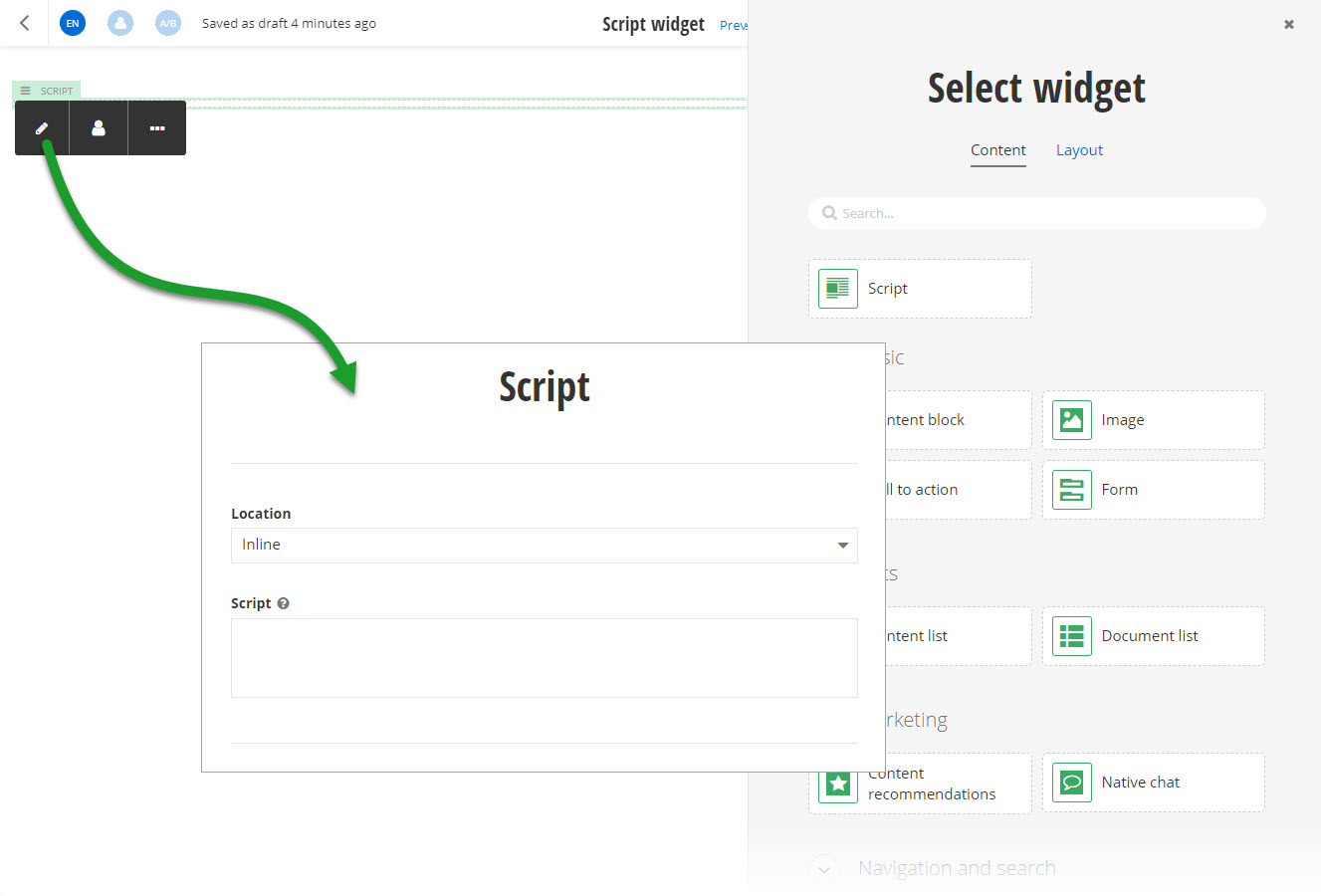
When you open your Renderer application and open the New editor, you will see the Script widget in the widget selector. When you add the widget on your page and edit it, you can choose where to place the script and you can enter the script in the text area.
Run the sample
This sample is available in Sitefinity’s GitHub repository. You can run and play with it.
To do this, perform the following:
- Go to Sitefinity’s GitHub repository Sitefinity ASP.NET Core samples.
- Expand Code and click Download ZIP.
- Extract the files on your computer.
- In the extracted folder, navigate to
sitefinity-aspnetcore-mvc-samples-master/src/script-widgetfolder. - Open the
script-widget.slnin Visual Studio. - Open the
appsettings.jsonfile. - In section
Sitefinity, change theUrlproperty to the URL of your Sitefinity CMS site.
If you have deployed Sitefinity CMS on the IIS, point tohttps://localhost:<https_port>. - In Visual Studio, in the context menu of
script-widgetproject, click View in Browser. - Log in to your Sitefinity CMS instance and place the widget on a page.
