
Sample: Sitefinity data widget
Overview
In many cases custom widgets need to get and display some items from the Sitefinity CMS backend. Use this sample to create a widget that consumes data from Sitefinity CMS. This sample works with the IRestClient to access data from Sitefinity CMS.
This sample works with a news, but you can work with other types of content from Sitefinity CMS, such as content blocks, blogs, blog posts, media, and dynamic items, etc. The WebServicePath configuration in the Renderer’s the appsettings.json controls which service the client work with.
PREREQUISITES: Before implementing this sample, you must have set up a Sitefinity renderer application and connect it to your Sitefinity CMS application.
For more information, see Install Sitefinity in ASP.NET Core mode.
NOTE: The instructions in this sample use Visual Studio 2022 and a Sitefinity renderer project named
Renderer.
Secure the communication between the Renderer and Sitefinity CMS
You can restrict the web service in Sitefinity CMS to deny access to other clients except for the Renderer. You do this by creating an API key for the service in Sitefinity CMS and then adding the same key in the appsettings.json file of the Renderer in the following way:
"Sitefinity": {
    "Url": "https://yoursitefinitywebsiteurl",
    "WebServicePath": "api/default",
    "WebServiceApiKey": "mysecret",
},
With this configuration, when API calls are made to the OData service under the api/default route, a special header will be passed carrying this API key and allowing the call through. This does not authenticate the call, and the user is still left anonymous.
Folder structure
Under your Renderer project, you must create the following folders:
DtoViewComponentsViews/Shared/Components/SitefinityData
Create the DTO
Create the dynamic item DTO
- In the context menu of folder
Dto, click Add » Class… - In Name, enter
Items.csand click Add. - In the class, paste the following code and save your changes:
using Progress.Sitefinity.RestSdk.Dto;

namespace Renderer.Dto
{
    public class Item : SdkItem
    {
        /// <summary>
        /// Gets or sets the title.
        /// </summary>
        public string Title { get; set; }

        /// <summary>
        /// Gets or sets the Thumbnail.
        /// </summary>
        public Image[] Thumbnail { get; set; }
    }

    /// <summary>
    /// The image view model.
    /// </summary>
    public class Image
    {
        /// <summary>
        /// Gets or sets the thumbnail url.
        /// </summary>
        public string ThumbnailUrl { get; set; }
    }
}
Create the widget
1. Create the ViewComponent
- In the context menu of folder
ViewComponents, click Add » Class… - In Name, enter
SitefinityDataViewComponent.csand click Add. - In the class, paste the following code and save your changes:
using Microsoft.AspNetCore.Mvc;
using Progress.Sitefinity.AspNetCore.ViewComponents;
using Progress.Sitefinity.RestSdk.Dto;
using Progress.Sitefinity.RestSdk;
using System.ComponentModel;

namespace Renderer.ViewComponents
{
    /// <summary>
    /// The view component for accessing Sitefinity data.
    /// </summary>
    [SitefinityWidget]
    public class SitefinityDataViewComponent : ViewComponent
    {
        private readonly IRestClient restClient;

        /// <summary>
        /// Initializes a new instance of the <see cref="SitefinityDataViewComponent"/> class.
        /// </summary>
        /// <param name="restClient">The rest service.</param>
        public SitefinityDataViewComponent(IRestClient restClient)
        {
            this.restClient = restClient;
        }

        /// <summary>
        /// Invokes the view component.
        /// </summary>
        /// <param name="context">The view component context.</param>
        /// <returns>The view component result.</returns>
        public async Task<IViewComponentResult> InvokeAsync(IViewComponentContext<SitefinityDataEntity> context)
        {
            var viewModels = await this.GetItems(context.Entity);
            return this.View(viewModels);
        }

        public async Task<IList<SdkItem>> GetItems(SitefinityDataEntity entity)
        {
            // when using the OData client, the url is automatically prefixed with the value of web the service and the sitefinity instance url
            // it uses an expand the get the related image
            // for more complex queries checkout the REST SDK official documentation

            var getAllArgs = new GetAllArgs
            {
                // required parameter, specifies the items to work with
                Type = RestClientContentTypes.News
            };

            // optional parameter, specifies the fields to be returned, if not specified
            // the default service response fields will be returned
            getAllArgs.Fields.Add("Title");

            // specifies the related fields to be included in the response (like related data or parent relationships)
            if (!entity.HideImage)
                getAllArgs.Fields.Add("Thumbnail");

            var response = await this.restClient.GetItems<SdkItem>(getAllArgs);
            return response.Items;
        }
    }

    /// <summary>
    /// The entity class.
    /// </summary>
    public class SitefinityDataEntity
    {
        /// <summary>
        /// Gets or sets a value indicating whether to hide the related image.
        /// </summary>
        [DisplayName("Hide related image")]
        public bool HideImage { get; set; }
    }
}
2. Create the View
- In the context menu of folder
Views/Shared/Components/SitefinityData, click Add » Class… - Select Code File.
- In Name, enter
Default.cshtmland click Add. - In the class, paste the following code and save your changes:
@using Progress.Sitefinity.RestSdk.Dto
@model IList<Progress.Sitefinity.RestSdk.Dto.SdkItem>

<h1>News items</h1>

@foreach (var item in this.Model)
{
    <ul>
        <li>
            @(item.GetValue<string>("Title"))
            @{
                string thumbnailUrl = null;
                if (item.TryGetValue<SdkItem[]>("Thumbnail", out SdkItem[] thumbnails) && thumbnails.Length > 0)
                {
                    thumbnailUrl = thumbnails[0].GetValue<string>("ThumbnailUrl");
                }

            }
            @if (thumbnailUrl != null)
            {
                <img src="@thumbnailUrl" />
            }
        </li>
    </ul>
}
Build your solution.
Result
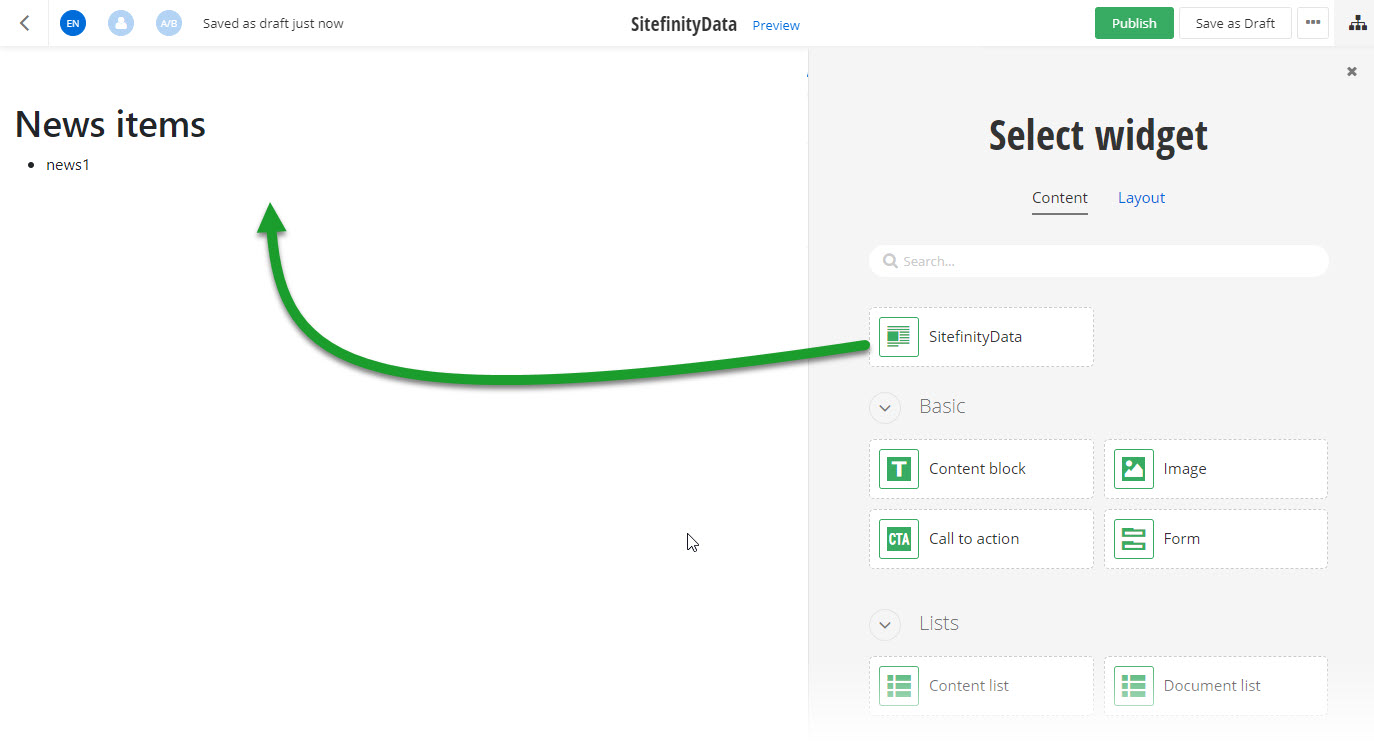
When you open your Renderer application and open the New editor, you will see the SitefinityDta widget in the widget selector. When you add the widget on your page, you can see News items displayed from Sitefinity CMS.
Run the sample
This sample is available in Sitefinity’s GitHub repository. You can run and play with it.
To do this, perform the following:
- Go to Sitefinity’s GitHub repository Sitefinity ASP.NET Core samples.
- Expand Code and click Download ZIP.
- Extract the files on your computer.
- In the extracted folder, navigate to
sitefinity-aspnetcore-mvc-samples-master/src/sitefinity-datafolder. - Open the
sitefinity-data.slnin Visual Studio. - Open the
appsettings.jsonfile. - In section
Sitefinity, change theUrlproperty to the URL of your Sitefinity CMS site.
If you have deployed Sitefinity CMS on the IIS, point tohttps://localhost:<https_port>. - In Visual Studio, in the context menu of
sitefinity-dataproject, click View in Browser. - Log in to your Sitefinity CMS instance and place the widget on a page.
