
Sample: Share data between widgets
Overview
Use the Share data between widgets sample to create two widgets that work together in the following way:
- The
CategorySelectorwidget displays a list of categories. - The
DataToFilterdisplays filtered sample data, based on the selected category.
NOTE: You must place the widgets on the same page.
IRequestPreparation interface
This sample shows how two widgets can communicate with each other in the early stage of the pipeline.
The sample takes advantage of the IRequestPreparation class, which is executed prior to the page execution. This is useful in the following cases:
- To share data between widgets.
- To perform some initialization based on the current page and widgets.
- To prefetch data using the
IRestClientinterface that is passed as an argument.
NOTE: The
IRequestPreparationimplementation must be registered in the DI container during startup.
Implementation
The implementation in this sample monitors the unresolved segments in the URL – for example:
- For localhost/home/cat1 » [
cat1] will be the parameter in theUrlParameterscollection - For localhost/home/cat1/cat2 » [
cat1, cat2] will be the parameters in theUrlParameterscollection
If there is a match with the existing segments, then MarkUrlParametersResolved() method is called to notify the underlying framework that the additional parameters are resolved and this is a valid URL. If an invalid URL is requested, for example - /cat4 or /cat1/cat2, then the Renderer will return a 404 response. When a match is successful, the resolved parameter is added to the state of the CategorySelector and DataToFilter widgets, so they can display their views according to the current selection.
PREREQUISITES: You must set up a Sitefinity renderer application and connect it to your Sitefinity CMS application. For more information, see Install Sitefinity in ASP.NET Core mode.
NOTE: The instructions in this sample use Visual Studio 2022 and a Sitefinity renderer project named
Renderer.
Create the folder structure
Under your Renderer project, you must create the following folders:
Entities/CategorySelectorEntities/DataToFilterViewComponentsViewModelsViews/Shared/Components/CategorySelectorViews/Shared/Components/DataToFilter
Implement the IRequestPreparation interface
The example takes advantage of the IRequestPreparation class.
Create the CategoryPreparation class
- In the context menu of the
Rendererproject, click Add » Class… - In Name, enter
CategoryPreparation.csand click Add. - In the class, paste the following code and save your changes:
using System.Linq;
using System.Threading.Tasks;
using Entities.CategorySelector;
using Entities.DataToFilter;
using Microsoft.AspNetCore.Http;
using Progress.Sitefinity.AspNetCore.Models;
using Progress.Sitefinity.AspNetCore.Preparations;
using Progress.Sitefinity.AspNetCore.ViewComponents;
using Progress.Sitefinity.RestSdk;
using ViewComponents;

namespace Renderer
{
    public class CategoryPreparation : IRequestPreparation
    {
        public const string SelectedCategory = "selected-category";

        public Task Prepare(PageModel pageModel, IRestClient restClient, HttpContext context)
        {
            // get the category selector widget
            var categorySelectorWidget = pageModel.AllViewComponentsFlat.FirstOrDefault(x => typeof(IViewComponentContext<CategorySelectorEntity>).IsAssignableFrom(x.GetType()));
            if (categorySelectorWidget != null)
            {
                // if more parameters are found in the url, they will be present in the UrlParameters collection
                // e.g.
                // localhost/home/cat1 -> [cat1] will be the parameter in the UrlParameters collection
                // localhost/home/cat1/cat2 -> [cat1, cat2] will be the parameters in the UrlParameters collection
                var categories = CategorySelectorViewComponent.Categories.Keys.ToList();
                if (pageModel.UrlParameters.Count == 1)
                {
                    // if the additional url parameter matches one of the category urls, we mark the parameters as resolved
                    // so there is no 404 thrown
                    var parameterWithForwardSlash = "/" + pageModel.UrlParameters[0];
                    if (categories.Contains(parameterWithForwardSlash))
                    {
                        // add the selected category to the state so we can highlight it in the front-end
                        categorySelectorWidget.State.Add(SelectedCategory, parameterWithForwardSlash);

                        var dataToFilterWidget = pageModel.AllViewComponentsFlat.FirstOrDefault(x => typeof(IViewComponentContext<DataToFilterEntity>).IsAssignableFrom(x.GetType()));
                        if (dataToFilterWidget != null)
                        {
                            // add the selected category to the state so we can filter our data based on the selected url parameter
                            dataToFilterWidget.State.Add(SelectedCategory, parameterWithForwardSlash);
                        }

                        pageModel.MarkUrlParametersResolved();
                    }
                }
            }

            return Task.CompletedTask;
        }
    }
}
Create the widgets
1. Create the CategorySelector entity
- In the context menu of folder
Entities/CategorySelector, click Add » Class… - In Name, enter
CategorySelectorEntity.csand click Add. - In the class, paste the following code and save your changes:
namespace Entities.CategorySelector
{
    public class CategorySelectorEntity
    {
        // left blank as no properties are used in the sample
    }
}
2. Create the DataToFilter entity
- In the context menu of folder
Entities/DataToFilter, click Add » Class… - In Name, enter
DataToFilterEntity.csand click Add. - In the class, paste the following code and save your changes:
namespace Entities.DataToFilter
{
    public class DataToFilterEntity
    {
        // left blank as no properties are used in the sample
    }
}
3. Create the CategorySelector view component
- In the context menu of folder
ViewComponents, click Add » Class… - In Name, enter
CategorySelectorViewComponent.csand click Add. - In the class, paste the following code and save your changes:
using System;
using Microsoft.AspNetCore.Mvc;
using Entities.CategorySelector;
using Progress.Sitefinity.AspNetCore.ViewComponents;
using System.Collections.Generic;
using ViewModels;
using Renderer;

namespace ViewComponents
{
    /// <summary>
    /// Test widget with different kind of restrictions for its properties.
    /// </summary>
    [SitefinityWidget]
    public class CategorySelectorViewComponent : ViewComponent
    {
        public static readonly Dictionary<string, string> Categories = new Dictionary<string, string>()
        {
            { "/cat1", "Category 1" },
            { "/cat2", "Category 2" },
            { "/cat3", "Category 3" },
        };

        /// <summary>
        /// Invokes the view.
        /// </summary>
        /// <param name="context"></param>
        /// <returns></returns>
        public IViewComponentResult Invoke(IViewComponentContext<CategorySelectorEntity> context)
        {
            if (context == null)
            {
                throw new ArgumentNullException(nameof(context));
            }

            var categoriesWithNonExisting = new Dictionary<string, string>(Categories);
            categoriesWithNonExisting.Add("/cat4", "Non existing category");

            if (context.State.TryGetValue(CategoryPreparation.SelectedCategory, out object selectedCategory))
                return this.View(new CategorySelectorViewModel() { Categories = categoriesWithNonExisting, SelectedCategory = selectedCategory.ToString() });

            return this.View(new CategorySelectorViewModel() { Categories = categoriesWithNonExisting });
        }
    }
}
4. Create the DataToFilter view component
- In the context menu of folder
ViewComponents, click Add » Class… - In Name, enter
DataToFilterViewComponent.csand click Add. - In the class, paste the following code and save your changes:
using System;
using Microsoft.AspNetCore.Mvc;
using Entities.DataToFilter;
using Progress.Sitefinity.AspNetCore.ViewComponents;
using Renderer;

namespace ViewComponents
{
    /// <summary>
    /// Test widget with different kind of restrictions for its properties.
    /// </summary>
    [SitefinityWidget]
    public class DataToFilterViewComponent : ViewComponent
    {
        /// <summary>
        /// Invokes the view.
        /// </summary>
        /// <param name="context"></param>
        /// <returns></returns>
        public IViewComponentResult Invoke(IViewComponentContext<DataToFilterEntity> context)
        {
            if (context == null)
            {
                throw new ArgumentNullException(nameof(context));
            }

            var allItems = new string[] { "Item 1", "Item 2", "Item 3" };
            if (context.State.TryGetValue(CategoryPreparation.SelectedCategory, out object selectedCategory))
            {
                if (selectedCategory.ToString() == "/cat1")
                {
                    return this.View(new string[] { "Item 1", "Item 2" });
                }
                else if (selectedCategory.ToString() == "/cat2")
                {
                    return this.View(new string[] { "Item 2", "Item 3" });
                }
                else if (selectedCategory.ToString() == "/cat3")
                {
                    return this.View(new string[] { "Item 1", "Item 3" });
                }
            }

            return this.View(new string[] { "Item 1", "Item 2", "Item 3" });
        }
    }
}
5. Create the CategorySelector view model
- In the context menu of folder
ViewModels, click Add » Class… - In Name, enter
CategorySelectorViewModel.csand click Add. - In the class, paste the following code and save your changes:
using System.Collections.Generic;

namespace ViewModels
{
    public class CategorySelectorViewModel
    {
        public IDictionary<string, string> Categories { get; set; }

        public string SelectedCategory { get; set; }
    }
}
6. Create the CategorySelector view
- In the context menu of folder
Views/Shared/Components/CategorySelector, click Add » Class… - Select Code File.
- In Name, enter
Default.cshtmland click Add. - In the class, paste the following code and save your changes:
@using Entities.CategorySelector;
@using ViewModels;
@using Progress.Sitefinity.AspNetCore.Web;

@model CategorySelectorViewModel
@inject IRequestContext requestContext;

<ul>
    @foreach (var category in this.Model.Categories)
    {
        var url = requestContext.PageNode.ViewUrl + category.Key;
        <li>
            @if (this.Model.SelectedCategory != null && this.Model.SelectedCategory == category.Key)
            {
                <b><a href="@url">@category.Value</a></b>
            }
            else
            {
                <a href="@url">@category.Value</a>
            }
        </li>
    }
</ul>
7. Create the DataToFilter view
- In the context menu of folder
Views/Shared/Components/DataToFilter, click Add » Class… - Select Code File.
- In Name, enter
Default.cshtmland click Add. - In the class, paste the following code and save your changes:
@using Entities.DataToFilter;

@model string[]

@foreach (var dataItem in this.Model)
{
    <h3>@dataItem</h3>
}
Register the IRequestPreparation class
You must register the IRequestPreparation class in the Program.cs.
You must add the following line:
builder.Services.AddSingleton<IRequestPreparation, CategoryPreparation>();
Modify the Program.cs file
The Program.cs file should look similar to the following:
using Microsoft.AspNetCore.Builder;
using Microsoft.Extensions.DependencyInjection;
using Microsoft.AspNetCore.Hosting;
using Microsoft.Extensions.Hosting;

using Progress.Sitefinity.AspNetCore;
using Progress.Sitefinity.AspNetCore.FormWidgets;
using Progress.Sitefinity.AspNetCore.Preparations;
using Progress.Sitefinity.Renderer.Designers;

using share_data_between_widgets;

var builder = WebApplication.CreateBuilder(args);

// Add services to the container.
builder.Services.AddSitefinity();
builder.Services.AddViewComponentModels();
builder.Services.AddSingleton<IRequestPreparation, CategoryPreparation>();

var app = builder.Build();

if (!app.Environment.IsDevelopment())
{
    app.UseExceptionHandler("/Error");
    app.UseHsts();
}

app.UseStaticFiles();
app.UseRouting();
app.UseSitefinity();

app.Run();
Build your solution.
Result
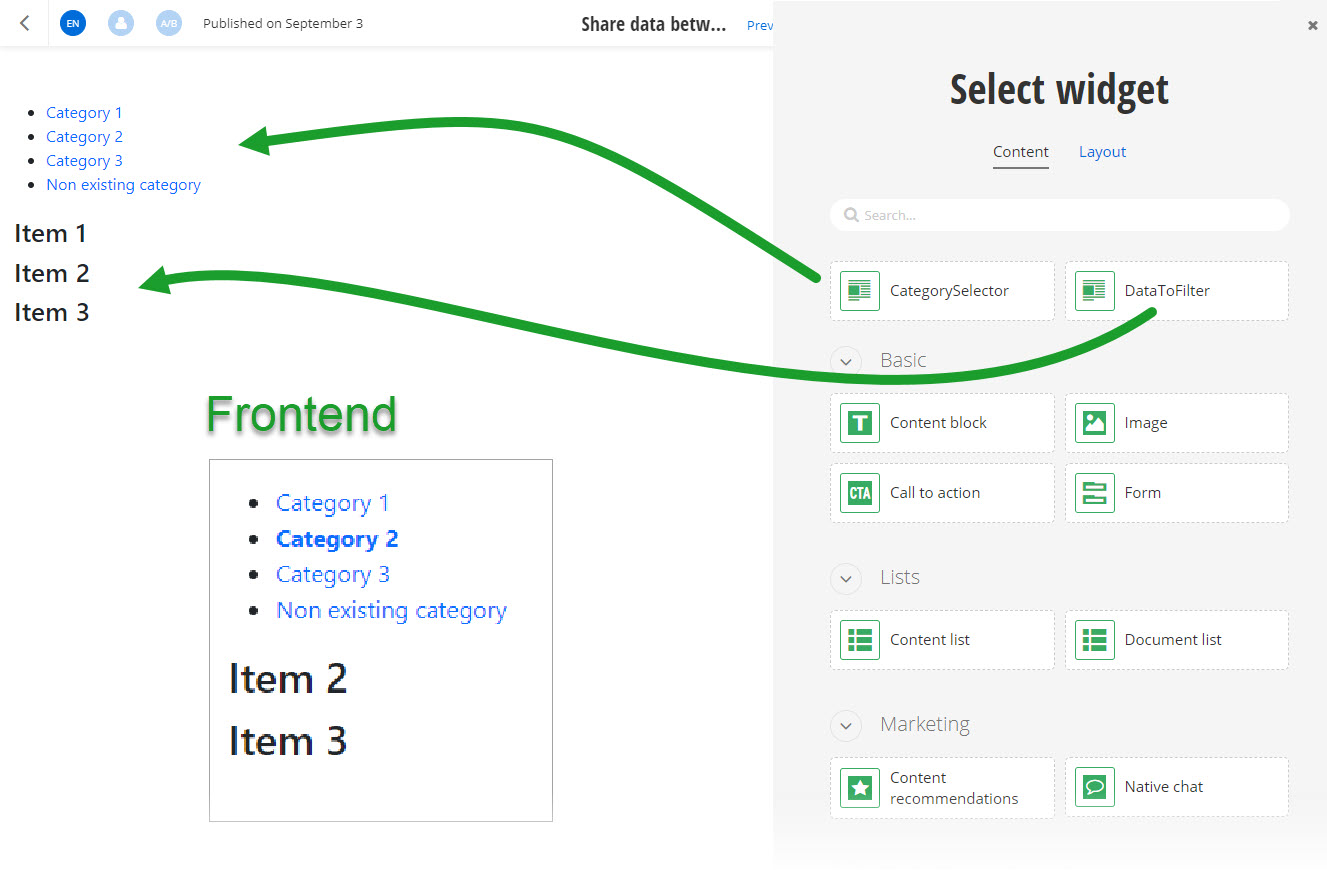
When you open your Renderer application and open the New editor, you will see the CategorySelector and DataToFilter widgets in the widget selector. You must add the widgets on the same page and them you can use the filter on the frontend.
Run the sample
This sample is available in Sitefinity’s GitHub repository. You can run and play with it.
To do this, perform the following:
- Go to Sitefinity’s GitHub repository Sitefinity ASP.NET Core samples.
- Expand Code and click Download ZIP.
- Extract the files on your computer.
- In the extracted folder, navigate to
sitefinity-aspnetcore-mvc-samples-master/src/share-data-between-widgetsfolder. - Open the
share-data-between-widgets.slnin Visual Studio. - Open the
appsettings.jsonfile. - In section
Sitefinity, change theUrlproperty to the URL of your Sitefinity CMS site.
If you have deployed Sitefinity CMS on the IIS, point tohttps://localhost:<https_port>. - In Visual Studio, in the context menu of
share-data-between-widgetsproject, click View in Browser. - Log in to your Sitefinity CMS instance and place the widget on a page.
