
Sample: Extend the Content block widget
Overview
This sample provides an example on how to extend the Content block widget by replacing its model and the default entity type, which enables you to add additional properties to the designer.
This example demonstrates how to extend the model of the Content Block widget with custom logic and add an additional property in the designer.
Implementation
If you want to extend and slightly modify the logic, you need to inherit the ContentBlockModel. If you want to apply a new logic to the widget, you need to implement the IContentBlockModel interface. In the InitialzieViewModel method you can modify the generated view model that will be passed to the view, or provide additional data to the view, like in the ExtendedContentBlockModel.cs.
You can modify the view of the ContentBlock widget by placing a Default view in Views/Shared/Components/SitefinityContentBlock folder, and changing the default code of the view depending on your requirements.
Once the extended model is ready, you can register it in the Program.cs file after the registration of the default ComponentView models.
PREREQUISITES: You must set up a Sitefinity renderer application and connect it to your Sitefinity CMS application. For more information, see Install Sitefinity in ASP.NET Core mode.
NOTE: The instructions in this sample use Visual Studio 2022 and a Sitefinity renderer project named
Renderer.
Folder structure
Under your Renderer project, you must create the following folders:
EntitiesModelsViewModelsViews/Shared/Components/SitefinityContentBlock
Create the widget
1. Create the Entity
- In the context menu of folder
Entities, click Add » Class… - In Name, enter
ExtendedContentBlockEntity.csand click Add. - In the class, paste the following code and save your changes:
using System.ComponentModel;
using System.ComponentModel.DataAnnotations;
using System.Threading.Tasks;
using Progress.Sitefinity.AspNetCore.Configuration;
using Progress.Sitefinity.RestSdk;
using Progress.Sitefinity.Renderer.Designers;
using Progress.Sitefinity.AspNetCore.Widgets.Models.ContentBlock;

namespace Rendererk.Entities
{
    /// <summary>
    /// Extended entity class for the ContentBlock view component.
    /// </summary>
    public class ExtendedContentBlockEntity : ContentBlockEntity{
        /// <summary>
        /// Gets or sets the custom prop.
        /// </summary>
        [Category(PropertyCategory.Advanced)]
        [DisplayName("Text to append")]
        public string TextToAppend { get; set; }
    }
}
2. Create the Model
- In the context menu of folder
Models, click Add » Class… - In Name, enter
ExtendedContentBlockModel.csand click Add. - In the class, paste the following code and save your changes:
using System.Threading.Tasks;
using Progress.Sitefinity.AspNetCore.Configuration;
using Progress.Sitefinity.RestSdk;
using Progress.Sitefinity.AspNetCore.Widgets.Models.ContentBlock;
using Progress.Sitefinity.AspNetCore.Widgets.ViewComponents.Common;
using Renderer.ViewModels;
using Renderer.Entities;
namespace Renderer.Models
{
    /// <summary>
    /// Extended model for the ContentBlock view component.
    /// </summary>
    public class ExtendedContentBlockModel : ContentBlockModel
    {
        /// <summary>
        /// Initializes a new instance of the <see cref="ExtendedContentBlockModel"/> class.
        /// </summary>
        /// <param name="restClient">The HTTP client.</param>
        /// <param name="styles">The style classes provider.</param>
        public ExtendedContentBlockModel(IRestClient restClient, IStyleClassesProvider styles)
            : base(restClient, styles)
        {
        }

        /// <summary>
        /// Initializes the view model.
        /// </summary>
        /// <param name="context">The context.</param>
        /// <returns>The view model.</returns>
        public override async Task<ContentBlockViewModel> InitializeViewModel(ContentBlockEntity entity)
        {
            var viewModel = await base.InitializeViewModel(entity).ConfigureAwait(false);
            return new ExtendedContentBlockViewModel(viewModel)
            {
                ModifiedContent = viewModel.Content + (entity as ExtendedContentBlockEntity).TextToAppend
            };
        }
    }
}
3. Create the ViewModel
- In the context menu of folder
ViewModels, click Add » Class… - In Name, enter
ExtendedContentBlockViewModel.csand click Add. - In the class, paste the following code and save your changes:
using Progress.Sitefinity.AspNetCore.Widgets.Models.ContentBlock;

namespace Renderer.ViewModels
{
    /// <summary>
    /// Extended viewModel for the ContentBlock view component.
    /// </summary>
    public class ExtendedContentBlockViewModel : ContentBlockViewModel
    {
        public ExtendedContentBlockViewModel(ContentBlockViewModel source)
        {
            this.Content = source.Content;
            this.WrapperCssClass = source.WrapperCssClass;
            this.TagName = source.TagName;
        }

        public string ModifiedContent { get; set; }
    }
}
4. Create the View
- In the context menu of folder
Views/Shared/Components/SitefinityContentBlock, click Add » Class… - Select Code File.
- In Name, enter
Default.cshtmland click Add. - In the class, paste the following code and save your changes:
@using Progress.Sitefinity.AspNetCore.TagHelpers;
@using Progress.Sitefinity.AspNetCore.Mvc.Rendering;

@model Renderer.ViewModels.ExtendedContentBlockViewModel

    <sf-wrapper tag-name="@Model.TagName" class="@Model.WrapperCssClass clearfix">
        <h1>Original</h1>
        @{
            @Html.HtmlSanitize(@Model.Content)
        }

        <h1>Modified</h1>
        @{
            @Html.HtmlSanitize(@Model.ModifiedContent)
        }
    </sf-wrapper>
Register the extended model and entity
You must register the ExtendedContentBlockModel and the ExtendedContentBlockEntity class in the Program.cs.
Modify the Program.cs file
The Program.cs file should look in the following way:
using System;
using System.Collections.Generic;
using System.Linq;
using System.Threading.Tasks;
using Renderer.Models;
using Microsoft.AspNetCore.Builder;
using Microsoft.AspNetCore.Hosting;
using Microsoft.AspNetCore.Http;
using Microsoft.Extensions.DependencyInjection;
using Microsoft.Extensions.Hosting;
using Progress.Sitefinity.AspNetCore;
using Progress.Sitefinity.AspNetCore.ViewComponents;
using Progress.Sitefinity.AspNetCore.FormWidgets;
using Progress.Sitefinity.AspNetCore.Widgets.Models.ContentBlock;
using Renderer.Entities;

var builder = WebApplication.CreateBuilder(args);

// Add services to the container.
builder.Services.AddSitefinity();
builder.Services.AddViewComponentModels();
builder.Services.AddFormViewComponentModels();
builder.Services.AddScoped<IContentBlockModel, ExtendedContentBlockModel>();
builder.Services.AddSingleton<IEntityExtender, EntityExtender<ContentBlockEntity, ExtendedContentBlockEntity>>();

var app = builder.Build();

if (!app.Environment.IsDevelopment())
{
    app.UseExceptionHandler("/Error");
    app.UseHsts();
}

app.UseStaticFiles();
app.UseRouting();
app.UseSitefinity();

app.Run();
Build your solution.
Result
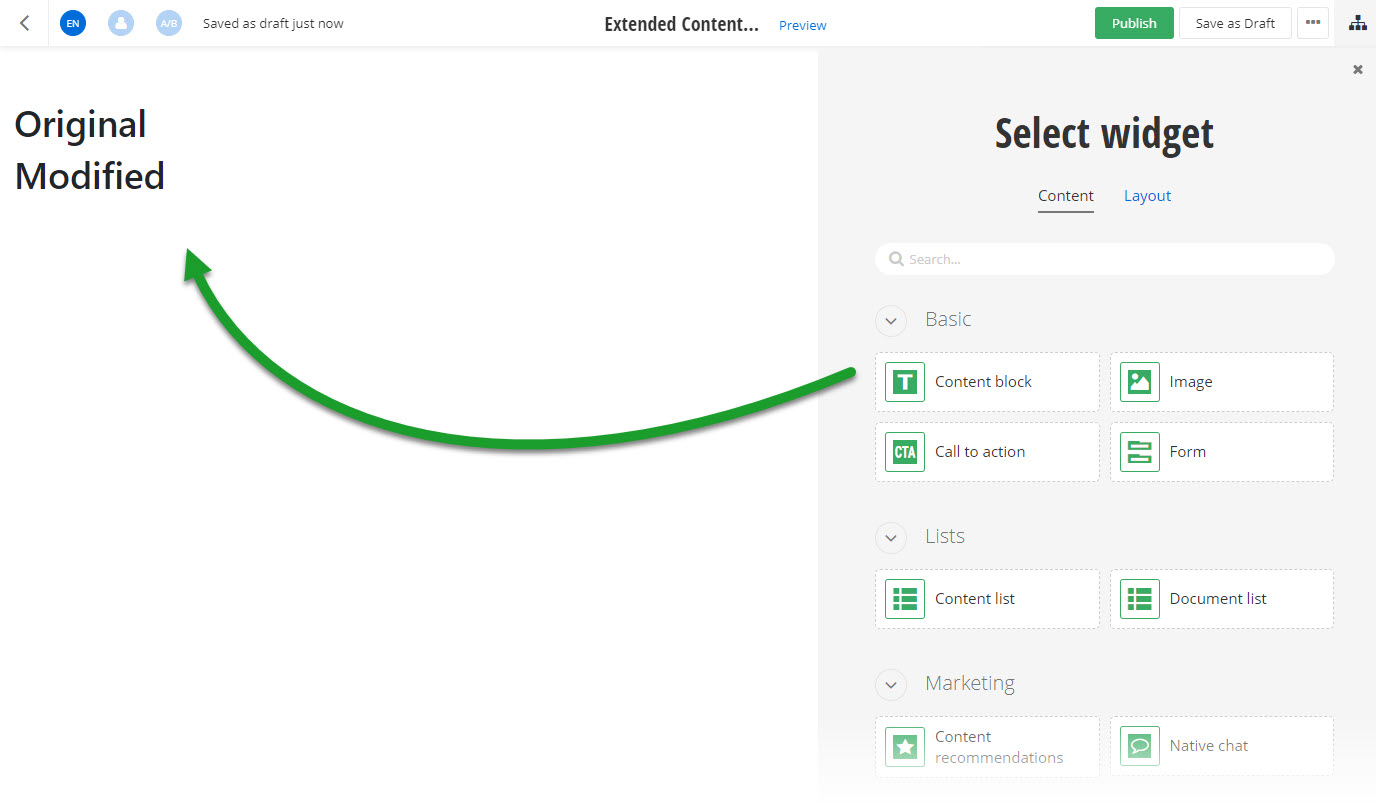
When you open your Renderer application and open the New editor, you will see the Content block widget in the widget selector. When you add the widget on your page, you can see its modified look.
Run the sample
This sample is available in Sitefinity’s GitHub repository. You can run and play with it.
To do this, perform the following:
- Go to Sitefinity’s GitHub repository Sitefinity ASP.NET Core samples.
- Expand Code and click Download ZIP.
- Extract the files on your computer.
- In the extracted folder, navigate to
sitefinity-aspnetcore-mvc-samples-master/src/extended-content-blockfolder. - Open the
extended-content-block.slnin Visual Studio. - Open the
appsettings.jsonfile. - In section
Sitefinity, change theUrlproperty to the URL of your Sitefinity CMS site.
If you have deployed Sitefinity CMS on the IIS, point tohttps://localhost:<https_port>. - In Visual Studio, in the context menu of
extended-content-blockproject, click View in Browser. - Log in to your Sitefinity CMS instance and place the widget on a page.
