
Sample: Hello World widget
Overview
The following sample creates a Hello World widget. It demonstrates how to create a ViewComponent class that is used to display a configurable message.
The sample uses the [SitefinityWidget] attribute to load the widget automatically in the Sitefinity InsertWidget dialogs.
PREREQUISITES: You must set up a Sitefinity renderer application and connect it to your Sitefinity CMS application. For more information, see Install Sitefinity in ASP.NET Core mode.
NOTE: The instructions in this sample use Visual Studio 2022 and a Sitefinity renderer project named
Renderer.
View component
For Sitefinity to be able to detect and render your functionality inside your pages, you must inherit the ViewComponent.
The InvokeAsync method is required. It is called automatically every time the page is requested.
The InvokeAsync method needs an argument of type IViewComponentContext. The argument is directly populated in the method when the page is rendered.
The generic parameter refers to the Entity of the widget. In addition to your business logic, the Entity contains all properties of the widget, which are persisted in Sitefinity.
Configurable properties
The widget has the following properties that you can use to modify the appearance and the functionality of the widget:
Title- the friendly name of the widgetCategory– the category where the widget appears in the widget selector- for example, Content or LayoutEmptyIcon- the icon that is displayed when the widget is in an empty state.
The available icon names are font-awesome icons.EmptyIconText- the text that is displayed when the widget is in an empty state.EmptyIconAction- specifies whatEmptyLinkActionis performed when the empty state of the widget is clicked.
You can choose betweenNoneandEdit.SeparateWidgetPerTemplate– specifies whether the system generates a separate widget for each view template of this widget. The separate entries will be automatically generated, based on the view name inside the Select widget dialog.
NOTE: Only the public properties from the
Modelare persisted. The public properties that you may have in theViewComponent.csfile are not persisted. This way, Sitefinity ensures separation between your business logic and rendering.
Folder structure
Under your Renderer project, you must create the following folders:
Entities/HelloWorldViewComponentsViews/Shared/Components/HelloWorld
Create the widget
In Visual Studio, open the Renderer application.
1. Create the Entity
- In the context menu of folder
Entities/HelloWorld, click Add » Class… - In Name, enter
HelloWorldEntity.csand click Add.
3.- In the class, paste the following code and save your changes:
namespace Renderer.Entities.HelloWorld
{
    /// <summary>
    /// The test model for the load tests widget.
    /// </summary>
    public class HelloWorldEntity
    {
        /// <summary>
        /// Gets or sets a value indicating whether a boolean property is true or false.
        /// </summary>
        public string Message { get; set; }
    }
}
2. Create the ViewComponent
- In the context menu of folder
ViewComponents, click Add » Class… - Select Code File.
- In Name, enter
HelloWorldViewComponent.csand click Add. - In the class, paste the following code and save your changes:
using Microsoft.AspNetCore.Mvc;
using Progress.Sitefinity.AspNetCore.ViewComponents;
using Renderer.Entities.HelloWorld;

namespace Renderer.ViewComponents
{
    /// <summary>
    /// Test widget with different kind of restrictions for its properties.
    /// </summary>
    [SitefinityWidget(Title = "Hello World", EmptyIconText = "Custom empty text", EmptyIcon = "hand-peace-o")]
    public class HelloWorldViewComponent : ViewComponent
    {
        /// <summary>
        /// Invokes the view.
        /// </summary>
        /// <param name="context"></param>
        /// <returns></returns>
        public IViewComponentResult Invoke(IViewComponentContext<HelloWorldEntity> context)
        {
            if (context == null)
            {
                throw new ArgumentNullException(nameof(context));
            }

            return this.View(context.Entity);
        }
    }
}
3. Create the View
- In the context menu of folder
Views/Shared/Components/HelloWorld, click Add » Class… - Select Code File.
- In Name, enter
Default.cshtmland click Add. - In the class, paste the following code and save your changes:
Razor
@using Renderer.Entities.HelloWorld;

@model HelloWorldEntity

<h1>@Model.Message</h1>
Build your solution.
Result
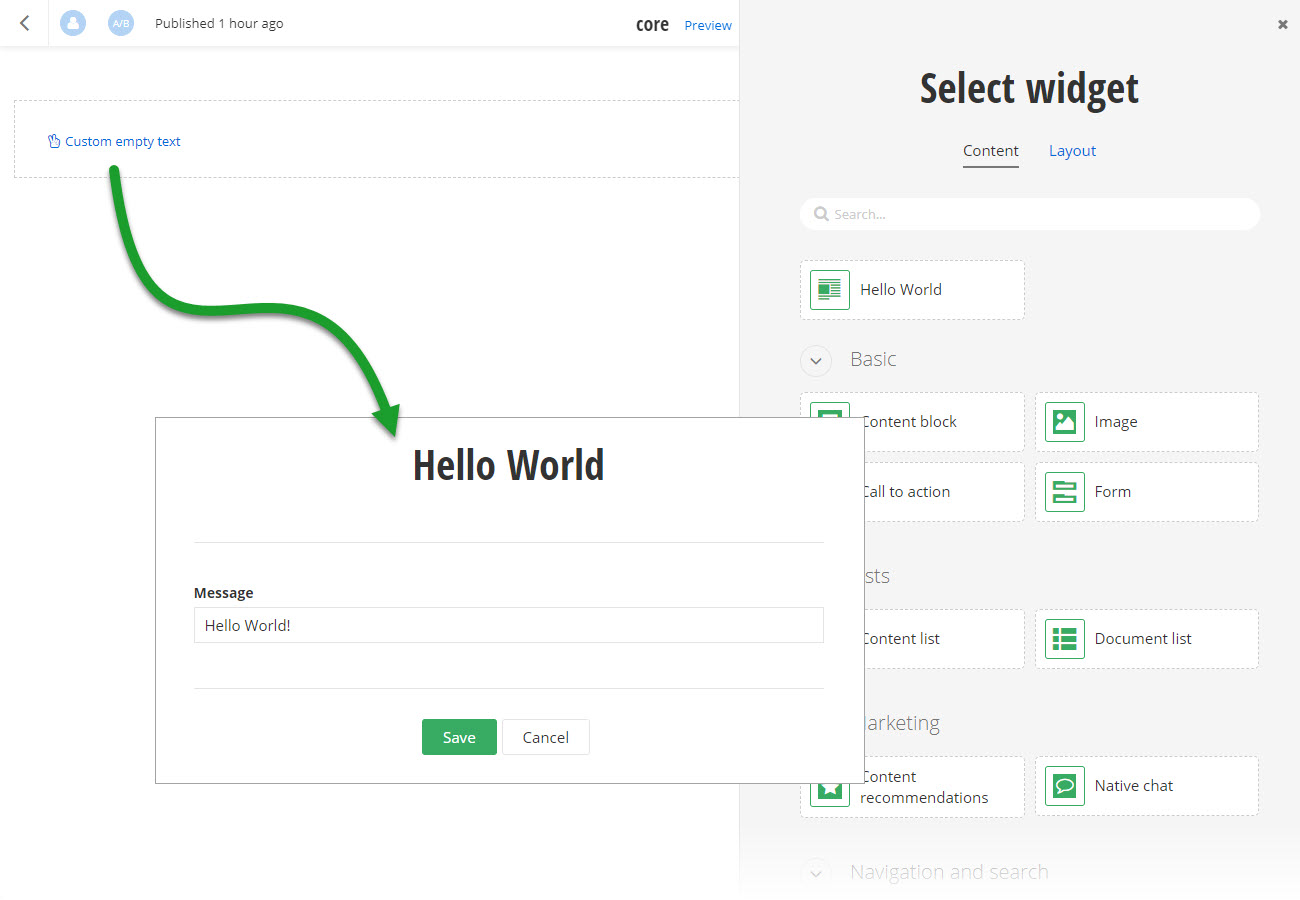
When you open your Renderer application and open the New editor, you will see the Hello World widget in the widget selector. When you add the widget on your page and click the Custom empty text link, you can enter a text string that will be displayed on the frontend.
Run the sample
This sample is available in Sitefinity’s GitHub repository. You can run and play with it.
To do this, perform the following:
- Go to Sitefinity’s GitHub repository Sitefinity ASP.NET Core samples.
- Expand Code and click Download ZIP.
- Extract the files on your computer.
- In the extracted folder, navigate to
sitefinity-aspnetcore-mvc-samples-master/src/hello-worldfolder. - Open the
hello-world.slnin Visual Studio. - Open the
appsettings.jsonfile. - In section
"Sitefinity", change the"Url"property to the URL of your Sitefinity CMS site.
If you have deployed Sitefinity CMS on the IIS, point to"https://localhost:<https_port>. - In Visual Studio, in the context menu of
hello-worldproject, click View in Browser. - Log in to your Sitefinity CMS instance and place the widget on a page.
