
Configure LDAP settings
Windows Active Directory is a directory service created by Microsoft. Active Directory uses a number of standardized protocols to provide a variety of network service, including LDAP. LDAP is Lightweight Directory Access Protocol for accessing directories over an IP network.
You configure LDAP settings in the following way:
-
In the main menu, click Administration » Settings.
The Basic Settings page appears. -
Click Advanced link.
The Settings page appears. -
Expand Security node in the left of the page.
-
Click LDAP Settings » LDAP Connections.
A list of all configured connections appears. You can edit an existing connection by clicking it or you can create a new connection by clicking Create new button. -
Configure the following properties:
Name
The name of the connection is used for distinguishing LDAP connections in Sitefinity.
LDAP Server address
Enter the name of the server where LDAP is hosted.
NOTE: In case you want to use a backup server, you can enter more than one server with its fully-qualified DNS host name separated by semicolon. For example enter,
myhost.example.com;mybackupserver.example.comLDAP Server port
Enter the LDAP server port.
The default port is 636.The domain used in addition to the user name
Enter the domain of the LDAP server.
User name used to connect to the LDAP server
Enter the username for logging to the LDAP server. You can use a regular user.
Password used to connect to the LDAP server
Enter the password for logging to the LDAP server.
Use SSL for the connection
Indicates whether the connection use SSL or not
ResultCacheExpirationTime
Enter the seconds, for which the system caches the LDAP server response results.
Maximum number of users to be returned
Enter the maximum number of users that is returned on one request to the LDAP. This number is used for internal paging of results, in order to avoid overconsumption of memory and slow retrieval of big chunks of data.
Root distinguished name used to retrieve the users
Enter the base/root distinguished name (DN) for the users.
LDAP filter used when getting the users
Enter the filter that is applied when requesting users from the LDAP. You must use the standard LDAP query syntax.
Maximum number of the returned roles
Enter the maximum number of roles that is returned on one request to the LDAP. This number is used for internal paging of results, in order to avoid overconsumption of memory and slow retrieval of big chunks of data.
Root distinguished name used to retrieve the user roles
Enter the base/root distinguished name (DN) for the roles.
LDAP filter used when getting the user roles
Enter the filter applied when requesting users from the LDAP. You must use the standard LDAP query syntax.
ConnectWithLogOnCredentials
Indicates whether to use the identity of the application pool that Sitefinity CMS is running under to authenticate towards LDAP.
NOTE: You can use this setting only if you have selected NTLM as logon authentication type.
LDAP protocol version
The default LDAP protocol version is 2. You can switch to version 3 by entering
3in the input field.LDAP authentication type
Enter the type of authentication.
The default type is Negotiate, which indicates that Microsoft Negotiate authentication is used on the connection.
-
When you are finished with the configurations, click Save changes.
-
To select which is the default LDAP connection to be used, click LDAP Settings and enter the name of the connection in DefaultLdapConnection input field and click Save changes button.
EXAMPLE: The following screenshot shows an example of an LDAP configuration:
> [](/Images/sf-images/default-source/installation-and-administration-guide/ldap_new.png)- After configuring the LDAP settings on the Settings page, perform the following:
- Click Security » Membership Providers » LdapUsers.
Select Enabled checkbox and click Save changes. - Click Security » Role Providers » LdapRoles.
Select Enabled checkbox and click Save changes.
- Click Security » Membership Providers » LdapUsers.
- Restart the application.
RECOMMENDATION: We recommend that you set the maximum query string in the requesting filtering configuration to 7200. This is useful if you are going to setup SSO with LDAP membership provider, because the default length is 2048 bytes and query strings longer than this are rejected and return HTTP error.
To do this, open theweb.configfile and under<system.webServer>node, insert the following:XML<security> <requestFiltering> <requestLimits maxQueryString="7200" /> </requestFiltering> </security>
Additional information about LDAP
LDAP is based on X.500 specification and specified in Directory service (RFC1777). It stores attribute based data and is more often used to read than to write to the directory. There are no transactions and no rollback. LDAP has a hierarchical data structure. Directory entries are in a tree-like structure called Directory Information Tree (DIT). The following screenshot displays a sample DIT:
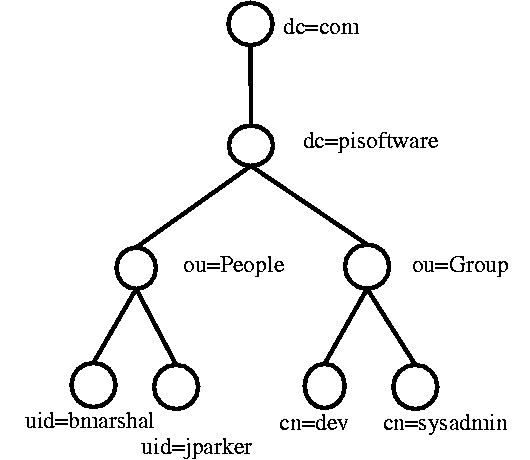
LDAP uses the following attribute abbreviations:
|
|
User ID |
|
|
Common Name |
|
|
Surname |
|
|
Location |
|
|
Organizational Unit |
|
|
Organization |
|
|
Domain Component |
|
|
State |
|
|
Country |
Search filters
The following table lists the meaning of operators used in search filters:
|
Symbol |
Meaning |
|
|
AND |
|
|
OR |
|
|
NOT |
|
|
Approximately equal |
|
>= |
Greater than or equal |
|
<= |
Less than or equal |
|
|
any |
EXAMPLE: The following are examples of search filters:
(objectclass=posixAccount)(cn=Mickey M*)(|(uid=fred)(uid=bill))(&(|(uid=jack)(uid=jill))(objectclass=posixAccount))
