
DX Assistant
Overview
PREREQUISITES:
- You must have an active Sitefinity AI subscription.
For more information, see Sitefinity AI.- This AI-powered capability is available in Sitefinity Cloud starting with version Sitefinity 15.4.8633.
DX Assistant is an AI-powered chat experience directly integrated into your Sitefinity backend. DX Assistant serves as the interaction hub for Sitefinity AI agents, enabling users to engage with AI through natural language and perform a wide range of content-related tasks and AI-driven operations beyond content editing.
What you can do with DX Assistant
You can use the AI-powered chat experience directly in your Sitefinity backend to:
- Ask general questions or search for specific information.
- Find multiple pages and content items, including items of different content types.
This applies to custom content types as well. - Work across multiple sites in a multisite setup.
You can ask for the current site context: site name, cultures (languages), default culture, timezone. If needed, you can request to switch the conversation to another site context. - Create, update, and delete content items.
For example, you can create a new item of custom content type as a draft and review it. - Perform Create, Read, Update, and Delete (CRUD) operations on content items in bulk.
User approval is explicitly requested before creating, updating, or deleting Sitefinity content. - Create and manage pages.
For example, you can update page titles and properties, or create page translations. - Perform lifecycle actions on content items and pages, such as
Publish,Schedule,Lock,Unlock. - Get AI-generated suggestions for optimizing Sitefinity content.
For example, you can request a review of specific items and actionable recommendations. - Create and manage media libraries and classifications.
- Create translations for existing content.
You can choose cultures (languages) configured for your site. - Use a specific AI agent, by explicitly mentioning it in your prompt, to handle your request.
For example, you can mention@agent-namea custom agent instructed to perform specialized compliance reviews, or translate content on your site in a non-default culture (language). - Consult the Sitefinity product documentation through AI-powered search integration. For example, you can ask questions about Sitefinity capabilities, configuration, and content management. This search offers a practical, in-context source of guidance.
- Ask for metrics and analytics, such as high-performing and low-performing content, total visits, unique visits, average engagement time.
- Ask to explore Sitefinity Insight data, such as content attribution, conversions, and persona engagement, to understand how different audience personas engage with particular content.
NOTE: Sitefinity Insight data and performance analytics capabilities are available when Sitefinity Insight is connected to your site. For more information, see Connect to Sitefinity Insight.
- Revisit previous conversations and resume working with follow-up requests in the same context.
Once you are logged in to Sitefinity CMS backend, you can start interacting with the chat assistant using natural language. Based on your instructions and the available conversation context, the AI model interprets the intent and determines the appropriate action to take. DX Assistant executes the decision by invoking the AI agent, which has the relevant system instructions and configured tools, to perform the requested task on your behalf.
The access to Sitefinity AI agents through the chat assistant is configurable. Two types of AI agents are available:
- Built-in agents: See Brand voice and style Agent and Search engine optimization Agent.
- Custom agents: See Custom AI agents.
Access DX Assistant
PREREQUISITES: Before you start using the chat assistant, ensure that:
- You are able to log in to your Sitefinity CMS backend.
Authorized access to Sitefinity CMS backend is required.- The AI agents that you need to perform tasks on your behalf are enabled, accessible in the chat assistant, and configured accordingly.
To start using DX Assistant:
-
Log in to your Sitefinity CMS backend.
-
In the navigation bar at the top, click
 (ASK AI) icon.
When you start a conversation for the first time, the New conversation screen opens. -
In the input box, enter your question or specific request with clear instructions.
EXAMPLES:
- "What are the top 10 highest performing pages from last week?"
- "How do I set up and configure an ASP.NET Core Renderer in Sitefinity 15.4?"
- "Retrieve any duplicate content items that can be removed from this site."
- "Create a draft blog post about our new integration with Salesforce."
-
Submit your prompt.
Start a new conversation
Your conversation history is stored and available via the Conversations sidebar.
To open the Conversations sidebar, click  (Browse conversations) icon.
To start a new conversation:
-
Open DX Assistant by clicking the
(ASK AI) icon.
By default, the chat assistant opens the most recent conversation, so you are able to resume the conversation and its context is preserved. You can also revisit and resume your older conversations saved in the Conversations sidebar. -
If you want to start a new conversation, click
 (Start new conversation) icon.
 -
On the New conversation screen, enter your question or specific request in the input box.
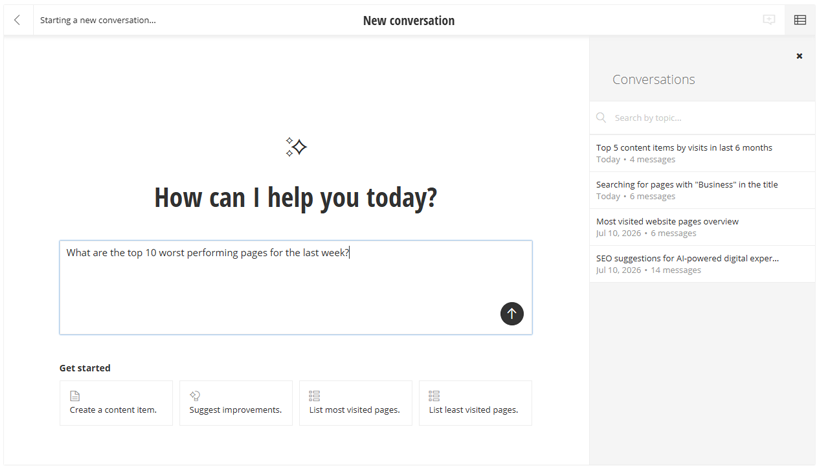
The more clearly you define the purpose of your request and the instructions you want the AI to follow, the more accurate and relevant the AI responses will be.
-
Submit your prompt.
Based on your instructions and the available conversation context, the AI model interprets the intent and determines the appropriate action to take. DX Assistant executes the decision by invoking the AI agent, which has the relevant system instructions and configured tools, to perform the requested task on your behalf.
Because the conversation context is preserved, you can naturally continue the conversation with follow-up prompts.
NOTE: DX Assistant only works with the Sitefinity sites, content, and capabilities that the authorized user is allowed to access.
Perform tasks or operations that require user approval
DX Assistant uses the Sitefinity AI agents enabled in your Sitefinity backend to generate content suggestions and perform a wide range of content operations supported by the agent's system instructions and configured MCP tools.
Sitefinity MCP Server exposes structured MCP tools, which are invoked by the AI agents to securely access and perform content/page lifecycle operations, CRUD operations on content items, and other high-impact actions involving content changes.
Users do not directly interact with MCP tools through the chat assistant, these tools are autonomously invoked when needed to execute the requested tasks (operations) on behalf of the user.
For information how to configure an AI agent to use MCP tools, see Create a custom AI agent.
During a conversation in DX Assistant, for example, a content editor can request the creation of a new content item. This is supported for standard Sitefinity content types as well as custom content types.
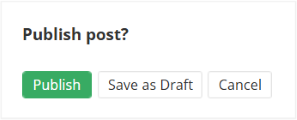
In turn, the chat assistant requests explicit user approval before a high-impact change will be applied on Sitefinity content.
The user should first review and confirm the content change presented in the AI response before it is applied.
EXAMPLE: "Create a blog post about our new integration with Salesforce."
Before creating the requested blog post, the chat assistant may ask the user to provide additional details, and finally, it will present a draft version together with an approval card like this:
Use a specific AI agent
You can explicitly mention an AI agent in your prompt when you need that specific agent to handle your request, or you want to directly interact with it through the chat assistant's interface.
Custom agents are best used for specialized tasks that match their system instructions and configured tools.
Every custom agent is configured with its own system instructions that define its main task and a set of exposed MCP tools that support this task. For more information, see Create a custom AI agent.
NOTE: You can only mention enabled AI agents that are also configured as available in the chat assistant (including the built-in AI agents).
If you want to start interacting with a specific agent during a conversation session, just type @agent-name in the beginning of your prompt. As you are typing @agent-name, the AI Agents list pops up, where you can select the desired agent.
If you do not find that particular agent in the list but it is enabled, ensure that the agent is also configured as accessible by the chat assistant.
EXAMPLE: "@compliance-agent Review all articles in the site for compliance issues, policy violations, and required disclosures."
In the AI response, you may expect to get a list of issues (if any) identified by your Compliance Agent against the agent's system instructions, and suggestions how to fix them.
Usage quota
The usage quota for DX Assistant is directly based on your Sitefinity AI tokens quota. Sitefinity AI tokens are consumed for all AI-related interactions performed in your Sitefinity backend when using one or more Sitefinity AI capabilities. The AI tokens consumption depends on the complexity of the AI-assisted task (or workflow) executed through the chat assistant's interface.
If your user account reaches certain thresholds in your AI tokens quota (for example, 90% and 100%), you will get a corresponding email notification to remind you of these thresholds.
You may not be able to continue using this capability when the AI tokens limit is reached. To increase your quota, contact Sitefinity Sales.
For more information and AI tokens consumption examples, see Sitefinity AI tokens.
Limitations
- Content discovery: Semantic search capabilities are not currently supported.
- AI-generated content suggestions: These are currently limited to text-based fields.
- Forms: DX Assistant cannot work with Sitefinity forms or form responses.