
Test error logging with ELMAH
To ensure that you have configured error logging with ELMAH successfully, perform the following:
-
Open your Sitefinity CMS project in Visual Studio.
-
In the context menu of the Solution Explorer, click to Add new » Web Form.
-
Name the new web form
ELMAH. -
To throw new application exception, open the code-behind on the web form and add the following code in the
Page_Load:C#using System; namespace SitefinityWebApp { public partial class TestException : System.Web.UI.UserControl { protected void Page_Load(object sender, EventArgs e) { throw new System.ApplicationException(); } } } -
Build the application, run it in the browser, and navigate to http://www.yoursite.com/elmah.axd.
You are prompted to log in before you see the content. After a successful authentication, you see a web page to remotely view the entire log of recorded exceptions.NOTE: Only administrators can see the page, other roles and unauthenticated users will get a 403 error.
-
To throw a new exception, navigate to http://www.yoursite.com/ELMAH.aspx.
The following error appears: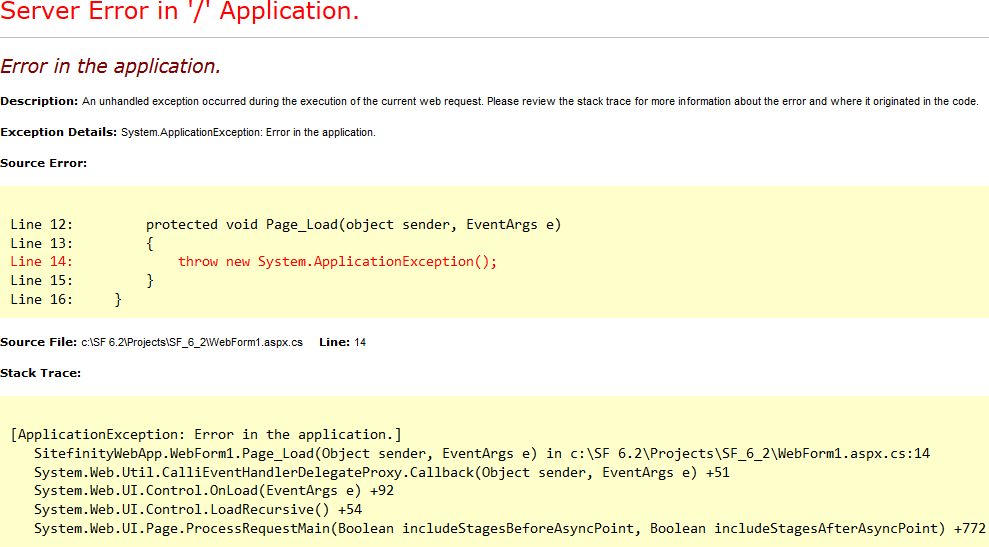
Once you get the exception, you must receive a new email in smtp4dev.
The email contains detailed information about the origin of the exception and the stack trace. -
To view the full details of a logged exception, navigate one more time to http://www.yoursite.com/elmah.axd.
The following error log appears. It has default and detailed views.Default view
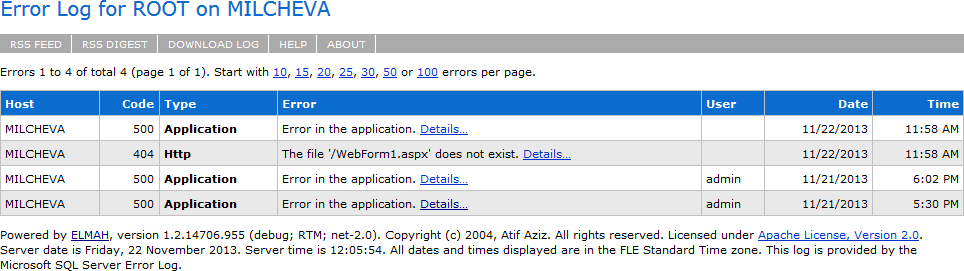
Detailed view
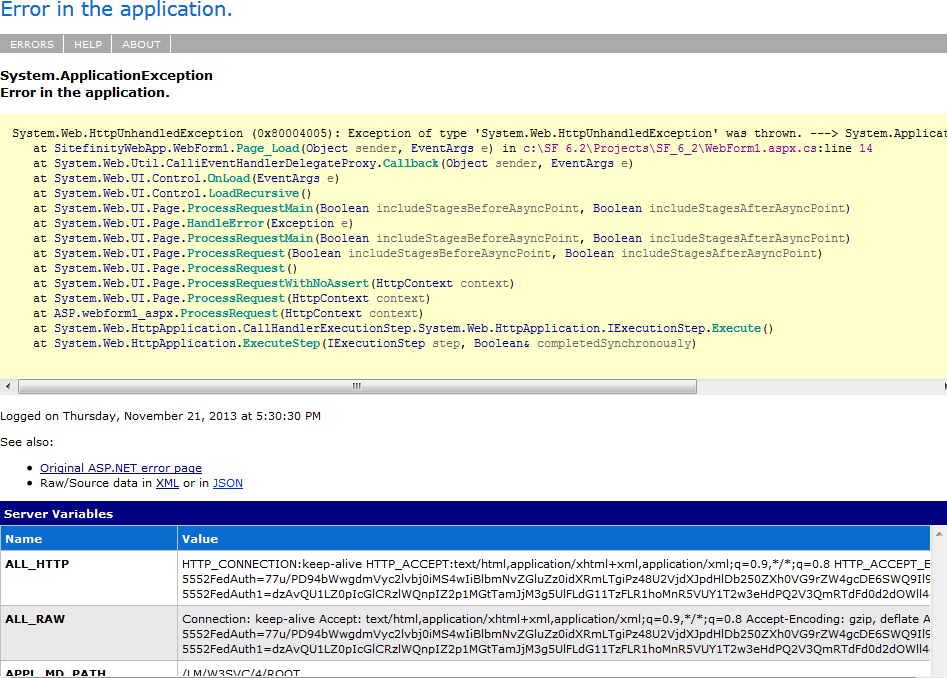
Every exception in Sitefinity CMS is tracked and logged by ELMAH.
For more information, see ELMAH - Error Logging Modules And Handlers.
