# Business process management (BPM) with Workflow Automation
One of the most important aspects of any business is **Business Process Management (BPM)**. If you've ever read the **E-Myth**, you'll know the importance of systemizing, and getting staff to adhere to your processes. What this usually entails is a structured process, defining the tasks and dependencies in that process.
## Automation is the key
Here are some key steps to help you establish an automated **Business Process Management** system in Podio, using **Workflow Automation** for Podio to streamline your automation tasks.
A **Business Processes** can be simple:

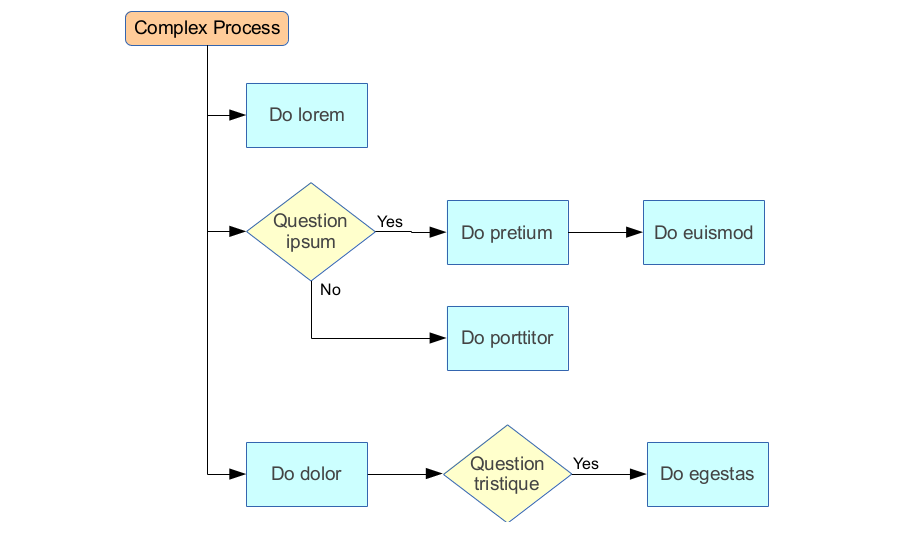
Or more complex, with decision points:
## See it in Action
What you basically want to have happen, is that tasks are created as needed in each process, and as required by previous steps. This will ensure that no steps are missed, and the process is adhered to correctly.
## App Requirements
***Note**: The following setup is based on the absolute minimum requirements to get Business Process automation to work. You can add as many additional fields to each 'App' in Podio as you require for your specific business and processes*.
1. The first app we'll need is a **Task Definitions App**, which will define each step in a process.
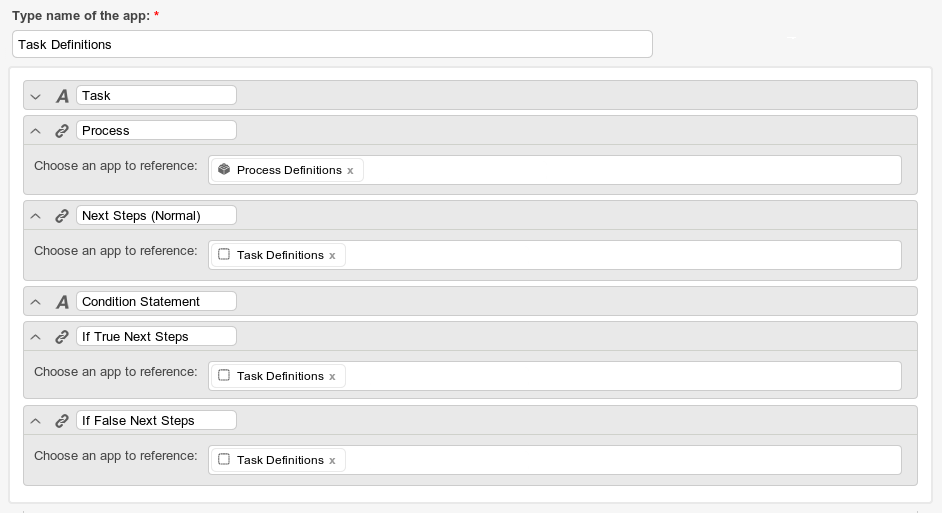
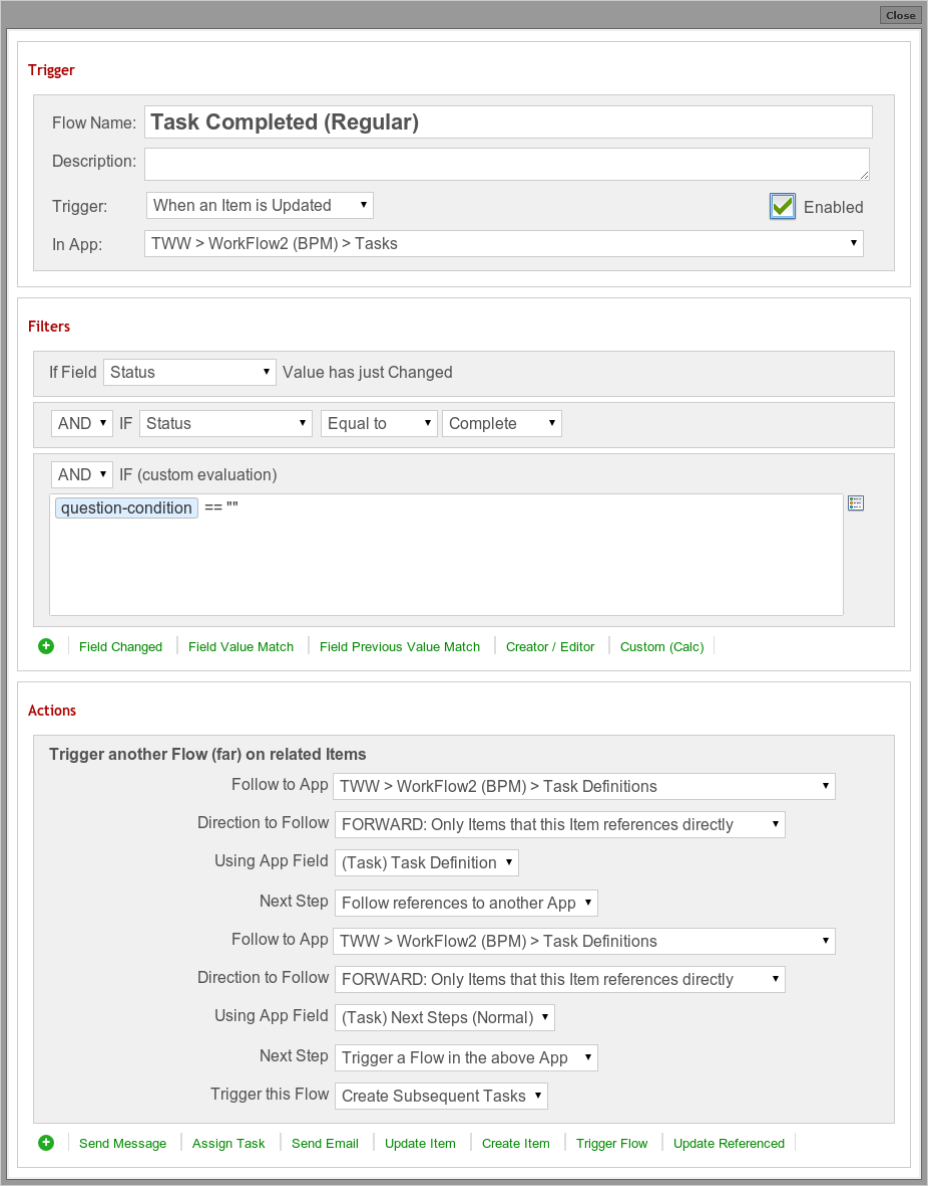
Regular tasks will wait to be completed, and when the user marks the task as completed, will spawn new tasks as defined in the Next Steps field. However, if a task is a decision point, then the user will also have to evaluate the Question / Condition field, and select True or False in order to continue the process.
2. The next app we'll need is a **Processes App** which will define each business process and which steps to initiate when the process is run.
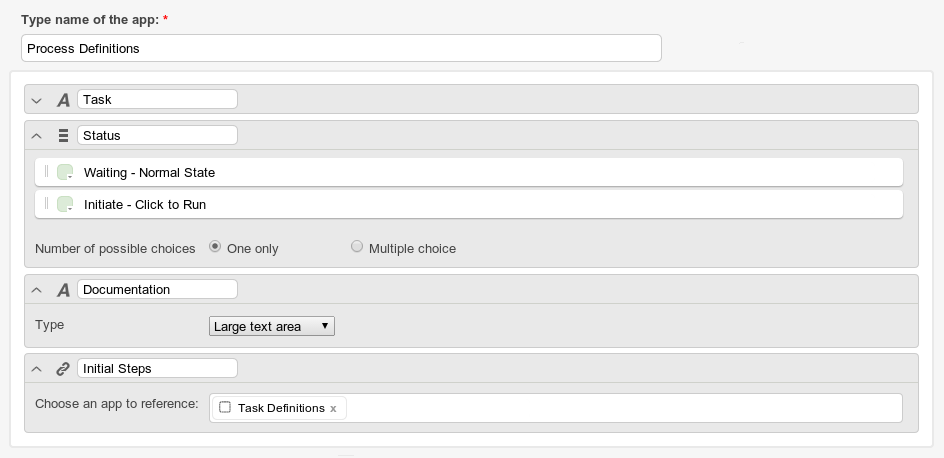
In this case, we're using the **Status** field as an action button.
***Note**: When creating any process, make sure that the Status is set to Waiting - Normal State*.
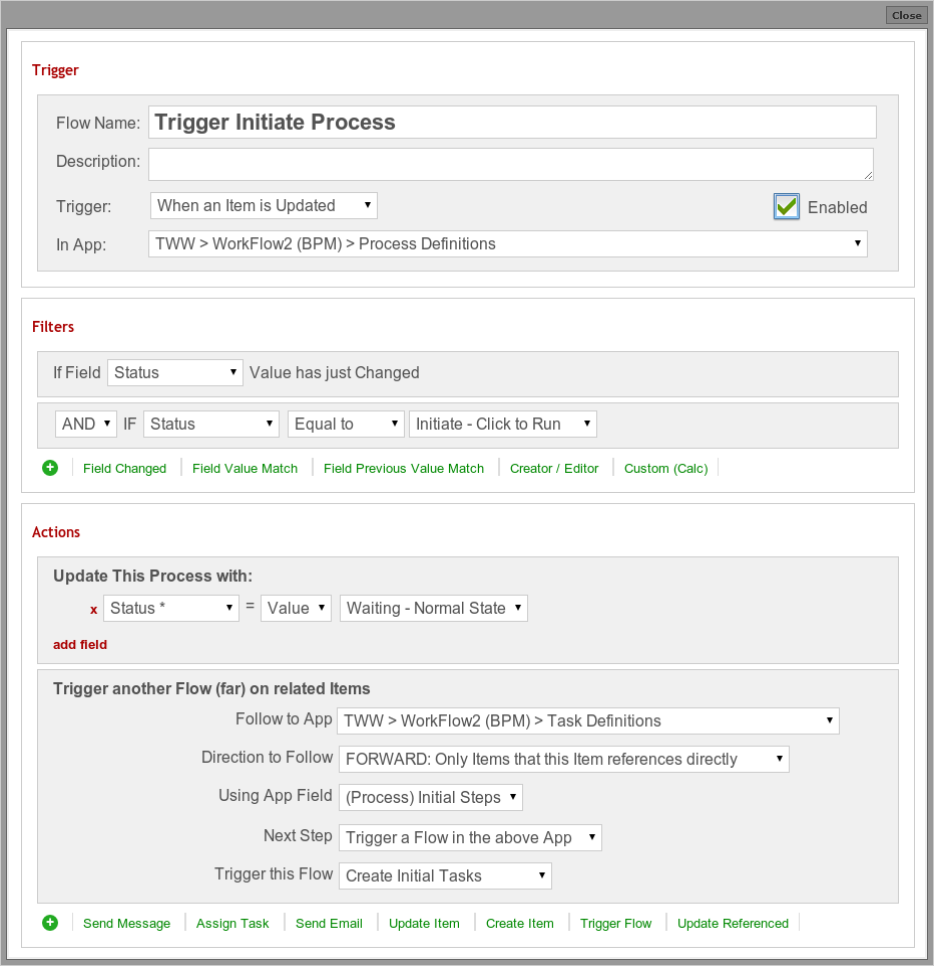
When a user clicks on **Initiate - Click to Run**, the **Status** will automatically be set back to **Waiting - Normal State**, and the process will be initiated, by creating the initial step tasks.
3. The last app we'll need is a **Tasks App** that employees will use to delegate tasks and manage their workload.
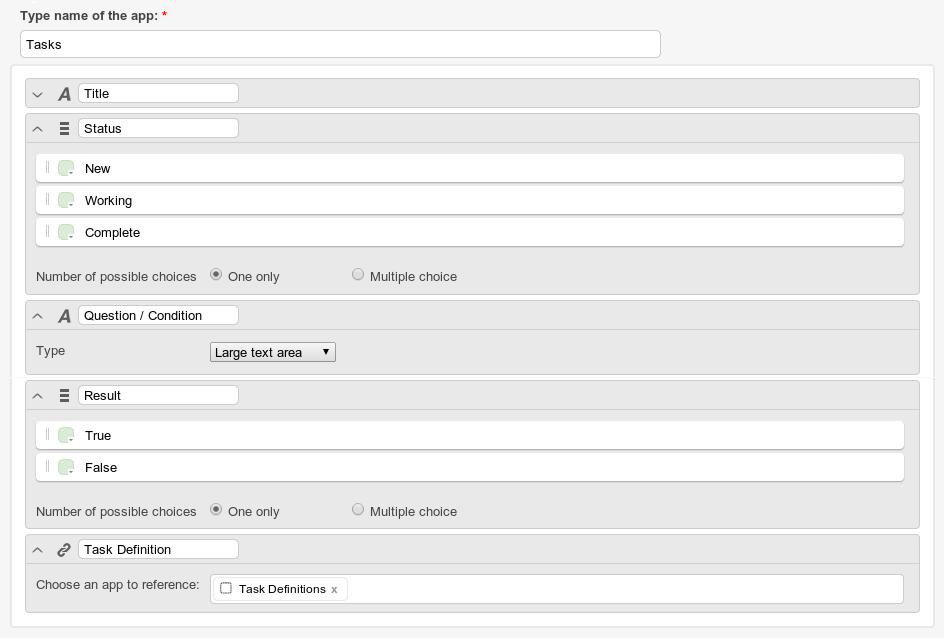
Although users can create tasks directly in the **Tasks App**, most of the tasks will be generated automatically by **Processes** using rules from the **Task Definitions App**.
## Process Definitions
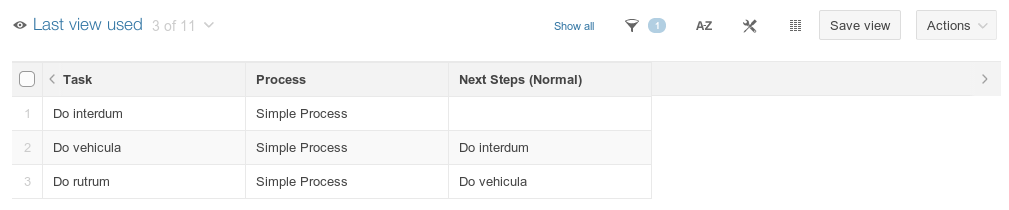
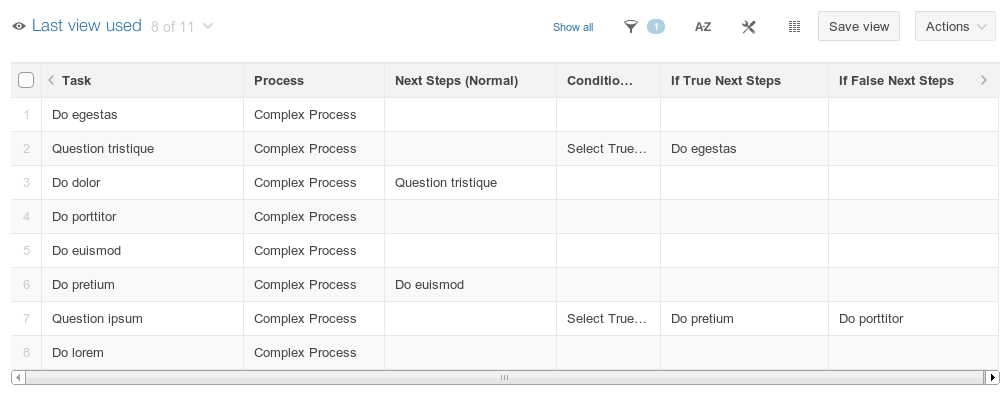
Now, if we take the above flowcharts of our 2 sample processes, we'll need to:
1. Set up the data in the **Process Definitions App** as follows:

2. And configure the **Simple Process** as:
3. And the **Complex Process** as:
## See it in Action (again)
Learn how the **conditional statements**, **follow-on steps**, and **conditional follow-on steps** all match the flowcharts.
## Workflow Automation
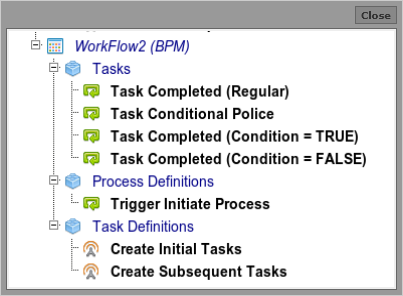
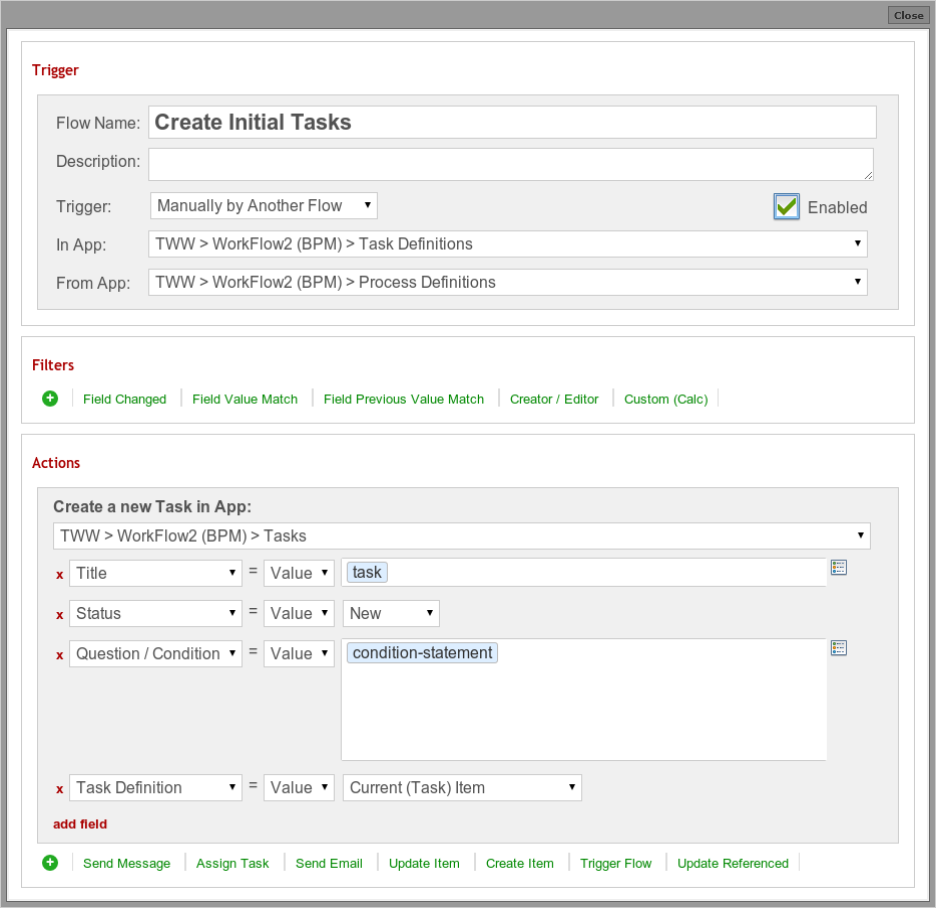
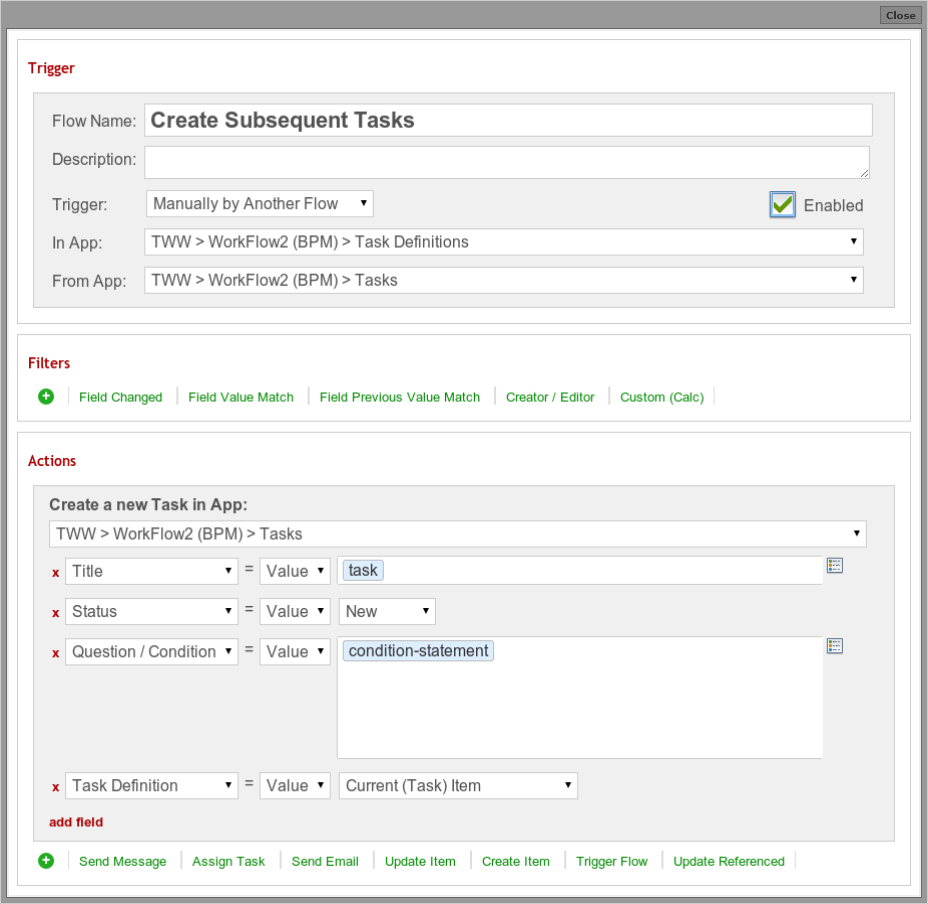
And, as always, here are the **Workflow Automation** recipes to achieve this automation:
1. **Overview**
2. **Create Initial Tasks (flow)**
3. **Create Subsequent Tasks (flow)**
4. **Trigger Initiate Process**
5. **Task Completed (Regular)**
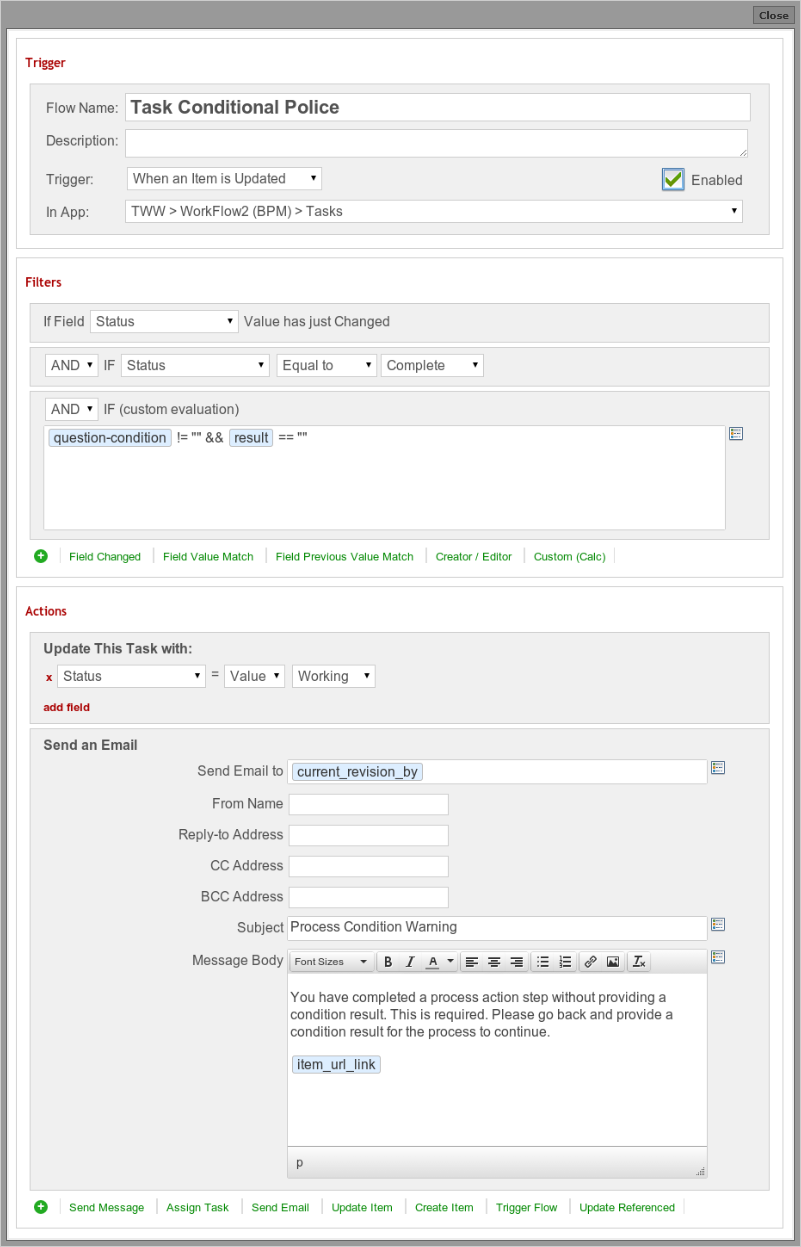
6. **Task Completed Conditional Police**
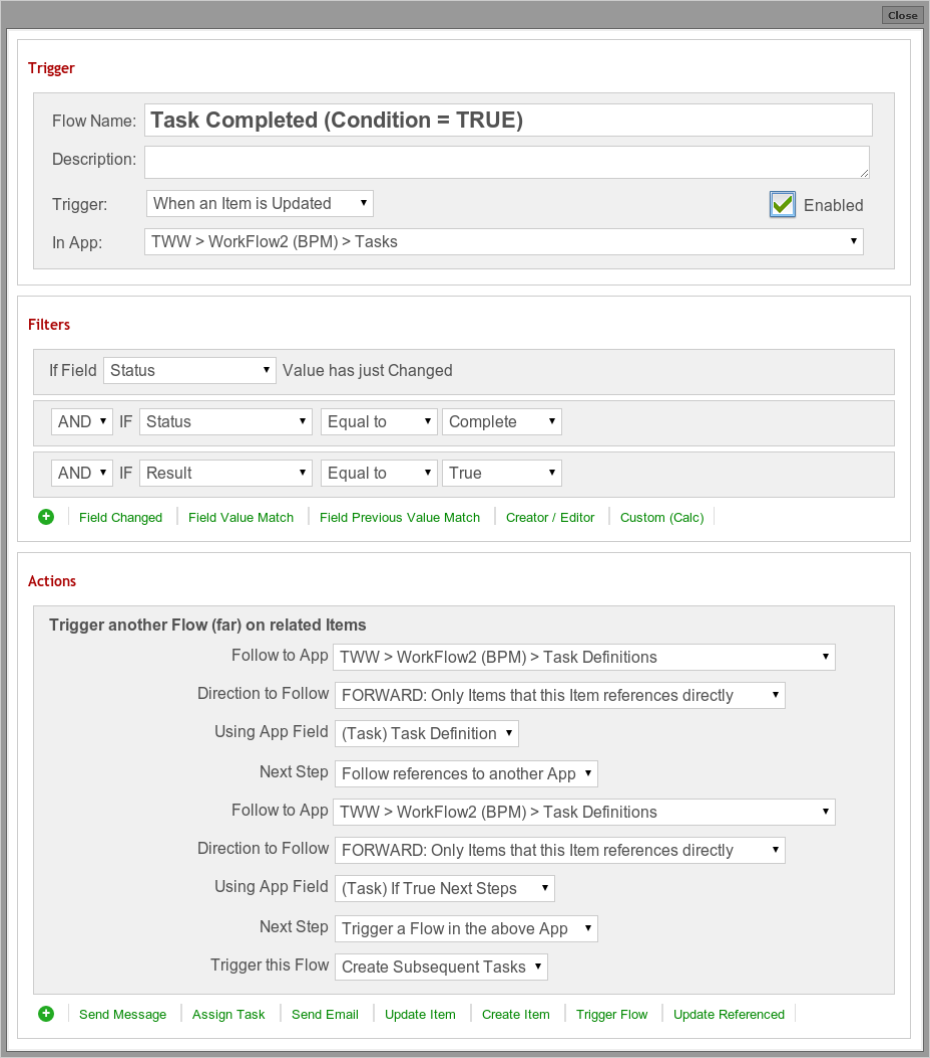
7. **Task Completed (Conditional) If TRUE**
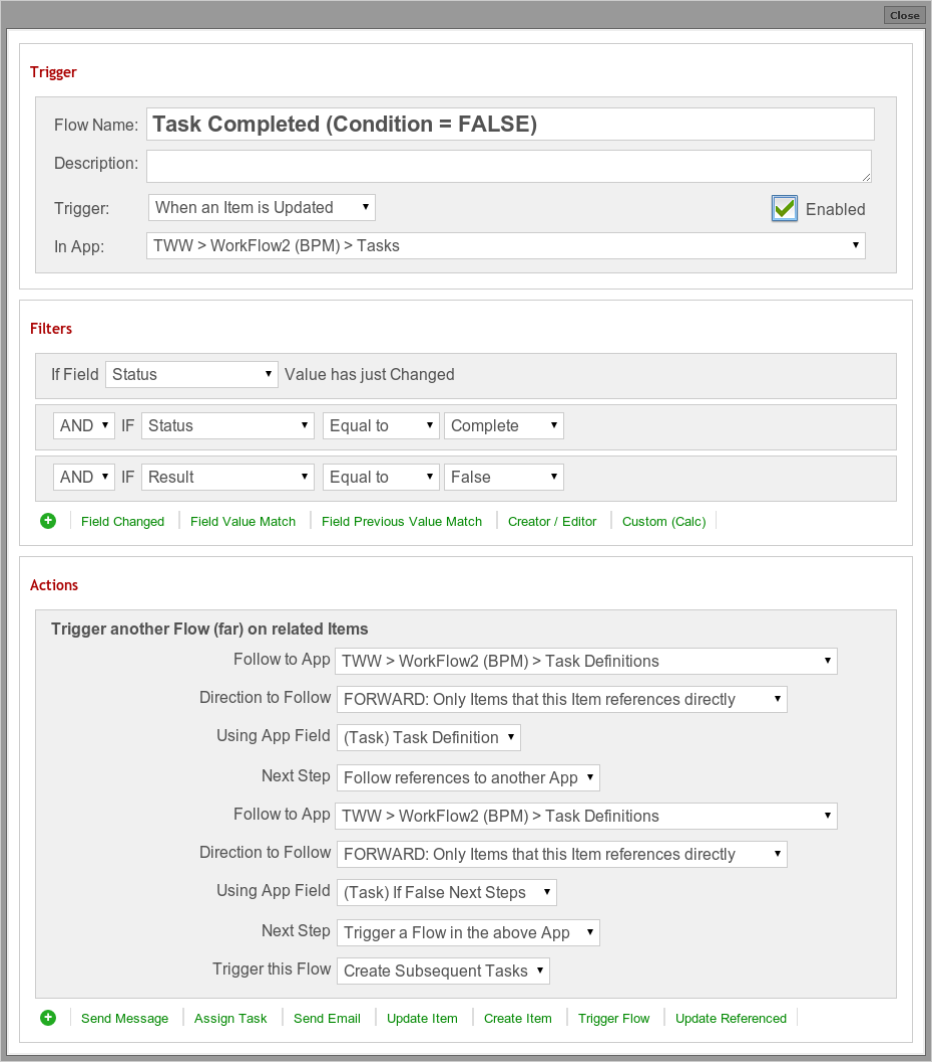
8. **Task Completed (Conditional) If FALSE**