# Configure MOVEit storage provider
## Overview
Progress® MOVEit® managed file transfer application is an implementation of a blob storage provider. You can easily configure Sitefinity CMS so that whenever you use forms to upload documents containing sensitive data, these files are transferred and stored in [MOVEit](https://www.progress.com/moveit).
To enable the integration with MOVEit as a blob storage provider, perform the following:
## Create MOVEit storage provider
1. Download `Progress.Sitefinity.MOVEit` NuGet package from [Nuget.org](https://www.nuget.org/).\
It is distributed as an optional package, which implements the integration.
2. Install the package in your Sitefinity project.
3. In Sitefinity CMS backend, navigate to *Administration* » *Settings*.\
The *Basic Settings* page opens.
4. Click *Storage providers*.
5. To create a new storage provider, click *Add storage provider*.\
The *Add a provider* dialog box opens.
6. In *Provider name* field, enter a name for the new provider. For example, enter `MOVEit`.
7. In *Provider type* dropdown box, select *MOVEit*.
8. Click *Continue*.\
A dialog box with the required settings opens.
9. To ensure the secure file transfer and storage in MOVEit, configure the following parameters:
* In *Base URL*, enter ``.
* In Username, enter ``.
* In *Password*, enter ``.
* In *Root folder path*, enter ``.
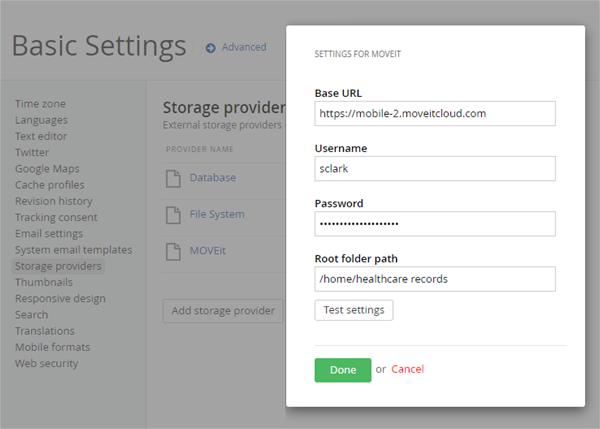
10. To test if your settings are valid, click *Test settings*.\
A test status message appears.
11. Click *Done*.
> success **RESULT**: The MOVEit storage provider is added to the list of providers in your Sitefinity CMS website.
## Edit the settings of MOVEit storage provider
If you need to edit the existing settings for MOVEit provider, perform the following:
1. In Sitefinity CMS backend, navigate to *Administration* » *Settings* » *Advanced*.
2. In the navigation pane on the left, expand *Libraries* » *Blob storage* » *Blob storage providers* » *MOVEit*.
3. Expand *Parameters* and select any of the parameters that needs editing.
4. Optionally, you can update the settings for the MOVEit blob storage type. Navigate to *Libraries* » *Blob storage* » *Blob storage type* » *MOVEit* and apply your changes.
5. Click *Save changes*.
## Configure forms to store files in MOVEit
After you have configured MOVEit storage provider, you need to configure forms to have the associated library items transferred in MOVEit.\
File uploads are stored in a dedicated library (per form) on the *User files* page. You can change the library blob storage at any time, which in turn triggers a task for moving the files to the new storage.\
To configure a form to transfer and store file uploads directly in MOVEit, perform the following:
1. In Sitefinity CMS backend, navigate to *Administration* » *User files* » *System*.
2. Locate the library of the form, expand its *Actions* menu, and click *Move to another storage*.
3. In *Select a storage where this library is to be moved* dropdown box, select *MOVEit*.
4. Click *Move library*.
## Customize the file path
To have control over the folder structure of the uploaded files in MOVEit, you can customize the file path - through extending `FormResponseFilePathStrategy`.\
For more information, see [Extend FormResponseFilePathStrategy for MOVEit](https://www.progress.com/documentation/sitefinity-cms/extend-formresponsefilepathstrategy).
## Limitations
The MOVEit storage provider is designed to handle uploading a file and generating a link to that file in MOVEit, and is limited to the integration scenario described above.